

Step 1: Create WhatsApp Template in Twilio
Before using WhatsApp templates inside HelloSend, you must first create and get the template approved in your Twilio WhatsApp Business account.
Log in to Twilio Console
Open your Twilio account and log in to the Twilio Console using your Twilio credentials. The Twilio Console is used to manage your WhatsApp Business API account, templates, messaging services, and communication settings.
Open Content Template Builder
From the Twilio Console navigation menu, go to:
- Messaging → Content Template Builder
This section allows you to create and manage WhatsApp Business templates.
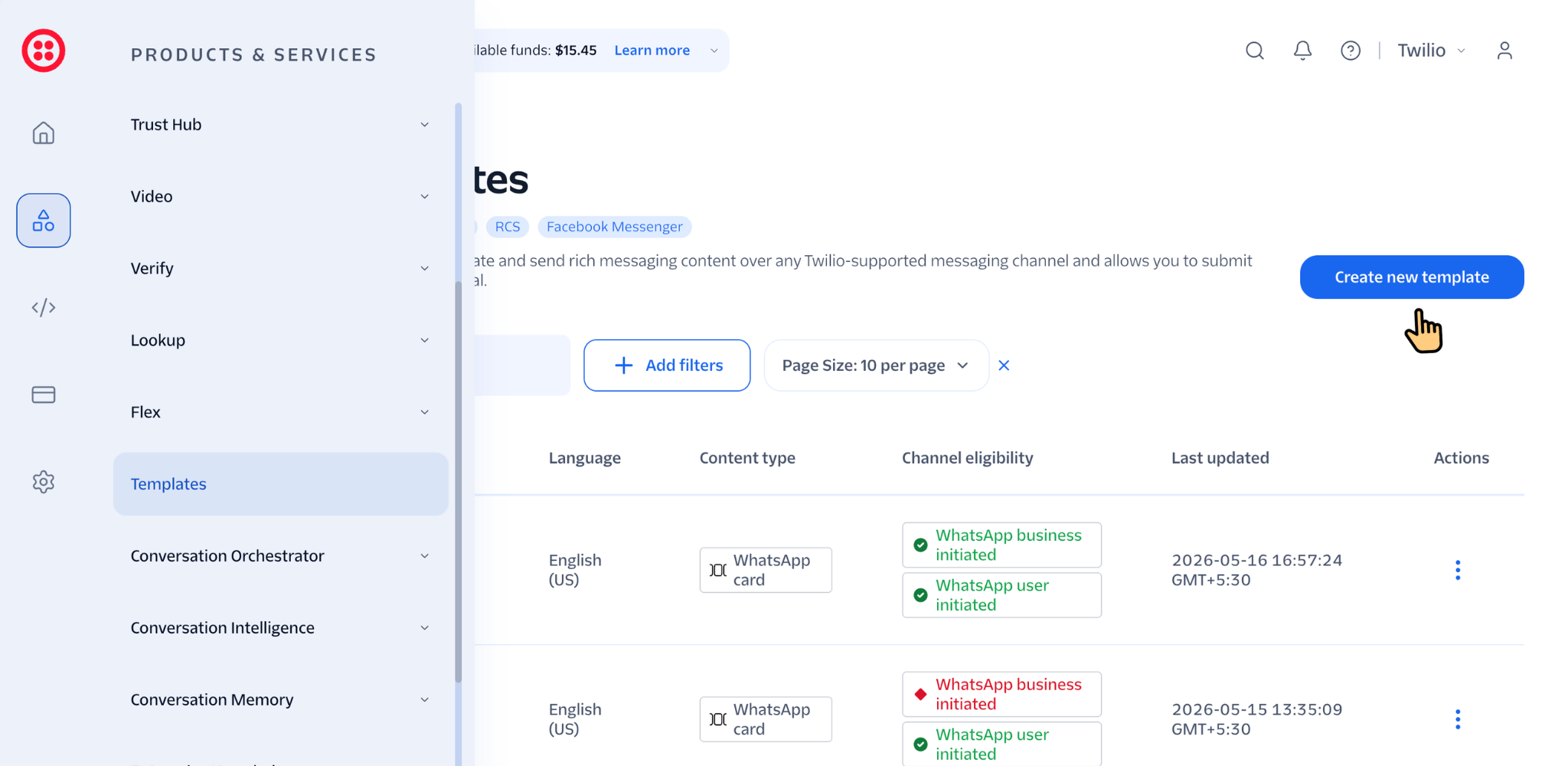
Create New Template
Click Create New Template to open the WhatsApp template creation page.
Choose Template Category
Select the appropriate WhatsApp template category based on your communication purpose.
Common categories include:
- Marketing
- Utility
- Authentication
Choosing the correct category helps WhatsApp review and approve the template properly.
Add Template Details
Enter the required template details including:
- Template Name
- Language
- Message Content
- Dynamic Variables
Example:
Hello {{1}}, your appointment is confirmed for {{2}}.
Dynamic variables help personalize customer communication with names, dates, order details, and other customer-specific information.
Add Media or Buttons (Optional)
Depending on your template requirements, you can also add:
- Images
- Videos
- Documents
- Call-to-action buttons
- Quick reply buttons
These features help create more interactive and engaging customer conversations.

Review Template Details
Carefully review the template details before submission. Check the category, language, content, variables, spelling, grammar, and button configuration to avoid template rejection.
Submit Template for Approval
Click Submit for Approval to send the WhatsApp template for review through Twilio and WhatsApp.
The template will be reviewed according to WhatsApp Business policies.
Wait for Approval
Once the template status becomes Approved, it will automatically become available for use inside HelloSend.

Step 2: Add Twilio WhatsApp Template in HelloSend
After the WhatsApp template is approved in Twilio, you can add and use it inside HelloSend.
Open Template Settings
Go to:
- Settings → Templates → Add Template
This section allows you to manage WhatsApp templates inside HelloSend.
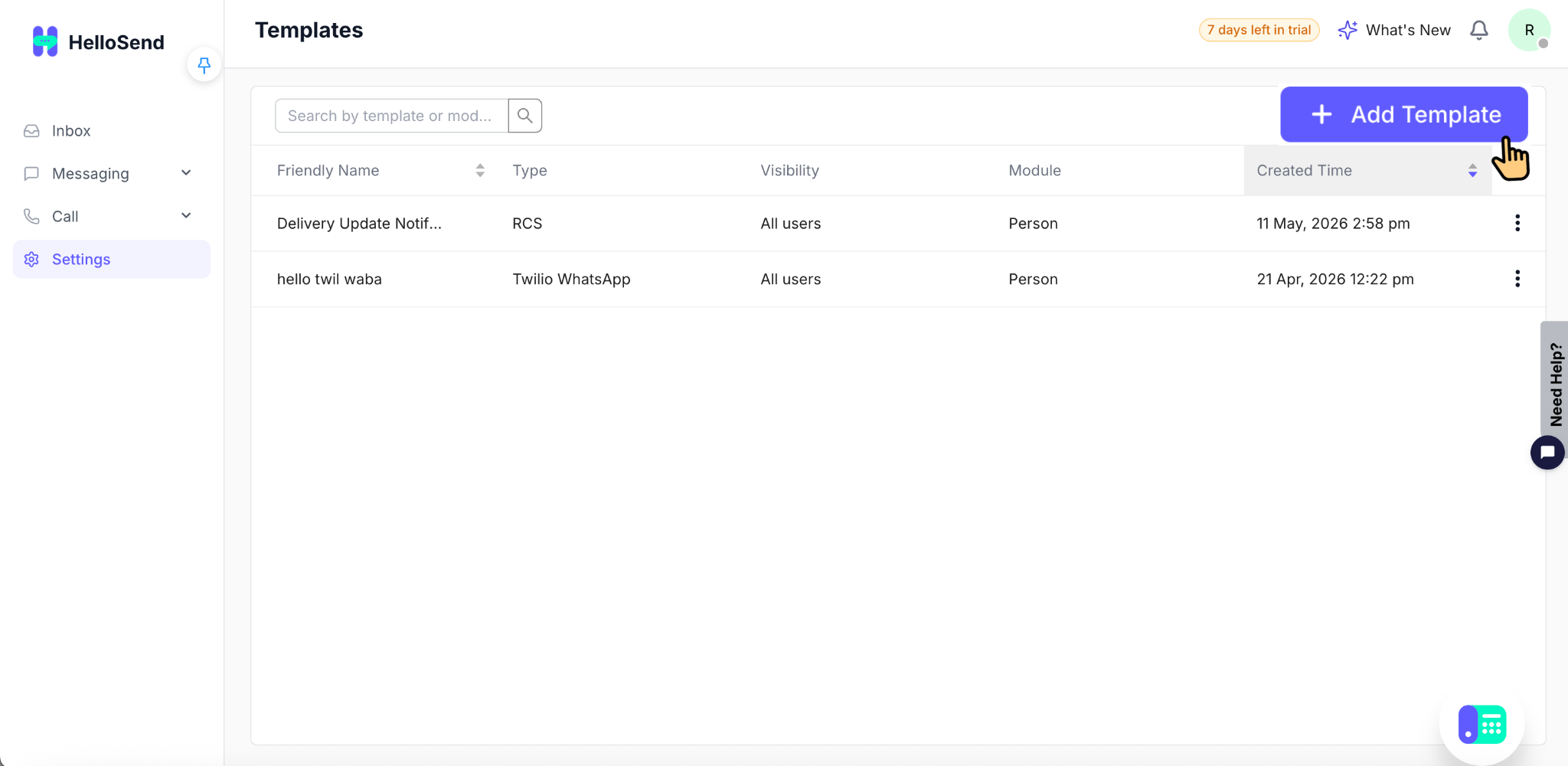
Select Template Type
Under Type, choose:
- Twilio WhatsApp
Selecting this option connects the template with your authorized Twilio WhatsApp Business API account.
Select Approved WhatsApp Template
HelloSend will automatically fetch and display all approved WhatsApp templates from your connected Twilio account.
Select the template you want to use.
Add Friendly Name
Enter a Friendly Name for internal reference.
Example:
- Appointment Reminder
- Welcome Message
- Payment Follow-up
- Customer Support Reply
Friendly names help teams quickly identify templates while sending messages.
Choose CRM Module
Select the required CRM module where the template will be used.
Common CRM modules include:
- Leads
- Contacts
- Deals
This helps organize customer communication workflows properly.
Review Template Configuration
Review all template details carefully to ensure the correct template, friendly name, and CRM module are selected.
Create Template
Click Add to create the Twilio WhatsApp template inside HelloSend.
Once added successfully, the template will be available for customer communication directly from the Inbox.
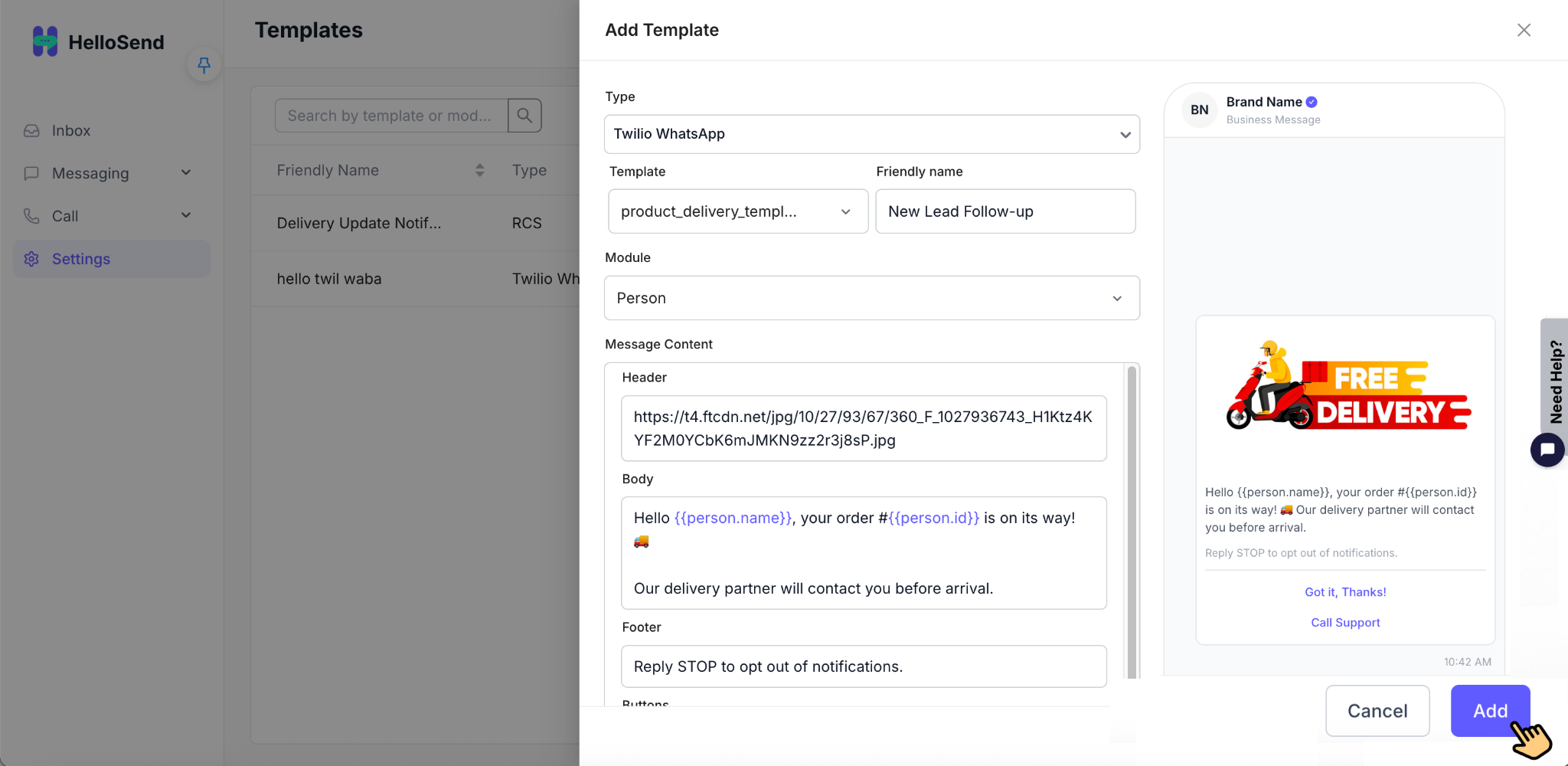
Step 3: Send WhatsApp Template Messages
After configuring the template, you can start sending WhatsApp messages from HelloSend Inbox.
Open Inbox
Go to the Inbox section inside HelloSend.
Open or Start a Conversation
Open an existing customer conversation or start a new chat.
Select Twilio WhatsApp Number
Choose the connected Twilio WhatsApp Business number you want to use for sending the message.
Select Approved WhatsApp Template
Choose the approved WhatsApp template for the first outbound message.
WhatsApp Business API requires approved templates when initiating conversations outside the 24-hour messaging window.
Send WhatsApp Message
Click send to deliver the WhatsApp message to the customer directly through your Twilio WhatsApp Business account.
Continue Conversation Within 24-Hour Window
Once the customer replies, a 24-hour moving conversation window opens. During this period, you can continue sending regular WhatsApp messages without using additional templates.
Benefits of Twilio WhatsApp Templates in HelloSend
Professional Business Communication
Use officially approved WhatsApp Business templates for trusted and professional customer communication.
Faster Customer Engagement
Quickly send appointment reminders, order updates, payment notifications, support replies, and follow-up messages.
Centralized Messaging Workflow
Manage all WhatsApp communication directly from the HelloSend shared Inbox.
Personalized Customer Communication
Use dynamic variables to personalize messages with customer names, dates, order details, and more.
Better Team Collaboration
Allow multiple team members to manage customer conversations from a centralized communication platform.
Improved Customer Experience
Deliver faster, more organized, and professional communication experiences for customers.
CRM Workflow Integration
Connect WhatsApp messaging with CRM workflows for better communication tracking and customer management.


.webp)


.webp)
