With HelloSend, extend the power of Zoom Phone by sending and receiving SMS messages using your existing Zoom number. Enhance communication, automate workflows, and unify team conversations — all from a secure, compliant platform.
Adding the App to Zoom
Step-by-Step Installation Guide
-
1
Visit the Zoom App Marketplace
Go to marketplace.zoom.us and search for "HelloSend – SMS for Zoom Phone."
-
2
Click "Install"
Hit the Install button and authorize the required permissions to connect HelloSend to your Zoom account.
-
3
Redirect to HelloSend
You'll be redirected to the HelloSend page.
-
4
Access Settings > Channels
On the left-hand navigation menu, click Settings, then choose Channels.
-
5
Select SMS > Zoom
In the SMS section, click the Zoom tile.
-
6
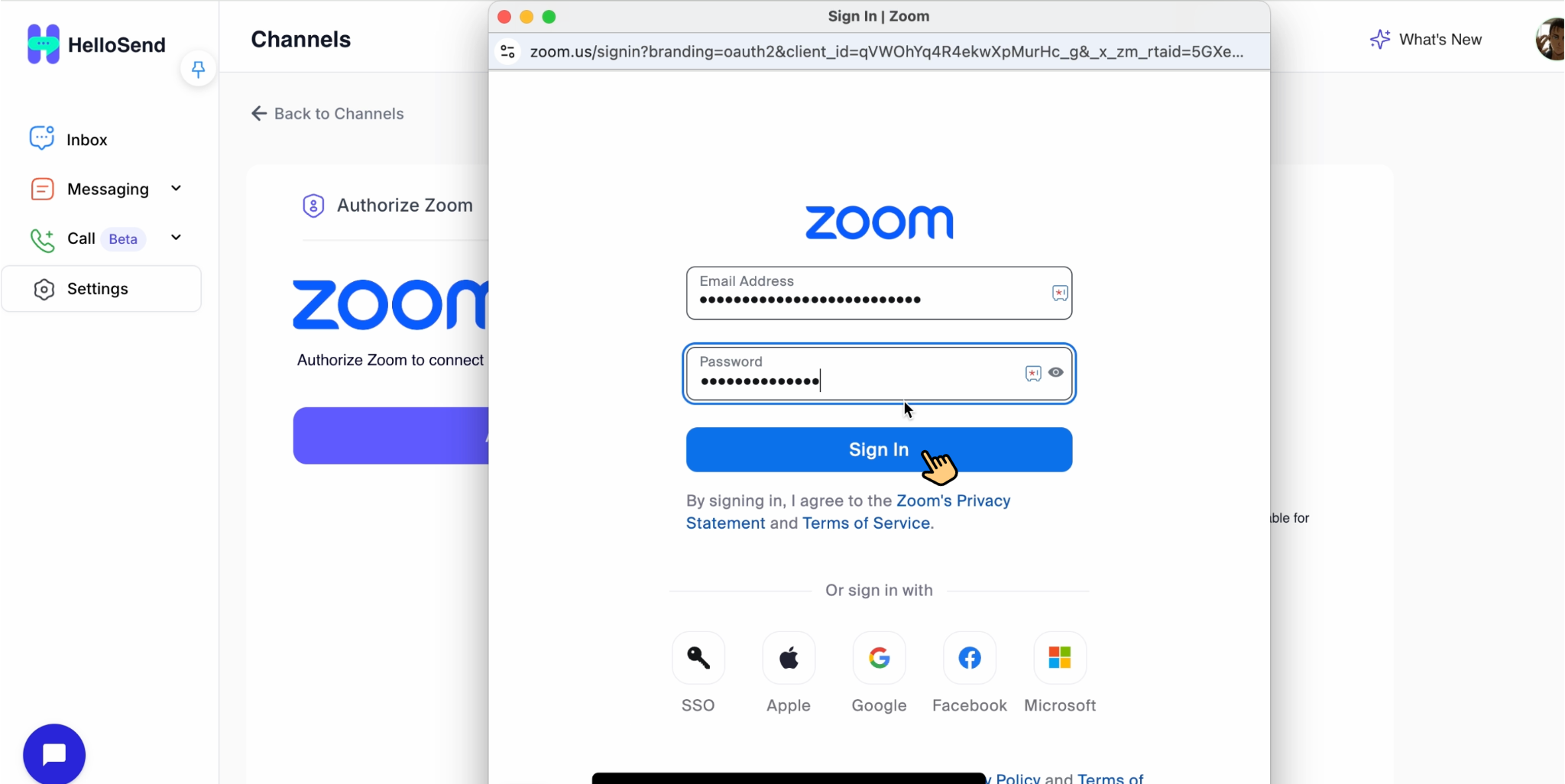
Authorize Zoom Account
Click Authorize (or Revoke & Authorize if previously connected). You'll see a list of your available Zoom Phone numbers.
-
7
Enable SMS on Your Number
On the right, toggle your preferred number ON to activate SMS messaging via HelloSend.
⚠️ Troubleshooting Tip: If no numbers are visible, ensure that SMS capabilities are enabled for your Zoom Phone account. Refer to your Zoom admin or our troubleshooting guide for detailed steps.
Usage: Feature Descriptions & Prerequisites
Send SMS Messages
Use Case: Send real-time, one-to-one SMS messages to leads or customers using your Zoom Phone number — ideal for sales follow-ups, appointment reminders, or quick support updates.
Prerequisites:
- Zoom Phone license
- SMS enabled on your Zoom Phone number
- Authorized HelloSend account linked with Zoom
Use Pre-approved Message Templates
Use Case: Create reusable templates for frequently used responses (e.g., appointment confirmations, support replies). Saves time, ensures message consistency, and improves team efficiency.
Prerequisites:
- HelloSend user role with permission to create/edit templates
- Zoom Phone number linked to HelloSend
Manage Conversations in a Shared Inbox
Use Case: Allow teams to manage inbound and outbound messages collaboratively using a single Zoom number. Perfect for support teams, call centers, or shared sales inboxes.
Prerequisites:
- Shared Zoom Phone number configured in HelloSend
- Team members assigned to the same number
- Zoom Phone SMS enabled
CRM Sync
Use Case: Automatically sync SMS communication with CRM platforms (Zoho CRM, HubSpot, Pipedrive) for better lead tracking, follow-ups, and communication visibility across your sales/support team.
Prerequisites:
- Active CRM account (Zoho CRM, HubSpot, or Pipedrive)
- CRM integration enabled in HelloSend
- Contact numbers mapped in the CRM system
Removing the App
If you decide to remove HelloSend from your Zoom account, follow the steps below:
How to Remove the App
-
1
Go to the Zoom App Marketplace – Installed Apps.
-
2
Click Manage > Added Apps.
-
3
Locate HelloSend – SMS for Zoom Phone.
-
4
Click Remove to deauthorize the app from your Zoom account.
What Happens After De-Authorization
- • HelloSend will no longer have access to your Zoom account.
- • SMS messaging and CRM sync via Zoom Phone will stop immediately.
- • No new messages will be sent or received via your Zoom number.
- • Past message history remains visible in HelloSend unless you request deletion.
Data Deletion Policy
- • Email support@hellosend.com with the subject: "Data Deletion Request – Zoom."
- • All data associated with your Zoom account will be permanently deleted within 7 business days.
- • If no request is made, your data will be automatically deleted within 30 days of de-authorization.
Troubleshooting Guide
Issue: Zoom numbers not appearing
Solution: Ensure your Zoom number supports SMS and is licensed. Reauthorize if needed.
Issue: Messages not sending
Solution: Check for any country restrictions, especially for U.S. numbers. Only certain regions support WhatsApp or SMS messaging via Zoom numbers.
Issue: Can't log in after authorization
Solution: Clear browser cache and try again, or contact support for help.
Need more help? Full troubleshooting documentation is available at: 👉 HelloSend Zoom Troubleshooting Guide
Frequently Asked Questions
Q: Does HelloSend support MMS via Zoom Phone?
A: Currently, only SMS is supported.
Q: Can I use HelloSend with multiple Zoom numbers?
A: Yes. You can enable SMS for multiple Zoom Phone numbers from your HelloSend dashboard.
Q: Do I need a Zoom Phone license?
A: Yes. SMS functionality requires a Zoom Phone license with SMS support.
Q: How secure is HelloSend?
A: HelloSend is ISO 27001 and SOC 2 certified. All data is encrypted in transit and at rest.
Contact Support
We're here to help you succeed with HelloSend.
Support Hours
Mon–Fri, 9 AM – 6 PM IST
Help Center
hellosend.com/helpLive Chat
Via HelloSend dashboard
First Response SLA: Within 24 business hours
Conclusion
HelloSend makes it easy to extend the power of your Zoom Phone by enabling SMS messaging — perfect for customer support, sales outreach, or internal coordination. With team collaboration, delivery tracking, and CRM integration built-in, HelloSend helps you manage SMS at scale while keeping conversations clear, organized, and accessible from anywhere.
Start messaging smarter today!