Connect HelloSend with Zoho Bigin
Step 1: Find HelloSend in the Zoho Bigin Marketplace
To begin the integration setup, open the Zoho Bigin Marketplace and follow these steps:
- Use the Marketplace search option to search for HelloSend .
- Locate the HelloSend extension banner in the search results. The banner provides basic information about the HelloSend integration.
- Click Visit Website on the HelloSend extension banner.
- You will be redirected to the HelloSend–Zoho Bigin Get Started page, where you can continue connecting your Zoho Bigin account with HelloSend.
Once the Get Started page opens, you can proceed with the next steps to select Zoho Bigin and authorize your account.
Step 2: Get Started with HelloSend
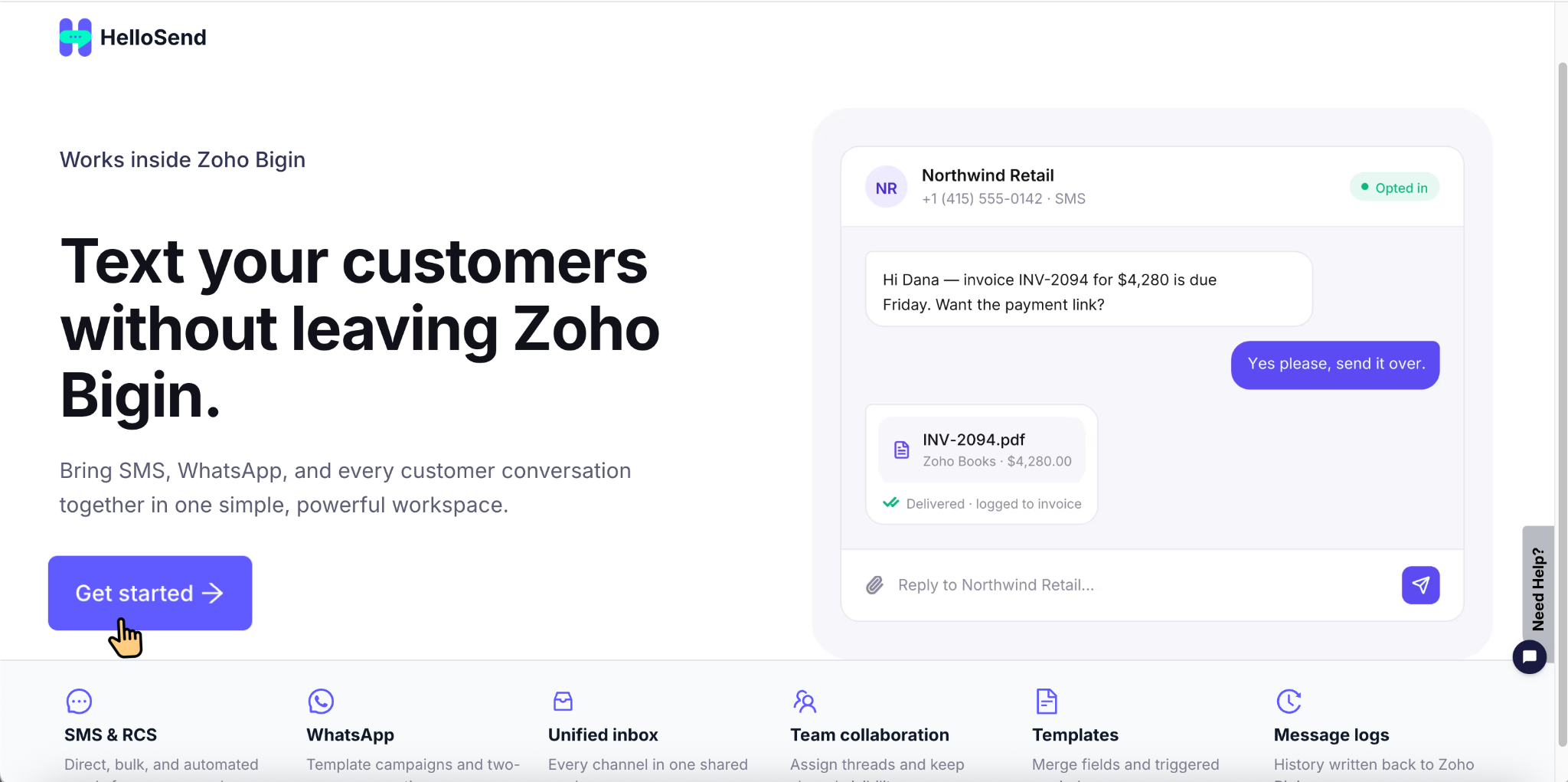
After clicking Visit Website in the Zoho Bigin Marketplace, you will be redirected to the HelloSend–Zoho Bigin Get Started page. Follow these steps to continue:
- Review the brief information available on the Get Started page about the HelloSend and Zoho Bigin integration .
- Click Get Started to begin the connection process.
- You will be taken to the integration selection page , where the CRM and platform integrations supported by HelloSend are displayed.
- Locate Zoho Bigin from the available options to continue with the integration setup.
After selecting Zoho Bigin, you can proceed to connect and authorize your Zoho Bigin account with HelloSend.
Step 3: Select Zoho Bigin
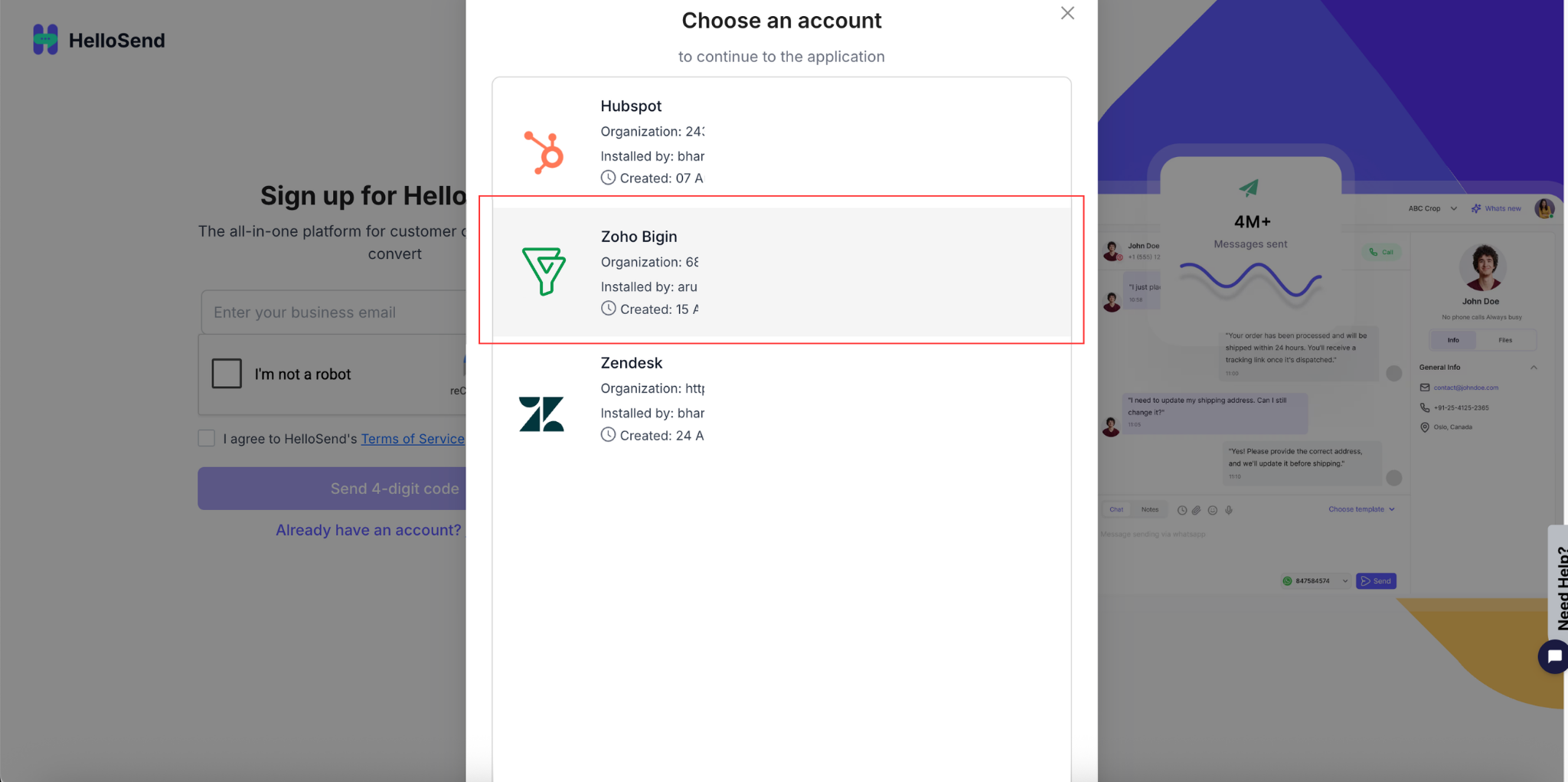
On the integration selection page, you will see the CRM and platform integrations available in HelloSend. Follow these steps to continue:
- Locate Zoho Bigin from the list of available integrations.
- Select Zoho Bigin to begin connecting your Bigin account with HelloSend.
- HelloSend will redirect you to the Zoho authorization page to continue the connection process.
- If you are not already signed in, sign in using the Zoho account associated with your Zoho Bigin organization .
Step 4: Authorize Your Zoho Bigin Account
After selecting Zoho Bigin, you will be redirected to the Zoho authorization page . Follow these steps to authorize the connection:
- If you are not already signed in, sign in using the Zoho account associated with your Zoho Bigin organization .
- Review the permissions requested by HelloSend to connect with your Zoho Bigin account.
- Click Accept or Authorize to grant the required access.
- Zoho will complete the authorization and securely connect your Zoho Bigin account with HelloSend.
Once the authorization is successful, you will automatically be redirected back to HelloSend to continue and complete the integration setup.
Step 5: Return to HelloSend
After successfully authorizing the required permissions in Zoho, you will automatically be redirected back to HelloSend . Follow these steps to confirm the connection:
- HelloSend will complete the connection process and link your Zoho Bigin account with your HelloSend account.
- Once the connection is successful, your Zoho Bigin integration will be ready to use.
- You can now access the available contact information from your connected Zoho Bigin account through HelloSend.
- From HelloSend, you can search for the required customer and continue with your communication setup.
With the integration connected, you can now fetch your Zoho Bigin contacts in HelloSend and start conversations with your customers.
Step 6: Fetch Your Zoho Bigin Contacts
Once your Zoho Bigin account is successfully connected, HelloSend can access the available contact information from your Zoho Bigin account . Follow these steps to find and use your contacts:
- Use the contact search in HelloSend to look for the customer you want to reach.
- HelloSend will fetch the matching contact information available in your connected Zoho Bigin account .
- Select the required customer to view available details such as their name and phone number directly in HelloSend.
- Use the fetched contact information to continue with your customer communication without manually creating the contact again in HelloSend.
After selecting the customer, you can use their available contact details to start a conversation directly through HelloSend.
Step 7: Start a Conversation
After finding the required Zoho Bigin contact in HelloSend, follow these steps to start a conversation:
- Select the customer you want to contact from your Zoho Bigin contacts .
- Choose the communication channel you want to use, such as SMS or WhatsApp .
- Enter your message or select an available message template .
- Click Send to start the conversation with the customer.
Once the conversation starts, you can continue viewing and managing customer messages directly in HelloSend .
Key Benefits
- Easy Setup – Connect your Zoho Bigin account with HelloSend through a straightforward authorization process without complex configuration.
- Access Zoho Bigin Contacts – Find and use your existing Zoho Bigin contact information in HelloSend without manually adding the same customer details again.
- Start Conversations Quickly – Search for a customer, select the required contact, and begin a conversation through the communication channels available in your HelloSend account.
- Manage Communication in HelloSend – Continue handling customer conversations in HelloSend while using contact information available in Zoho Bigin.
- Reduce Manual Data Entry – Avoid repeatedly copying customer names and phone numbers between Zoho Bigin and HelloSend when starting conversations.
Conclusion
Connecting HelloSend with Zoho Bigin gives your team an easier way to communicate with customers using the contact information already available in your CRM. Once the integration is authorized, HelloSend can fetch your Zoho Bigin contacts and make them available for communication.
With the integration in place, your team can quickly find customers, start conversations, and manage communication through HelloSend while continuing to use Zoho Bigin for customer relationship management.