

What is an RCS Template?
An RCS template is a structured message format used to send rich business messages. Depending on the content type, a template can include text, images, videos, suggested replies, CTA buttons, rich cards, and carousel-style layouts. Twilio’s Content Template Builder provides a no-code Console interface built on top of its Content API, allowing both technical and non-technical users to create and manage templates.
One major advantage of Twilio’s Content Template Builder is that it supports shared template management across channels and also supports fallback content when rich messaging is not available. Twilio also surfaces validations, previews, status badges, and eligibility guidance in the Console to help teams manage template quality and approval readiness.
Step-by-Step Guide: Create RCS Templates in Twilio
Step 1: Open Twilio Content Template Builder
Log in to your Twilio Console and navigate to the Content Template Builder. This is the central place where you create, manage, and organize all your messaging templates, including RCS.
Once inside the Twilio Console, go to Messaging → Content → Templates. This section allows you to view existing templates, check their approval status, and create new ones.
The Content Template Builder provides a user-friendly interface where you can design rich and interactive message formats without coding. It supports multiple messaging channels such as RCS, SMS, MMS, and WhatsApp, making it easy to manage all templates in one place.
From this screen, you can:
- View all existing templates and their approval status
- Create new templates for RCS messaging
- Edit or duplicate existing templates for reuse
- Track template approval status and usage readiness
👉 Tip: Make sure you are logged into the correct Twilio account that is connected to HelloSend. Templates created in a different account will not be visible inside HelloSend.
Step 2: Create a New Template
Click Create New Template to start building your RCS content. This will open the template creation interface where you can define the structure, format, and content of your message.
Once you click this option, Twilio will guide you through a step-by-step setup process where you can configure your template details, select the appropriate content type, and design how your message will appear to customers.
At this stage, you will begin defining the core elements of your template, including:
- Template name for identification
- Channel compatibility (RCS, SMS, etc.)
- Message format (rich card, text, or carousel)
- Content structure such as media, text, and buttons
Twilio’s Content Template Builder is designed to make template creation simple and flexible, allowing both technical and non-technical users to build rich messaging experiences without writing code.
👉 Tip: Use clear and meaningful template names (e.g., “Welcome Offer RCS” or “Appointment Reminder”) to easily identify and reuse templates later in HelloSend.
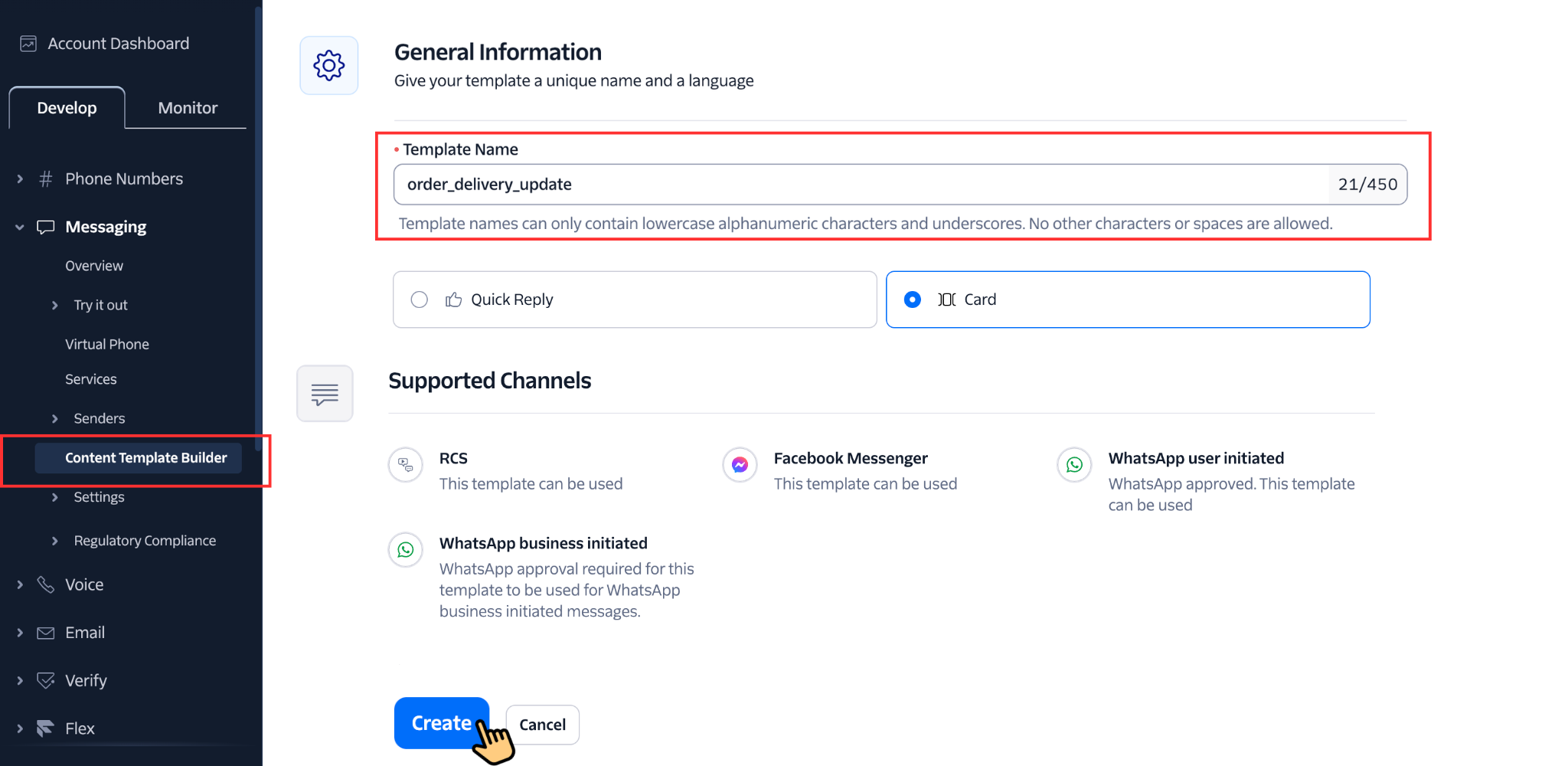
Step 3: Enter a Template Name
Enter a clear and descriptive template name so you can easily identify it later in both Twilio and HelloSend. This is especially important when managing multiple templates for campaigns, reminders, support, or transactional messages.
A well-defined name helps your team quickly understand the purpose of the template without needing to open and review its content every time. It also reduces confusion when selecting templates during campaigns or automation workflows.
When naming your template, consider including:
- The use case (e.g., Welcome, Offer, Reminder)
- The channel or format (e.g., RCS, Promo, Support)
- The campaign or audience (optional)
Example template names:
- Welcome Message RCS
- Promo Offer Carousel
- Appointment Reminder RCS
👉 Tip: Use a consistent naming pattern across your organization to keep templates organized and easy to manage as your messaging usage grows.
Step 4: Choose the Template Type
Select the template type based on how you want your RCS message to appear and how users should interact with it. The template type determines the structure, layout, and available interactive elements in your message.
Choosing the right format is important because it directly impacts customer engagement, readability, and the actions users can take from the message.
Common RCS template types include:
- Rich Cards: A single card layout that includes image or video, title, description, and action buttons. Ideal for highlighting a specific offer, product, or announcement with a clear call-to-action.
- Text Templates: Structured text-based messages with optional buttons or quick replies. Best suited for alerts, reminders, confirmations, OTPs, and transactional updates.
- Carousel Templates: A set of multiple swipeable cards in a single message. Each card can include media, text, and buttons. Perfect for product catalogs, multiple offers, listings, or showcasing different options.
Twilio’s Content Template Builder supports these rich formats, allowing you to create highly interactive messaging experiences with buttons, quick replies, and media elements.
When selecting a template type, consider:
- The goal of your message (promotion, reminder, support, etc.)
- The amount of content you want to display
- Whether you need user interaction (buttons, replies, navigation)
👉 Tip: Use Rich Cards for single offers, Carousels for multiple options, and Text Templates for simple or transactional communication.
Step 5: Add Content Elements
Now add the content elements for your selected template type. This step defines how your RCS message will appear to customers, including text, media, and interactive components.
Each template type (Rich Card, Carousel, or Text) will have slightly different fields, but most RCS templates include the following core elements:
- Headline or Title: A short and attention-grabbing heading that summarizes the message or offer.
- Body Text: The main message content where you explain details, provide context, or guide the user on the next step.
- Image or Media URL: Add visuals such as images or videos to make the message more engaging and visually appealing.
- Suggested Replies: Predefined quick reply options that allow users to respond instantly with a single tap.
- CTA Buttons: Action buttons like Visit Website, Call Now, or Buy Now that drive user interaction and conversions.
- Fallback Text: A plain text version of your message used when RCS is not supported and the message is delivered via SMS.
While adding content, ensure your message is clear, concise, and action-oriented. Avoid overly long text and focus on guiding the user toward a specific action.
For carousel templates, repeat these elements across multiple cards to showcase different products or options within a single message.
👉 Tip: Use high-quality images and clear CTA buttons to improve engagement and click-through rates.
👉 Important: Always include fallback text to ensure your message is delivered correctly as SMS if RCS is not supported.
Twilio’s Content Template Builder supports rich messaging elements and shared capabilities across channels, making it easy to create reusable, branded messaging experiences.
Step 6: Preview the Template
Before saving your template, review the preview section to ensure your message appears exactly as intended. The preview simulates how your RCS message will be displayed to end users on their mobile devices.
This step is important to validate both the visual layout and functional elements of your template, such as buttons and quick replies.
While reviewing the preview, check the following:
- Text formatting, spacing, and readability
- Image or media loading correctly and displaying properly
- Buttons and CTAs are clearly visible and actionable
- Suggested replies are relevant and easy to understand
- Overall layout matches your intended design and use case
For carousel templates, make sure each card is properly aligned and that users can easily swipe between cards without confusion.
Taking time to validate the preview helps avoid delivery issues, improves user experience, and ensures your message looks professional and engaging.
👉 Tip: Keep your message clean and visually balanced—avoid overcrowding with too much text or too many buttons.
👉 Important: Ensure your preview matches your fallback message as well, so users still receive a clear message if RCS is not supported.
Step 7: Save the Template
Once you have reviewed the template and confirmed that the layout, content, and interactive elements are correct, click Save to store your template in Twilio.
Saving the template ensures that all your configurations—such as text, media, buttons, and fallback content—are securely stored and can be edited or reused later if needed.
At this stage, your template is successfully created but may not yet be ready for sending. Depending on your setup, it might still require approval before it can be used in live RCS messaging.
Before saving, make sure you have:
- Added all required content fields (title, body, media, buttons)
- Verified the preview and layout appearance
- Included fallback text for SMS delivery
- Ensured buttons and links are working correctly
After saving, your template will appear in the template list where you can manage, edit, or submit it for approval.
👉 Tip: Save your template frequently while editing to avoid losing any changes during the creation process.
👉 Important: Saving the template does not mean it is ready to send. Make sure to complete the approval step before using it in HelloSend.
Step 8: Submit for Approval
After saving your template, you need to submit it for approval before it can be used for live RCS messaging. This step ensures that your template complies with carrier policies and RCS messaging guidelines.
In the Twilio Console, locate your saved template and click on Submit for Approval. Twilio will then review your template and forward it to carriers if required.
During the approval process, Twilio validates key aspects such as:
- Content clarity and compliance with messaging policies
- Proper use of media, buttons, and interactive elements
- Presence of fallback text for SMS delivery
- Avoidance of restricted or misleading content
Once submitted, your template will go through different status stages such as:
- Pending: Under review
- Approved: Ready to use
- Rejected: Requires changes before resubmission
Approval timelines may vary depending on the region, carrier requirements, and template content. Some templates may be approved quickly, while others may take additional review time.
👉 Tip: Keep your message clear, professional, and compliant to increase the chances of faster approval.
👉 Important: Only approved templates will be available for use in HelloSend. If your template is pending or rejected, it will not appear or may fail during message delivery.
Step 9: Verify Template Status
Before using your template in HelloSend, it is important to verify the template status in Twilio. Only templates that are successfully approved will be available for sending RCS messages.
Go to the Content Template Builder in your Twilio Console and locate your template in the list. Each template will display a status indicating whether it is ready for use.
Common template statuses include:
- Approved: The template is ready to use in HelloSend
- Pending: The template is under review and cannot be used yet
- Rejected: The template requires updates before it can be approved
If your template is still pending, wait until the approval process is complete. If it is rejected, review the feedback provided by Twilio, make the necessary changes, and resubmit the template.
Once the template shows as Approved, it will be automatically available in HelloSend (after syncing) and can be used in messaging workflows.
👉 Tip: Refresh or re-sync your HelloSend template list if the approved template does not appear immediately.
👉 Important: Attempting to use a non-approved template may result in message failure or the template not appearing in HelloSend.
Step-by-Step Guide: Add RCS Templates in HelloSend
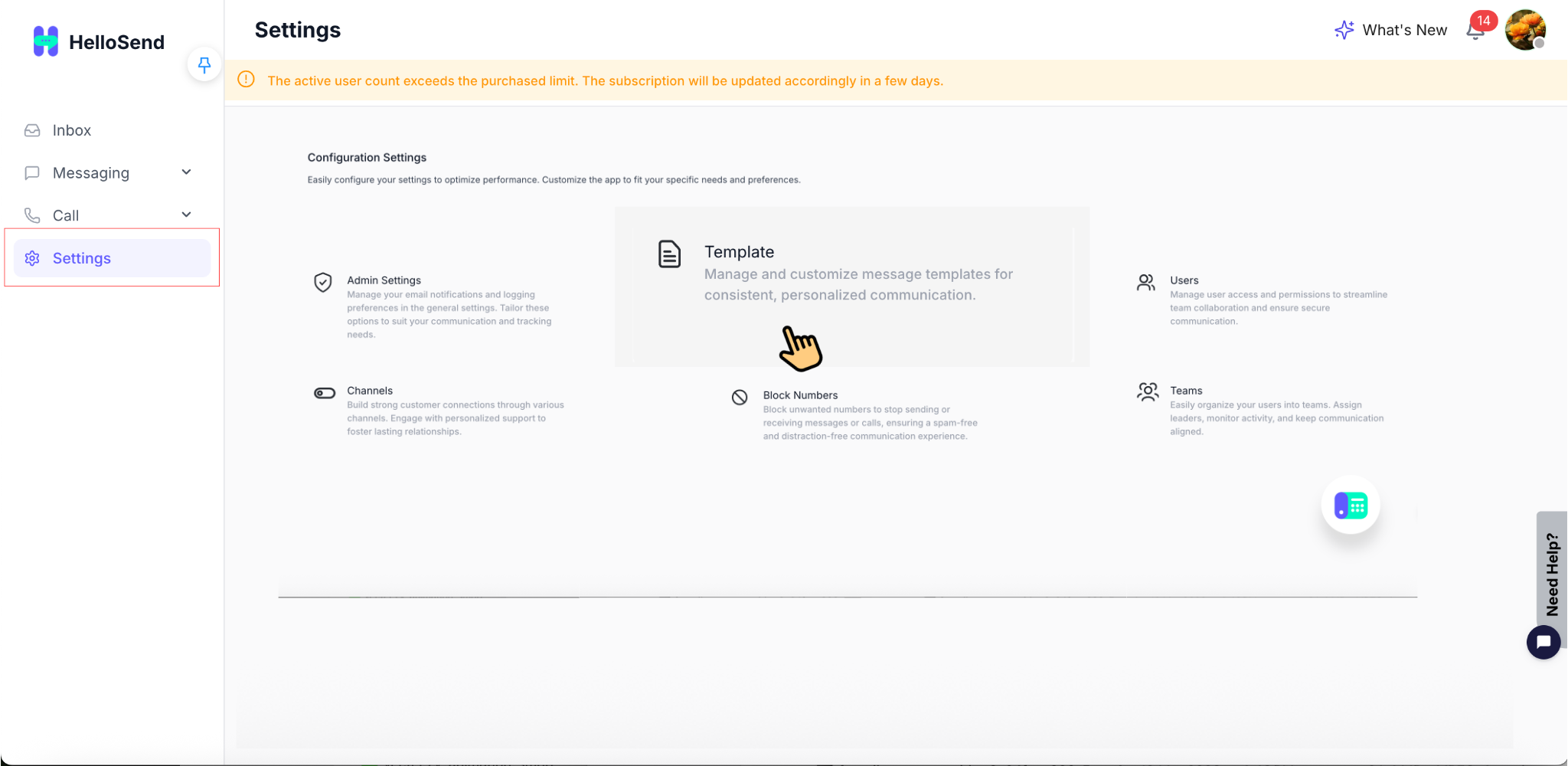
Step 1: Open Template Settings
In HelloSend, navigate to Settings → Templates. This is the central place where you can manage all your messaging templates across different channels, including RCS.
The Templates section allows you to view, add, and organize templates that are used for campaigns, automation workflows, and one-on-one messaging.
Once you open this section, you will be able to:
- View all existing templates created in HelloSend
- Add new templates for different channels like RCS, SMS, or WhatsApp
- Select and manage templates synced from your Twilio account
- Edit or update template names and configurations
This step ensures you are in the right place to import and configure your approved RCS templates from Twilio.
👉 Tip: Make sure your Twilio account is already connected to HelloSend. Otherwise, RCS templates will not appear in the Templates section.
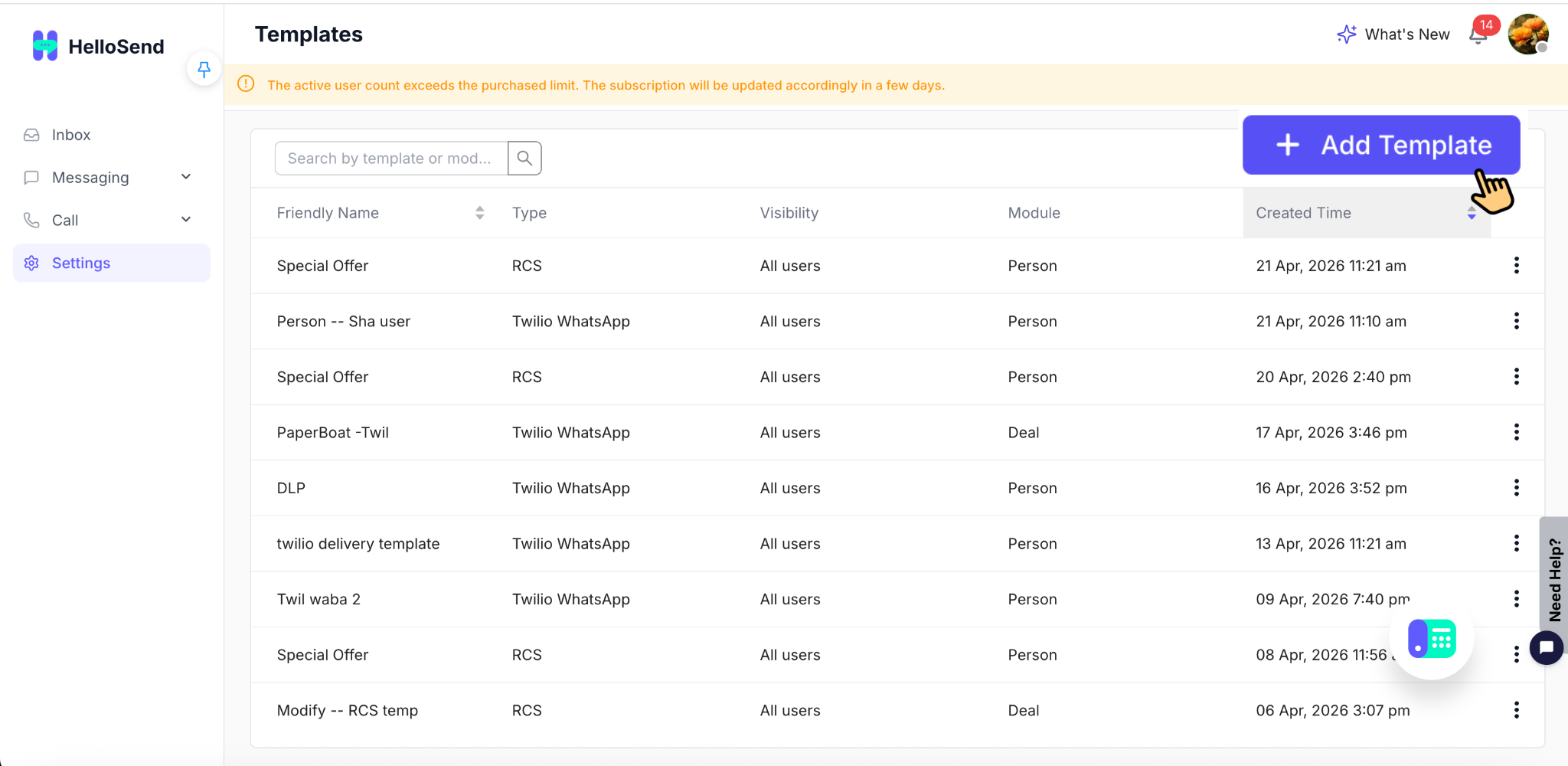
Step 2: Click Add Template
Click Add Template to create a new template entry inside HelloSend. This step allows you to import and configure templates that will be used for sending messages.
When you click this option, a template configuration panel will open where you can define the template settings and link it with your messaging channel.
This is where HelloSend connects your messaging workflow with the templates created in Twilio, allowing you to select and use approved RCS templates directly.
At this stage, you will:
- Start creating a new template configuration in HelloSend
- Select the messaging channel (RCS, SMS, etc.) in the next step
- Link your template with Twilio-approved templates
- Prepare the template for use in campaigns, automation, and direct messaging
👉 Tip: Only approved templates from Twilio will be available for selection in the next steps.
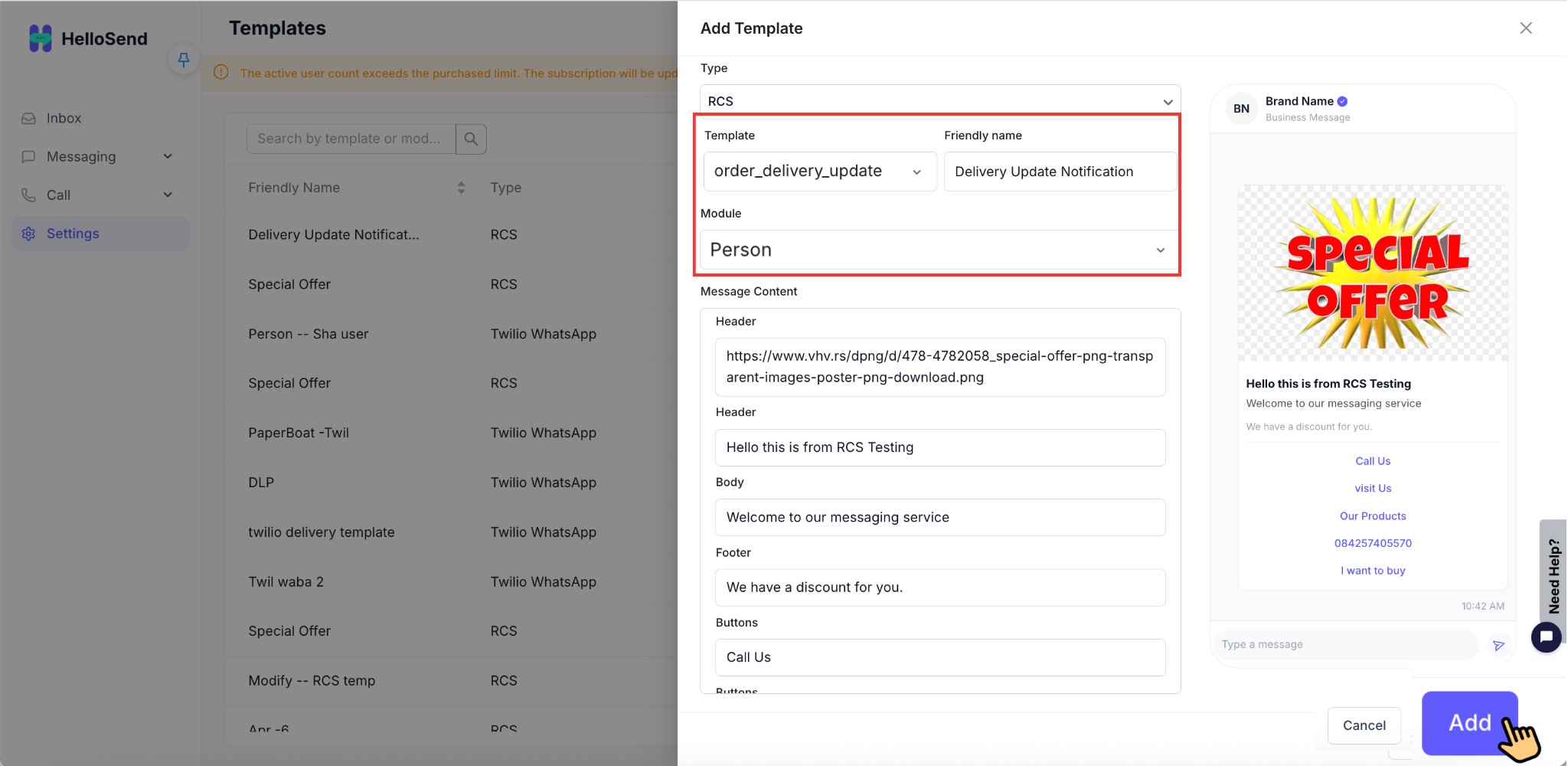
Step 3: Select RCS
In the template creation panel, choose RCS as the messaging channel. This ensures that the template you are configuring is specifically designed for RCS messaging.
Selecting the correct channel is important because each messaging channel (RCS, SMS, WhatsApp, etc.) supports different features and formats. By choosing RCS, you enable support for rich media, interactive buttons, and structured message layouts.
Once RCS is selected, HelloSend will automatically filter and display only the approved RCS templates from your connected Twilio account.
By selecting RCS, you ensure:
- You can use rich cards, carousels, and interactive message formats
- Only relevant RCS templates are shown in the dropdown list
- Your messages follow RCS-specific delivery and formatting rules
👉 Tip: If no templates appear after selecting RCS, ensure your templates are approved in Twilio and your Twilio account is properly connected.
👉 Important: RCS templates will only work if your messaging service and sender setup are correctly configured in Twilio.
Step 4: Choose the Twilio Template
From the dropdown list, select your approved RCS template. This list is automatically populated from your connected Twilio account.
HelloSend fetches templates directly from Twilio, so only templates that are approved and ready for use will appear here. This ensures that you are selecting a valid template that can be used for sending messages.
When selecting a template, make sure to choose the correct one based on your use case, such as promotions, reminders, onboarding messages, or support interactions.
While choosing a template, verify the following:
- The template name matches your intended use case
- The template is approved in Twilio
- The content type (Rich Card, Carousel, Text) fits your message requirement
- The template includes the correct media, buttons, and structure
Once selected, HelloSend will link this template to your messaging flow, allowing it to be used in campaigns, automation workflows, and direct conversations.
👉 Tip: Use clearly named templates in Twilio to make selection easier and avoid confusion when managing multiple templates.
👉 Important: If no templates appear in the dropdown, ensure your Twilio templates are approved and your Twilio account is properly connected to HelloSend.
Step 5: Add a Friendly Name
Enter a friendly name for the template. This is an internal label used within HelloSend to help you and your team easily identify the template during messaging.
Unlike the original template name in Twilio, the friendly name in HelloSend is customizable and can be tailored to match your team’s workflow, naming conventions, or campaign structure.
Use clear and descriptive names such as:
- Welcome RCS
- Promo Offer RCS
- Appointment Reminder RCS
A well-defined friendly name helps your team quickly select the correct template without needing to preview its content every time, especially when working with multiple templates.
When creating a friendly name, consider including:
- The purpose of the message (e.g., Welcome, Reminder, Offer)
- The channel or format (e.g., RCS)
- The campaign or audience (optional)
👉 Tip: Maintain a consistent naming format across all templates to keep your template library organized and easy to manage as it grows.
Step 6: Preview the Template
Before saving the template, review the preview section to ensure everything appears correctly. This preview shows how your RCS message will be displayed to customers on their mobile devices.
Carefully verify that all elements—such as text, media, and interactive components—are properly aligned and functioning as expected.
While checking the preview, make sure:
- The message content is clear and properly formatted
- Images or media are loading correctly and displayed in the right size
- Buttons and call-to-action links are visible and clickable
- Suggested replies (if added) are relevant and easy to understand
- The overall layout matches your intended design and use case
For carousel templates, scroll through each card to ensure consistency in layout, spacing, and content across all cards.
Taking a moment to review the preview helps prevent errors, improves message quality, and ensures a better customer experience.
👉 Tip: Keep your message clean and visually balanced—avoid too much text or too many buttons in a single template.
👉 Important: Ensure your content also makes sense as fallback SMS text, in case RCS is not supported for the recipient.
Step 7: Save the Template
After reviewing all details, click Add to save the template in HelloSend. This action stores your configuration and links the selected Twilio template to your HelloSend account.
Once saved, the template becomes available for use across different messaging workflows, including Direct Messaging, Campaigns, and Automation.
Before saving, ensure the following:
- The correct RCS template is selected from Twilio
- The friendly name is clear and meaningful
- The preview has been verified for layout, content, and buttons
- The template is approved in Twilio
After saving, the template will appear in your template list, where you can manage, edit, or reuse it anytime.
👉 Tip: Use consistent naming and verify templates before saving to avoid confusion during campaigns or automation setup.
👉 Success: Your RCS template is now ready to be used for messaging in HelloSend.
Step 8: Start Using the Template
Once the template is added, it is ready to use across different messaging workflows in HelloSend. You can now start sending rich RCS messages using this template.
The template can be used in the following areas:
- Direct Messaging: Send one-on-one RCS messages to individual contacts directly from the Inbox for personalized communication.
- Campaigns: Use the template to send bulk messages to multiple contacts for promotions, announcements, or updates.
- Automation Workflows: Trigger RCS messages automatically based on events such as new leads, follow-ups, reminders, or customer actions.
Using templates ensures consistent messaging, faster execution, and improved engagement, as you don’t need to recreate messages every time.
You can also combine templates with personalization fields (if supported) to make messages more relevant to each customer.
👉 Tip: Use RCS templates with automation to send timely and interactive messages without manual effort.
👉 Success: Your RCS template is now fully active and ready to drive engagement across all messaging channels in HelloSend.
Step 9: Troubleshoot if Not Visible
If your RCS template does not appear in HelloSend, it usually means there is a configuration, approval, or sync issue between Twilio and HelloSend. Follow the checks below to identify and resolve the problem.
Verify the following:
- Template Approval: Ensure the template is approved in Twilio. Pending or rejected templates will not be available in HelloSend.
- Twilio Connection: Confirm your Twilio account is properly connected in HelloSend. If needed, reconnect or reauthorize the integration.
- Correct Account: Make sure the template exists in the same Twilio account that is linked to HelloSend.
- Messaging Service Setup: Verify that your RCS Messaging Service and sender configuration are fully completed in Twilio.
- Sync Delay: Sometimes there may be a short delay after approval. Try refreshing or reopening the template dropdown.
If everything is correctly configured and the template is still not visible, try reconnecting Twilio or reaching out to support for further assistance.
👉 Important: Only approved and properly configured templates will be synced and available for use in HelloSend.
👉 Tip: Always verify template status in Twilio first before troubleshooting in HelloSend.
📌 Important Notes
- Twilio’s Content Template Builder is a Console UI built on the Content API, so templates created in Console are mirrored in the underlying content system.
- Twilio supports rich content templates across channels, including RCS, SMS, MMS, WhatsApp, and Facebook Messenger, depending on channel availability.
- Twilio also supports fallback content in templates so the richest available content can be delivered based on channel support.
- Approval requirements and eligibility can vary by channel and provider, and Twilio surfaces status badges and guidance directly in the template builder.
🌟 Key Benefits of Using RCS Templates
Richer Customer Engagement
RCS templates support visually rich and interactive message formats that are more engaging than plain SMS. Twilio specifically describes the builder as enabling rich, interactive messaging experiences.
Reusable and Consistent Messaging
Templates help standardize communication across teams and use cases, making campaigns, reminders, and support replies easier to manage.
Faster Campaign Execution
Once templates are created and approved, they can be reused in HelloSend for direct messages, campaign sends, and automations, reducing manual effort.
Better Cross-Channel Flexibility
Twilio’s Content Template Builder is designed to support multiple channels with shared template capabilities, which helps future-proof content workflows.
Improved Team Collaboration
Twilio notes that both developers and non-technical users can create and manage templates in Console, which makes it easier for teams to collaborate on content creation.
🏁 Conclusion
Creating RCS templates in Twilio is an essential step for delivering rich, branded, and interactive messaging experiences through HelloSend. With Twilio’s Content Template Builder, teams can create structured templates that support media, buttons, and reusable layouts while managing approval status and template consistency from a centralized Console.
Once the template is approved and added into HelloSend, it becomes easy to use that content across direct messaging, campaigns, and automation workflows. This gives businesses a more scalable and engaging way to communicate with customers compared to plain SMS, while keeping template management organized and reusable.

.webp)


.webp)
