Before You Start
Make sure you have:
- A HelloSend login with access to Settings.
- An Instagram professional (business) account, and its username and password.
Steps to Connect Instagram
1. Sign in to HelloSend
- Open the Sign in to Hellosend page.
- Enter your business email address in the email field.
- Tick the I'm not a robot checkbox.
- Click Send 4-digit code. HelloSend emails you a 4-digit verification code.
- On the Enter verification code page, type the 4-digit code from your email.
- Click Verify.
- If the Choose an account window appears, select the account you want to use. Your HelloSend dashboard opens.
2. Connect your Instagram account
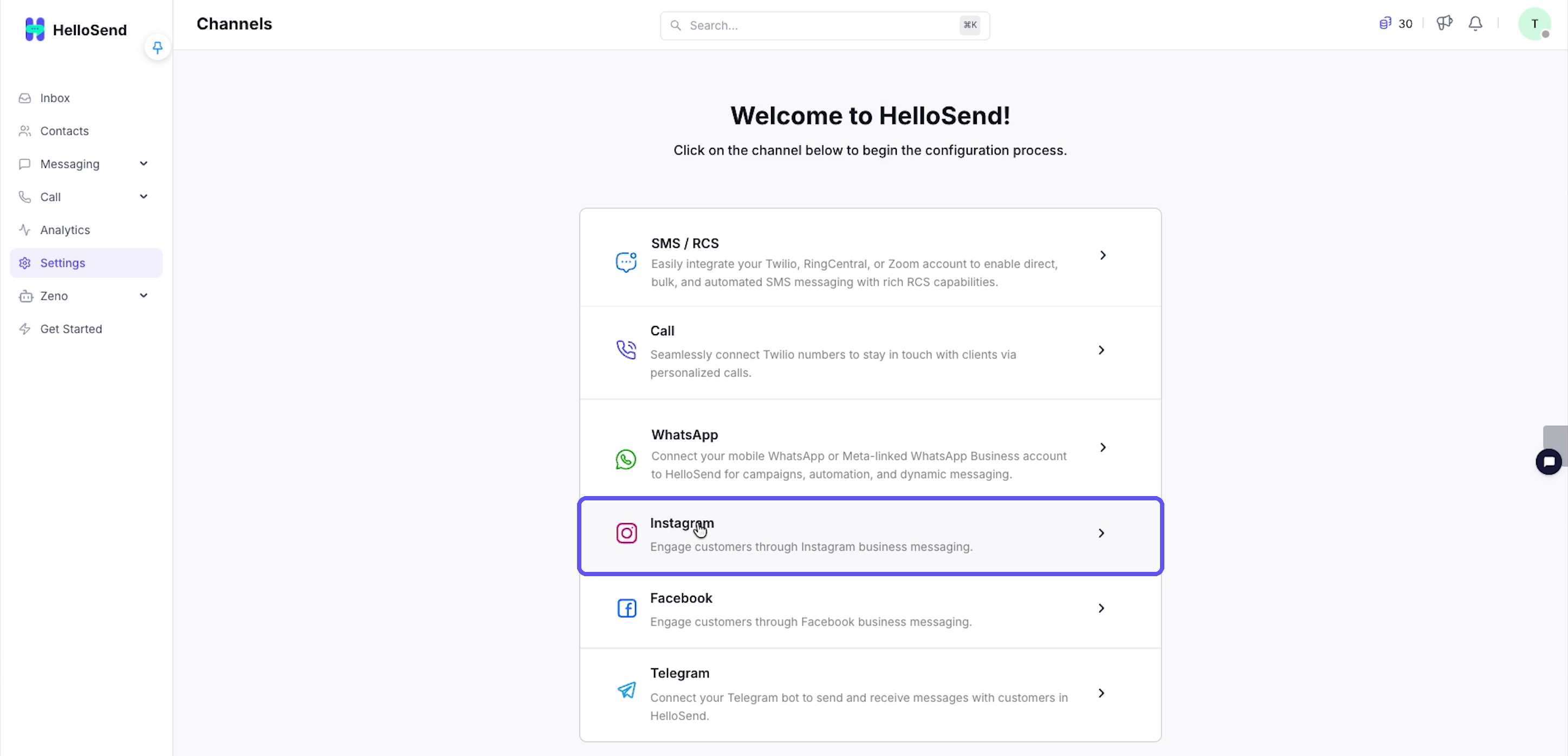
- In the left sidebar, click Settings.
- Click Channels.
- In the list of channels, click Instagram. The Connect Instagram Messaging (Business) page opens.
- Click Connect with Instagram. Instagram's login page opens.
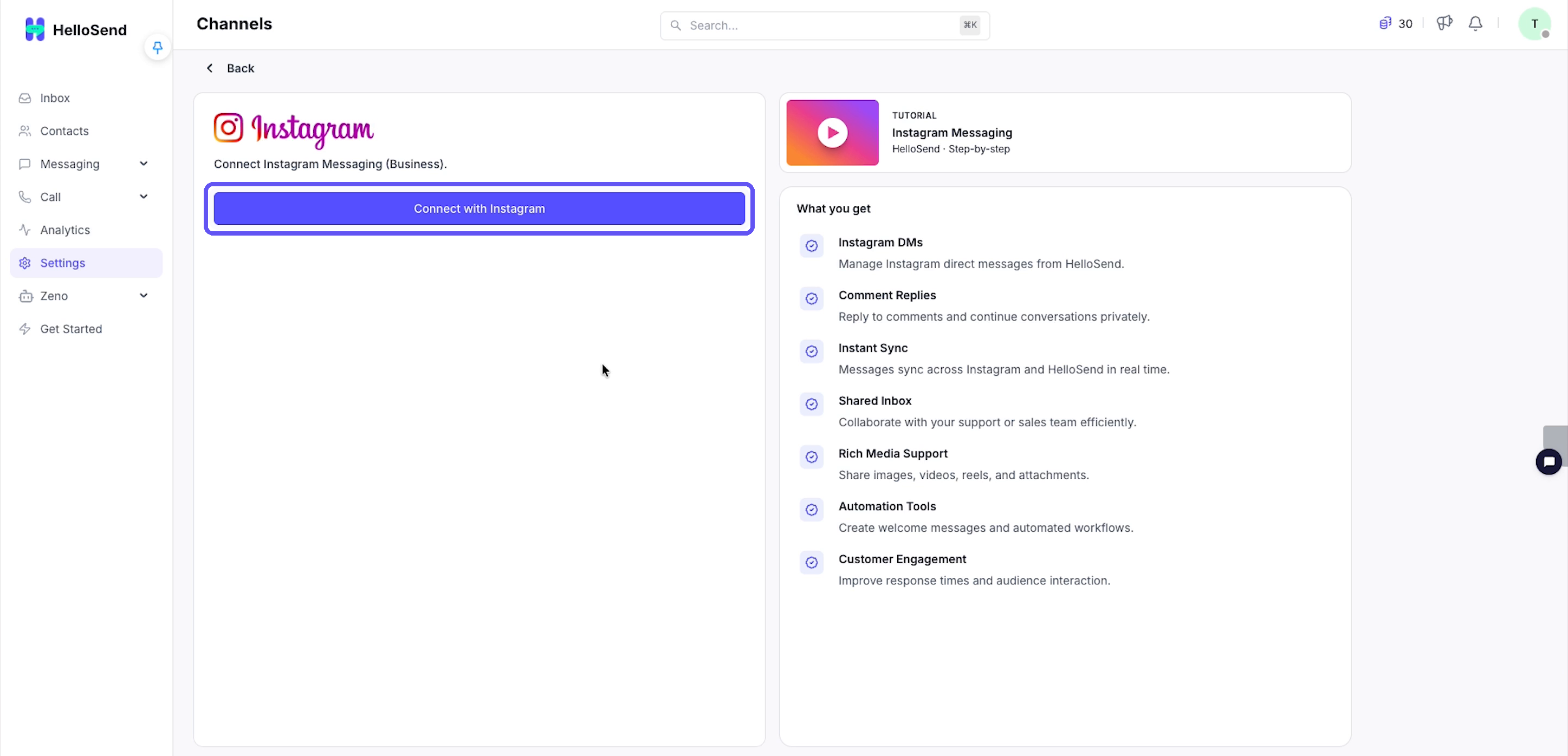
- Enter the username and password of your business's Instagram professional account, then click Log in.
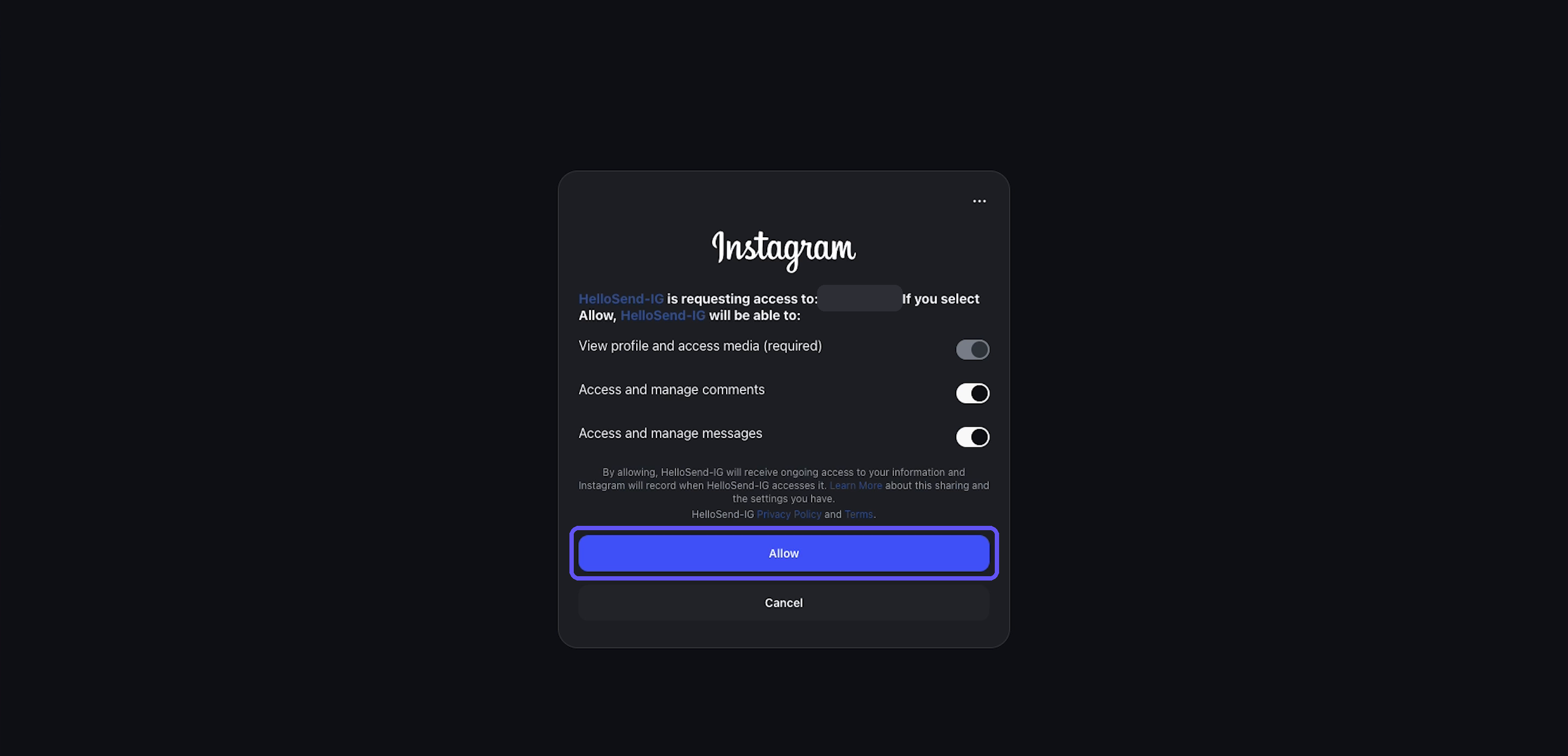
- Instagram shows that HelloSend-IG is requesting access to your account: View profile and access media (required), Access and manage comments, and Access and manage messages. Keep Access and manage comments and Access and manage messages switched on.
- Click Allow. You return to HelloSend.
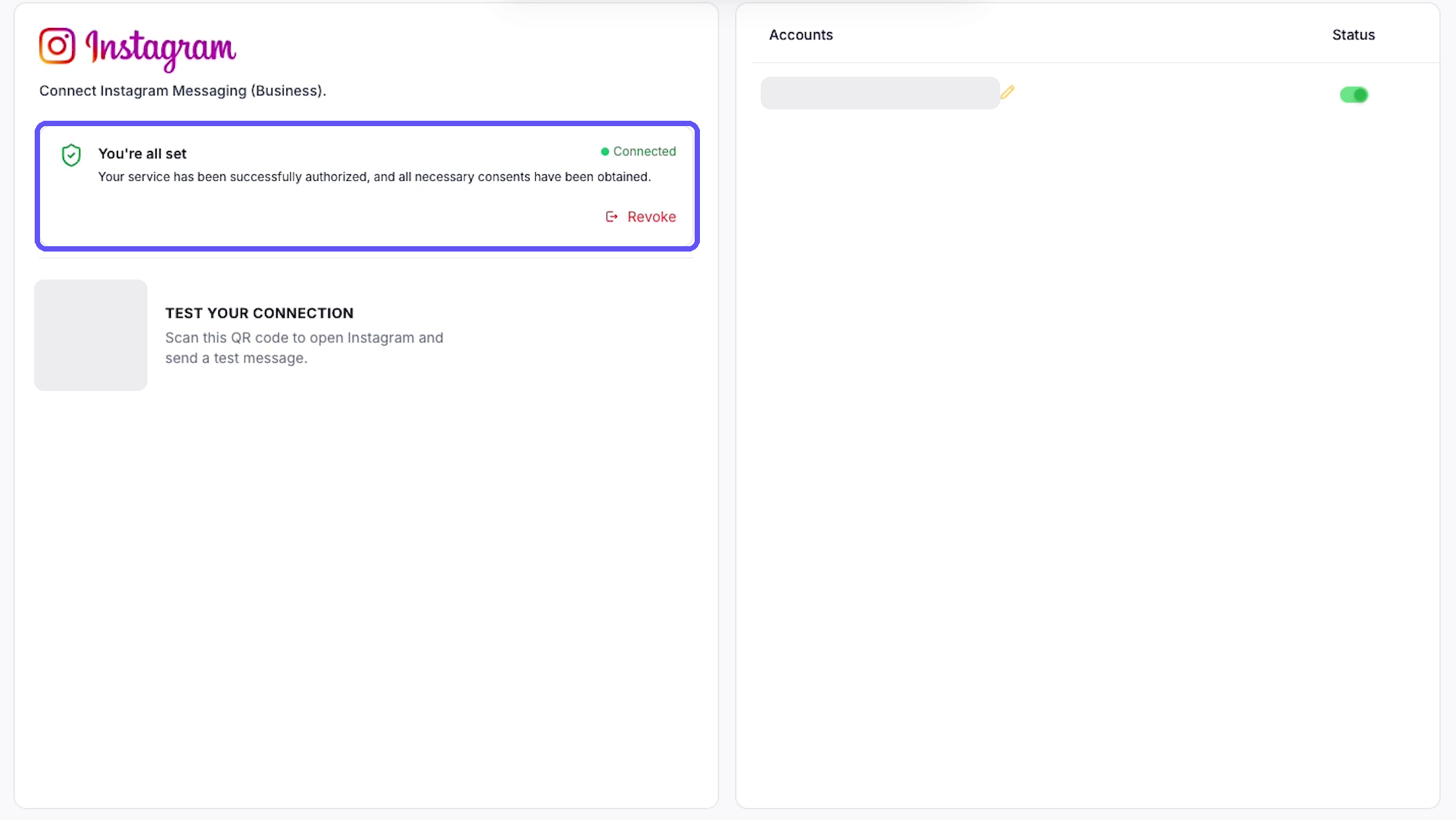
- Check that the page shows You're all set with a green Connected label and the message "Your service has been successfully authorized, and all necessary consents have been obtained." The account appears under Accounts as its Instagram account ID followed by the username in brackets, for example
17841… (your_username), with the Status switch turned on.
3. Receive and reply to Instagram messages
- When a customer sends a DM to the business account, it appears in the HelloSend Inbox as a new conversation.
- Open it, type a reply in the message box, and click Send.
- The reply arrives in the customer's Instagram Direct.
This uses the Instagram Business Manage Messages permission.
4. Reply to Instagram comments
- When a customer comments on a post, it appears in the Inbox as a Comment on Post card showing the post thumbnail and the comment, with two buttons, Reply to Comment and Send as DM.
- Click Reply to Comment, type the reply, and click Send.
- The public reply appears under the customer's comment on Instagram.
This uses the Instagram Business Manage Comments permission. Account info uses Instagram Business Basic.
Benefits of Connecting Instagram to HelloSend
Shared Workspace
Manage Instagram conversations from the same HelloSend workspace your team already uses.
Clear Permissions
See exactly which Instagram permissions HelloSend requests before you click Allow.
Visible Connection Status
Get a clear Connected confirmation, so you know the setup worked.
DMs and Comments in One Inbox
Reply to Instagram DMs and comments from one shared inbox.
Conclusion
Your Instagram professional account is now connected to HelloSend, and its Status switch is on. You can now receive and reply to Instagram messages and comments from the Inbox.
Need help? Reach out to assist@hellosend.com