
Overview
Trigger Rules Logs help you monitor how your automation rules are performing and understand what happens during each execution. They provide a clear view of trigger activity, execution results, skipped runs, and incomplete executions .
This guide explains how to access Trigger Rules Logs and review the details of each execution. By checking the logs, you can understand how a trigger rule was processed, identify issues, and troubleshoot unsuccessful or incomplete runs .
How to Access and Review Trigger Rules Logs
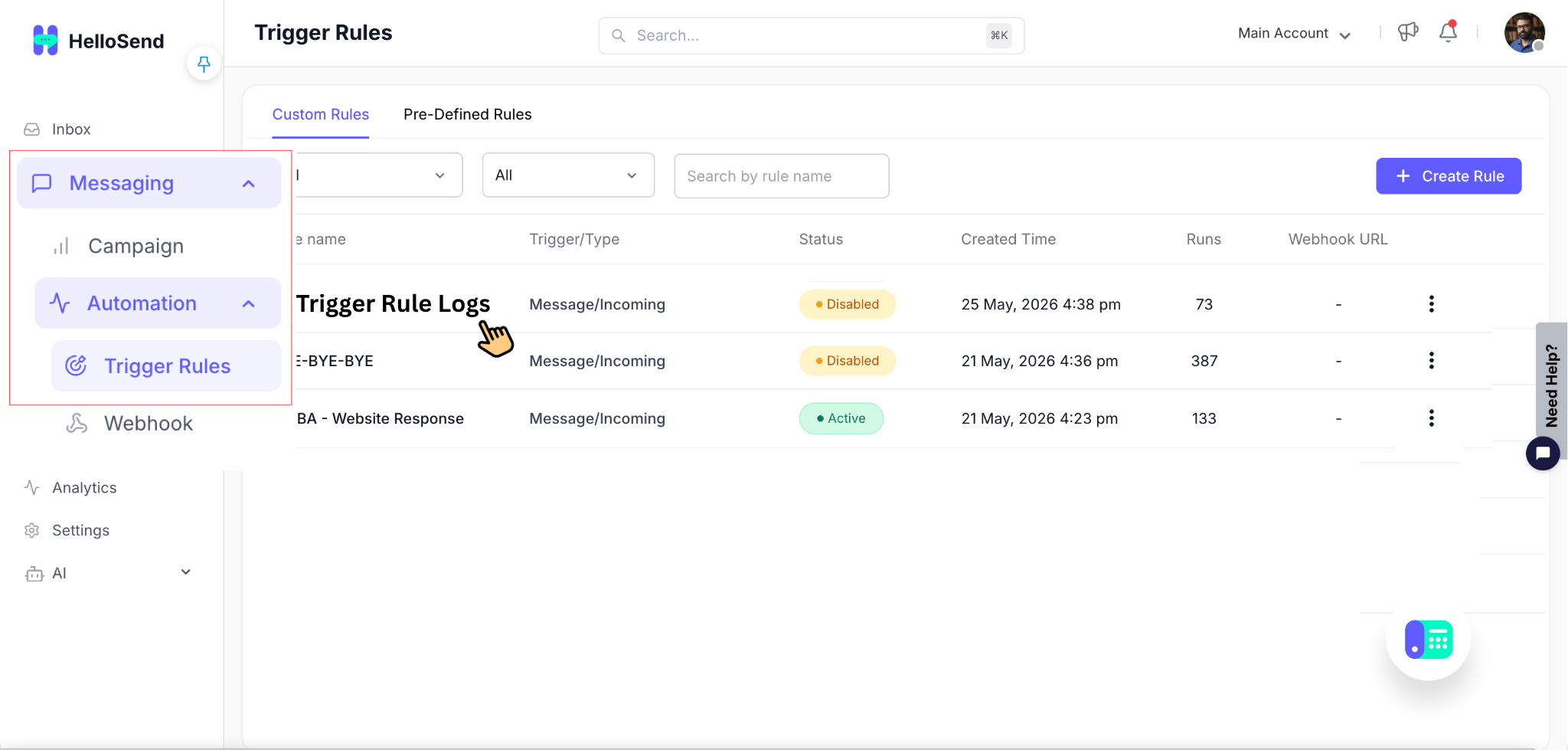
Go to Automation
From the HelloSend sidebar, click Automation .
The Automation section contains the tools used to create and manage automated workflows in HelloSend.
Open Trigger Rules
Select Trigger Rules from the Automation section.
On this page, you can view all the trigger rules available in your account, along with their current configuration and status .
Select a Trigger Rule
Click the trigger rule whose execution details you want to review.
This opens the selected trigger rule, where you can view its configured trigger, conditions, and actions .
Click View Logs
At the top of the trigger rule page, click View Logs .
This opens the Trigger Rule Logs page for the selected rule.
The logs help you understand how often the rule has been triggered and what happened during each execution.

Review the Trigger Rule Logs Summary
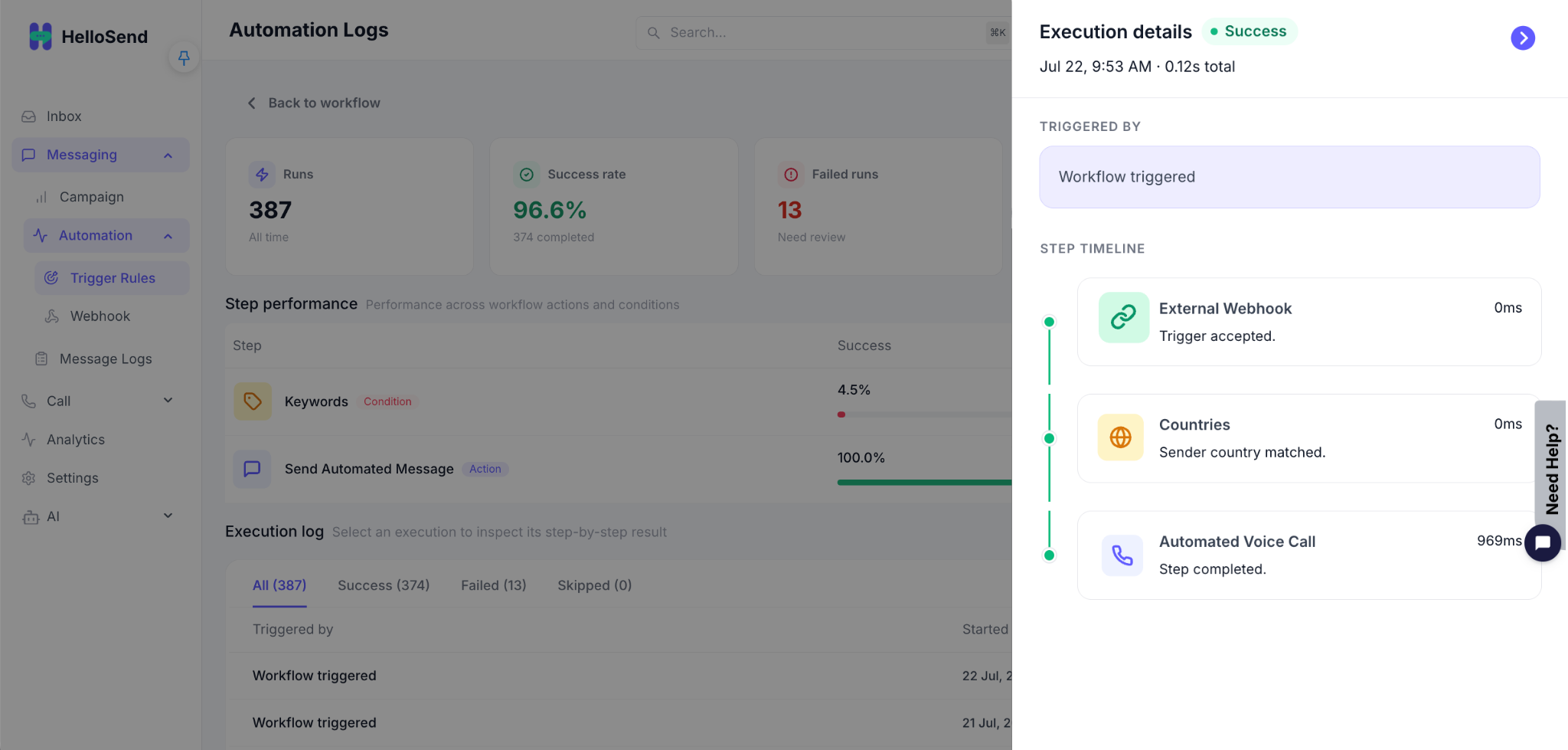
At the top of the Trigger Rule Logs page, you can review the overall execution summary.
The summary includes:
- Total Runs – Shows the total number of times the trigger rule has been executed.
- Success Rate – Shows the percentage of executions that were completed successfully.
- Skipped Runs – Shows how many executions were skipped.
- Skipped Reasons – Explains why certain executions did not continue.
- Step Status – Shows the execution status of each step configured in the trigger rule.
This overview helps you quickly understand whether the trigger rule is running as expected.

Review Individual Execution Logs
Scroll to the Execution Logs section to view each trigger rule execution individually.
For every execution, you can check its status and review how the rule was processed.
An execution can appear as:
- Completed – The execution finished successfully and the applicable steps were processed.
- Incomplete – The execution could not complete one or more steps.
You can open an execution to review more details.
Check Step-Level Execution Details
Inside an execution log, review the status of each step in the trigger rule.
This helps you understand:
- Which steps were executed successfully .
- Which step was skipped or not completed .
- Where the execution stopped .
- Whether a condition prevented the next step from running.
- Whether an action failed during execution.
Reviewing the steps individually makes it easier to identify the exact point where an issue occurred.
Identify the Reason for Incomplete or Skipped Executions
If an execution is Incomplete or Skipped , review the corresponding log details to understand the reason.
The logs can help you determine:
- Which step caused the issue.
- Why the execution was skipped.
- Whether the configured conditions were met.
- Whether an action could not be completed.
- At which stage the trigger rule stopped running.
Use this information to review the trigger rule configuration and make any required changes.
Use the Logs to Troubleshoot the Trigger Rule
After identifying the affected step or reason, review the trigger rule configuration.
Check the relevant trigger, conditions, and actions to make sure they are configured correctly.
You can then use the execution logs again after future runs to confirm that the trigger rule is working as expected.
Benefits of Trigger Rules Logs
Trigger Rules Logs give you better visibility into how your automations are performing and make it easier to identify and resolve issues .
Monitor Automation Performance
Track how often each trigger rule runs and review its overall success rate . This helps you understand whether the automation is working consistently as expected.
Identify Skipped Executions
View the number of skipped runs and understand why a trigger rule did not continue. This makes it easier to verify whether the configured conditions are working correctly.
Troubleshoot Incomplete Executions
If an execution is incomplete , the logs help you identify the exact step where the issue occurred. You can review the execution details and understand what prevented the rule from completing.
Review Step-by-Step Execution Status
Check the status of each step within a trigger rule to see which actions were completed, skipped, or unsuccessful . This provides a clearer picture of how the automation was processed.
Find Issues Faster
Instead of manually checking every configuration, you can use the execution logs to quickly locate the affected step and understand the reason behind an issue.
Validate Trigger Rule Configuration
Logs help you confirm whether your triggers, conditions, and actions are behaving as intended. This is especially useful after creating or updating a trigger rule.
Improve Automation Reliability
By regularly reviewing execution logs and resolving recurring issues, you can improve the reliability of your trigger rules and ensure smoother automation workflows.
Reduce Manual Troubleshooting
Detailed execution information reduces the need for guesswork . Users and support teams can use the logs to understand what happened before making configuration changes.
Conclusion
Trigger Rules Logs provide greater visibility into how your automations are running. By reviewing the execution details, success rates, skipped runs, and individual step statuses , you can quickly identify issues and understand what happened during each trigger rule execution.
Regularly reviewing the logs helps ensure your trigger rules continue to run smoothly and perform as expected .





.webp)
