
Steps to Connect Telegram
1Open the Telegram Channel
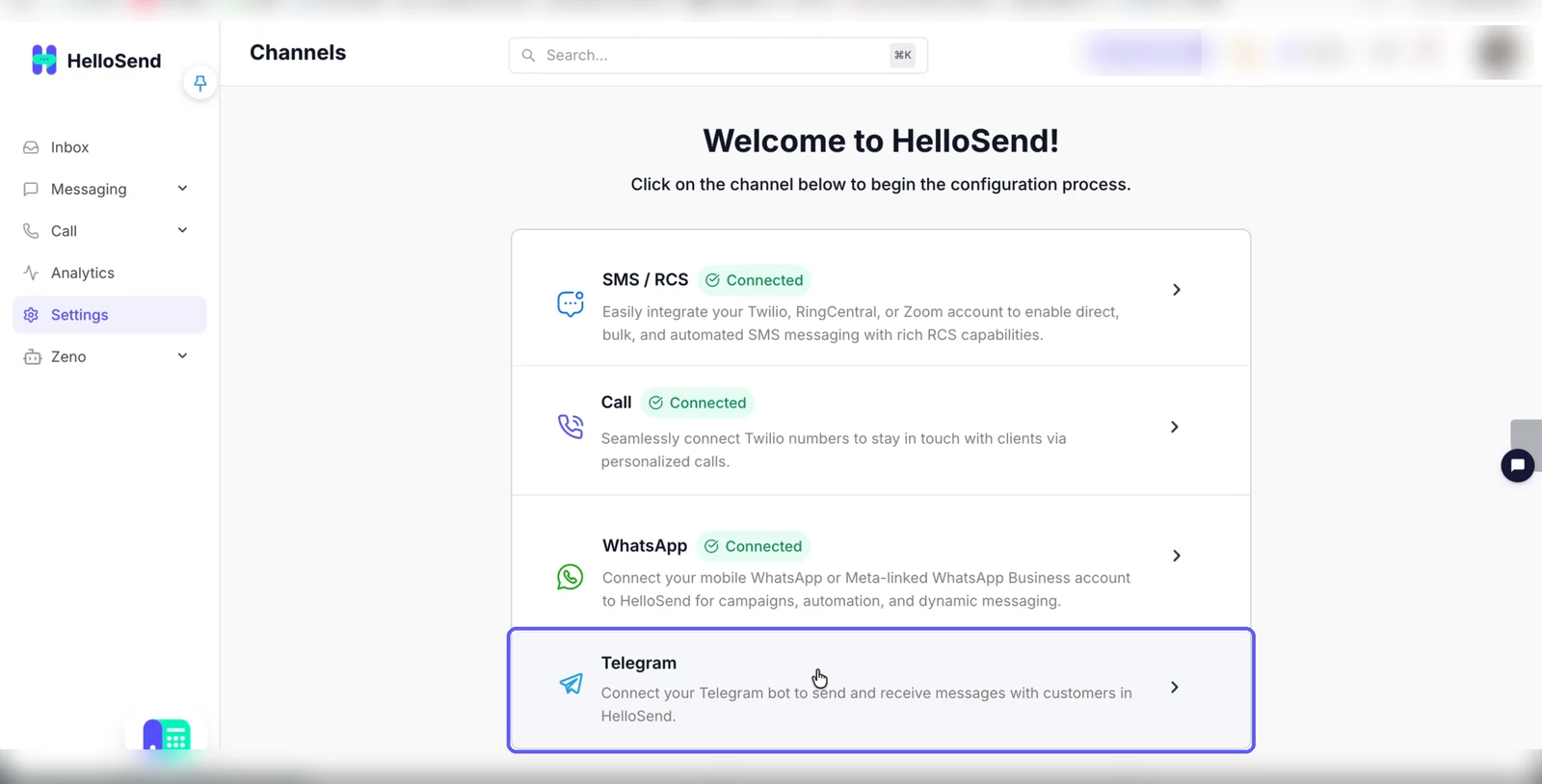
- From the left menu, click Settings.
- On the Channels page, click Telegram.
- The Telegram page opens. Scroll the right panel to the Get Started section, which lists the two setup tasks: Create your Telegram bot and Connect it to HelloSend.
2Create Your Telegram Bot with BotFather
- Under Create your Telegram bot, click the @BotFather link.
- When your browser asks, click Open Telegram to open the Telegram app.
- In the BotFather chat, click Start.
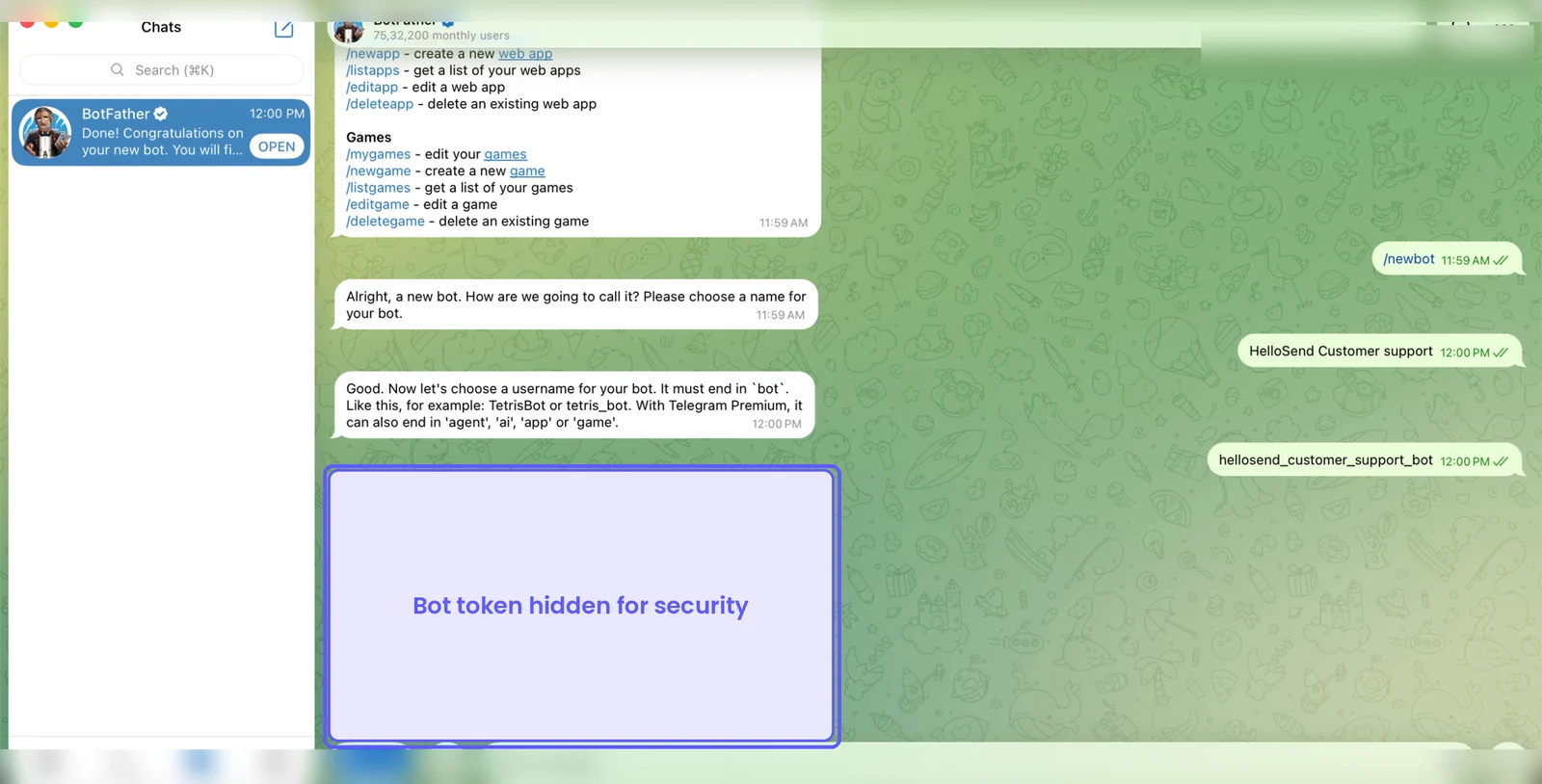
- Send /newbot.
- When BotFather asks for a name, type a name for your bot (for example, HelloSend Customer support) and send it.
- When BotFather asks for a username, type a username that ends in bot (for example, hellosend_customer_support_bot) and send it.
Note: BotFather's username rules apply: the username must end in bot. These rules are set by Telegram, not HelloSend.
3Copy the Bot Token
- BotFather replies with a message that starts with Done! Congratulations on your new bot. The message includes your bot token for the HTTP API.
- Click the token in the message to copy it. Telegram shows Copied to Clipboard.
Important: Keep your bot token private. Anyone who has the token can control your bot. Do not share it in screenshots, emails, or chats.
4Connect the Bot in HelloSend
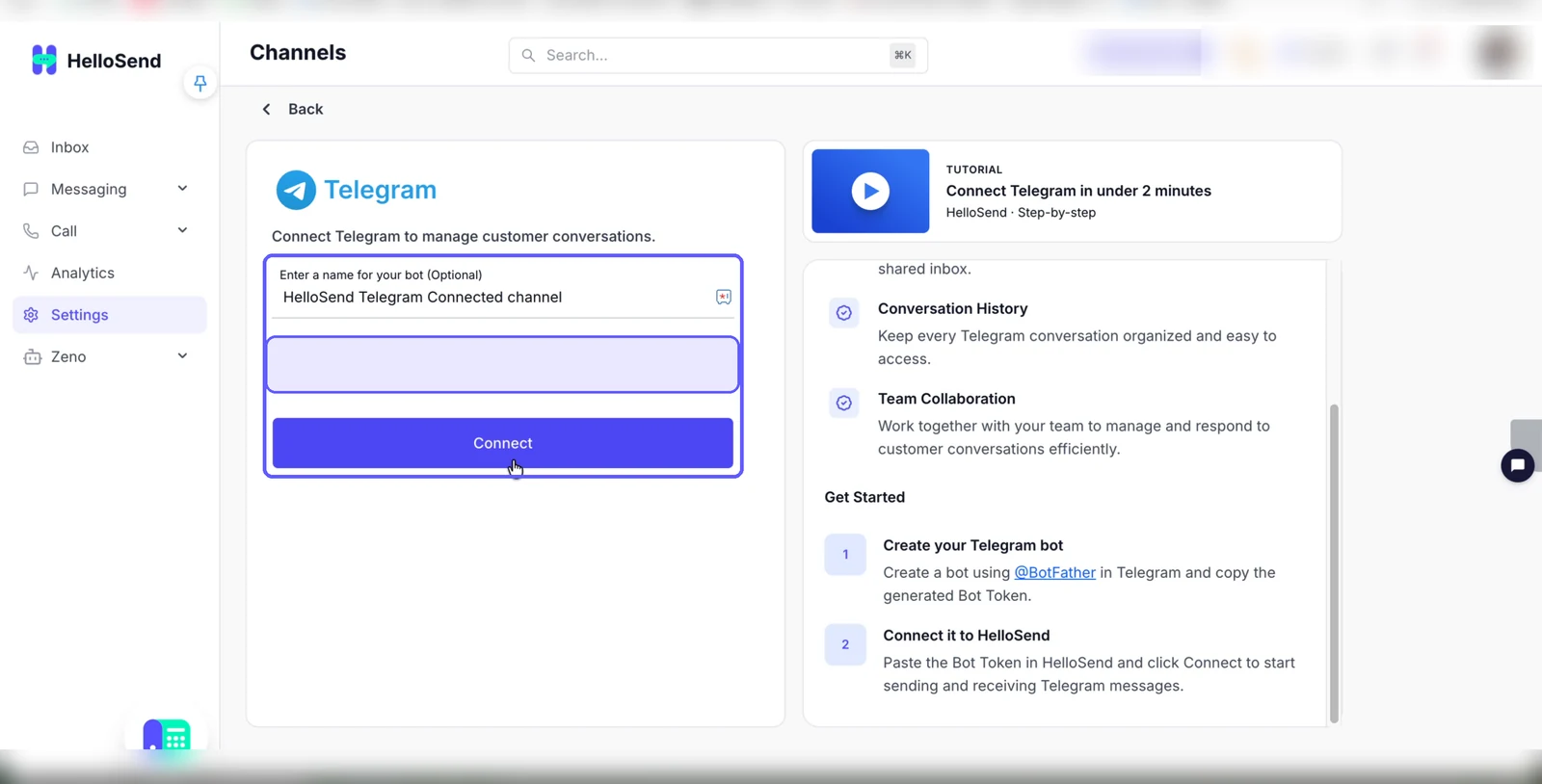
- Return to the Telegram page in HelloSend.
- Enter a name for your bot (Optional): type a name to identify this bot in HelloSend (for example, HelloSend Telegram Connected channel).
- Enter the token from BotFather. (required): paste the bot token you copied.
- Click Connect.
5Share Your Bot Link
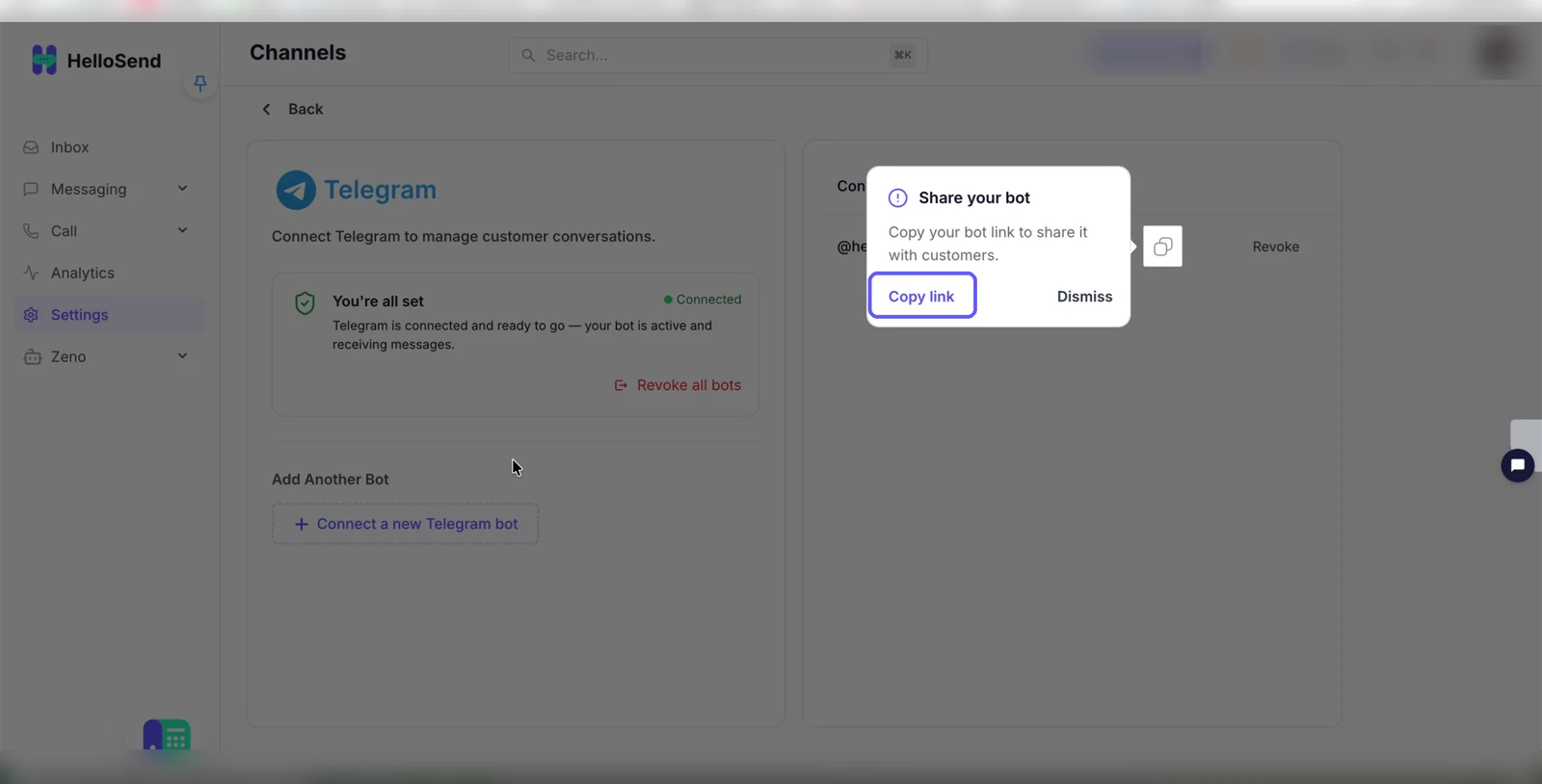
- When the connection succeeds, the page shows You're all set with a Connected status, and your bot is listed under Connected Bots.
- In the Share your bot popup, click Copy link to copy your bot link and share it with customers. Click Dismiss to close the popup.
- To add another bot, click + Connect a new Telegram bot under Add Another Bot. To disconnect bots, use Revoke or Revoke all bots.
6Reply to Telegram Messages in the Inbox
- From the left menu, click Inbox.
- In All Conversations, find the Telegram conversation. Every message a customer sends to your bot appears here as a conversation.
- Open the conversation to read the message, type your reply in the message box (Type '/' to open Templates), and click Send. Your reply is sent to the customer in Telegram.
Note: Once Telegram is connected, incoming messages appear in your HelloSend Inbox, so you can view and reply to them as soon as they arrive.
Benefits of Connecting Telegram to HelloSend
Telegram in Your Shared Inbox
Customer messages sent to your bot appear in the HelloSend Inbox, so your team can reply without switching apps.
Conversation History
Keep every Telegram conversation organized and easy to access.
Team Collaboration
Work together with your team to manage and respond to customer conversations efficiently.
Easy to Share with Customers
Copy your bot link from the Share your bot popup and share it with customers so they can start a chat.
Conclusion
Connecting Telegram to HelloSend takes a few steps: create a bot with BotFather, copy its Bot Token, paste the token on the Telegram page in HelloSend, and click Connect. Once the bot is connected, you can share its link with customers, and their messages arrive in the HelloSend Inbox, where your team can manage and reply to them alongside your other channels.




.webp)
