Before You Begin
Make sure you have:
- A HelloSend account.
- A Facebook account with admin access to the Business and the Page you want to connect.
Steps to Connect Facebook
1Open the Facebook Channel
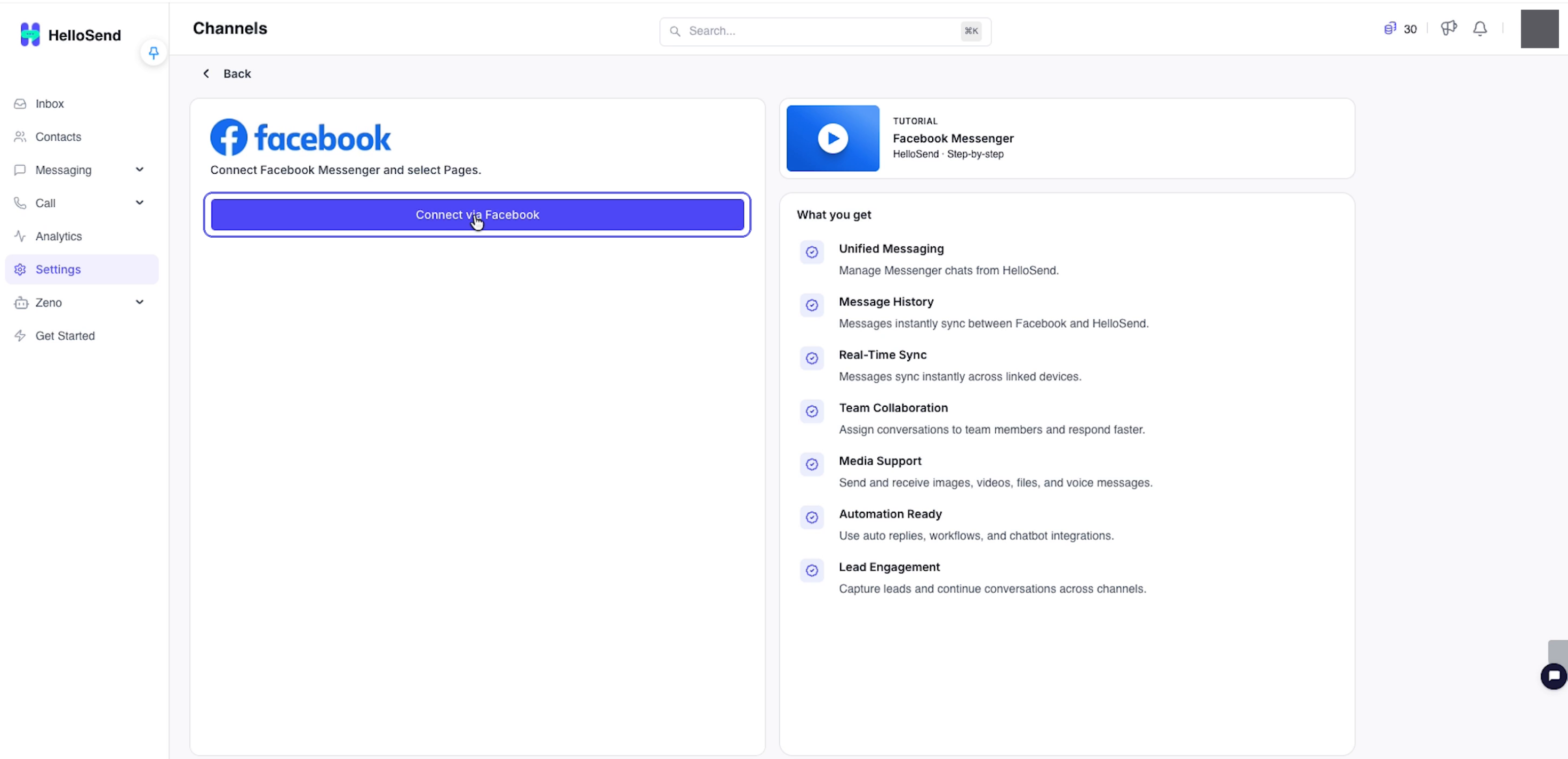
- In HelloSend, open Settings.
- Go to Channels and select Facebook.
- The Facebook channel page opens with the Connect via Facebook button.
2Connect via Facebook
- Click Connect via Facebook.
- Sign in to Facebook using the account with admin access to your Business and Page.
- Click Continue.
- Choose the Pages HelloSend can access. The demo uses Opt in to all current and future Pages. Click Continue.
- Choose the Businesses HelloSend can access. The demo uses Opt in to all current and future Businesses. Click Continue.
- On Review HelloSend's access request, review the requested access.
- Click Save.
- On the connection confirmation, click Got it.
Important: The demonstrated selections include current and future Pages and Businesses. Review the scope before saving so you understand what access you are granting.
3Confirm the Page Is Connected
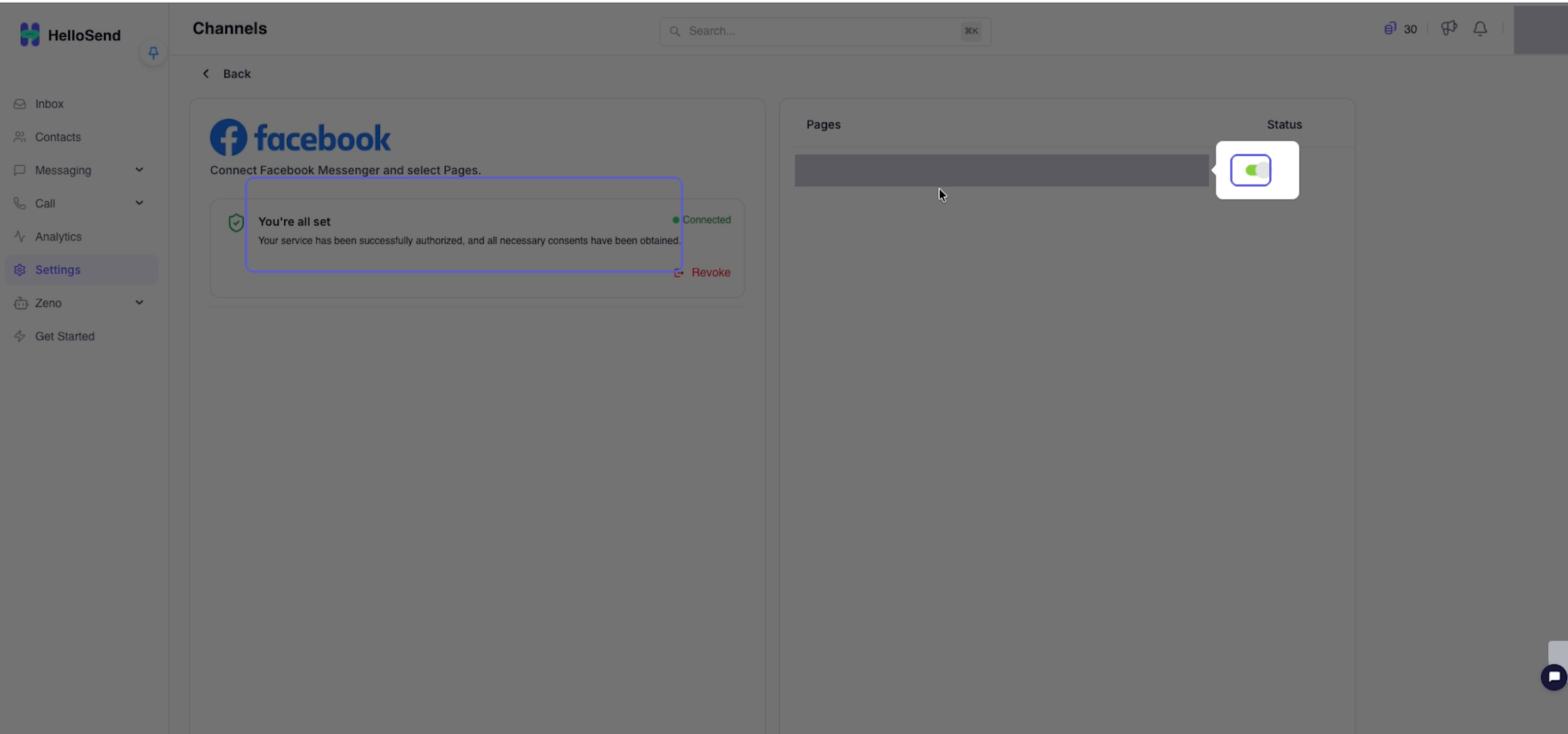
- Return to the Facebook channel page in HelloSend.
- Confirm the You're all set card shows Connected.
- In the Pages list, find your Page and check that the green toggle under Status is on.
4Reply to Messenger Messages in the Inbox
- When a customer sends a Messenger message to your connected Page, open Inbox in HelloSend.
- Open the customer's conversation to read the message.
- Type a reply, for example, Thanks for contacting us. How can we help?
- Click Send. The customer receives your reply in Messenger.
5Reply to Page Comments in the Inbox
- When a customer comments on a post on your connected Page, open the conversation in the HelloSend Inbox.
- Find the COMMENT ON POST card. It includes a preview of the post and the customer's comment.
- Choose Reply to Comment (or Send as DM → if you want to continue in Messenger instead).
- For a public comment reply, type your reply, for example, Thanks for your interest. How can we help?
- Click Send. Your comment reply appears under the customer's comment on Facebook.
Note: Use the post preview and comment in the card to check which comment you are answering.
Benefits of Connecting Facebook to HelloSend
Messenger Replies from the Inbox
Read a customer's message to your Page and send a reply from HelloSend. The reply reaches the customer in Messenger.
Page Comments in Context
The COMMENT ON POST card includes the post preview and customer comment so you can see the context before responding.
Comment Replies on Facebook
Write a reply using Reply to Comment in the Inbox. Your response appears under the customer's comment on Facebook.
Visible Page Connection Status
Check the You're all set Connected status and the Page's green Status toggle on the Facebook channel page before using the Inbox.
Conclusion
To connect Facebook to HelloSend, open the Facebook channel, complete Facebook authorization and check your Page's connection status. You can then use the Inbox to reply to Messenger messages and Page comments, with replies appearing in Messenger or under the original Facebook comment.