

What Is Global Search?
Global Search is a centralized search capability in HelloSend that helps you find information stored across different areas of your account.
Instead of navigating separately through your Inbox, Contacts, messages, or notes, you can enter a search term and view relevant results from a single search experience.
You can use Global Search to find:
- Conversations
- Messages
- Notes
- Contacts
This is especially useful when you know a customer name, phone number, message content, or another piece of information but do not know exactly where the record is located.
How to Use Global Search in HelloSend
Step 1: Open Global Search
Log in to your HelloSend account and click the Global Search bar at the top of the page to start searching.
Step 2: Enter Your Search Term
Enter a keyword or customer detail in the Global Search bar to find matching information across HelloSend.
You can search using:
- Conversations
- Contact name
- Phone number
- Email address
- Message content
- Notes
- Words or phrases from a conversation
HelloSend displays relevant matching results based on your search term.
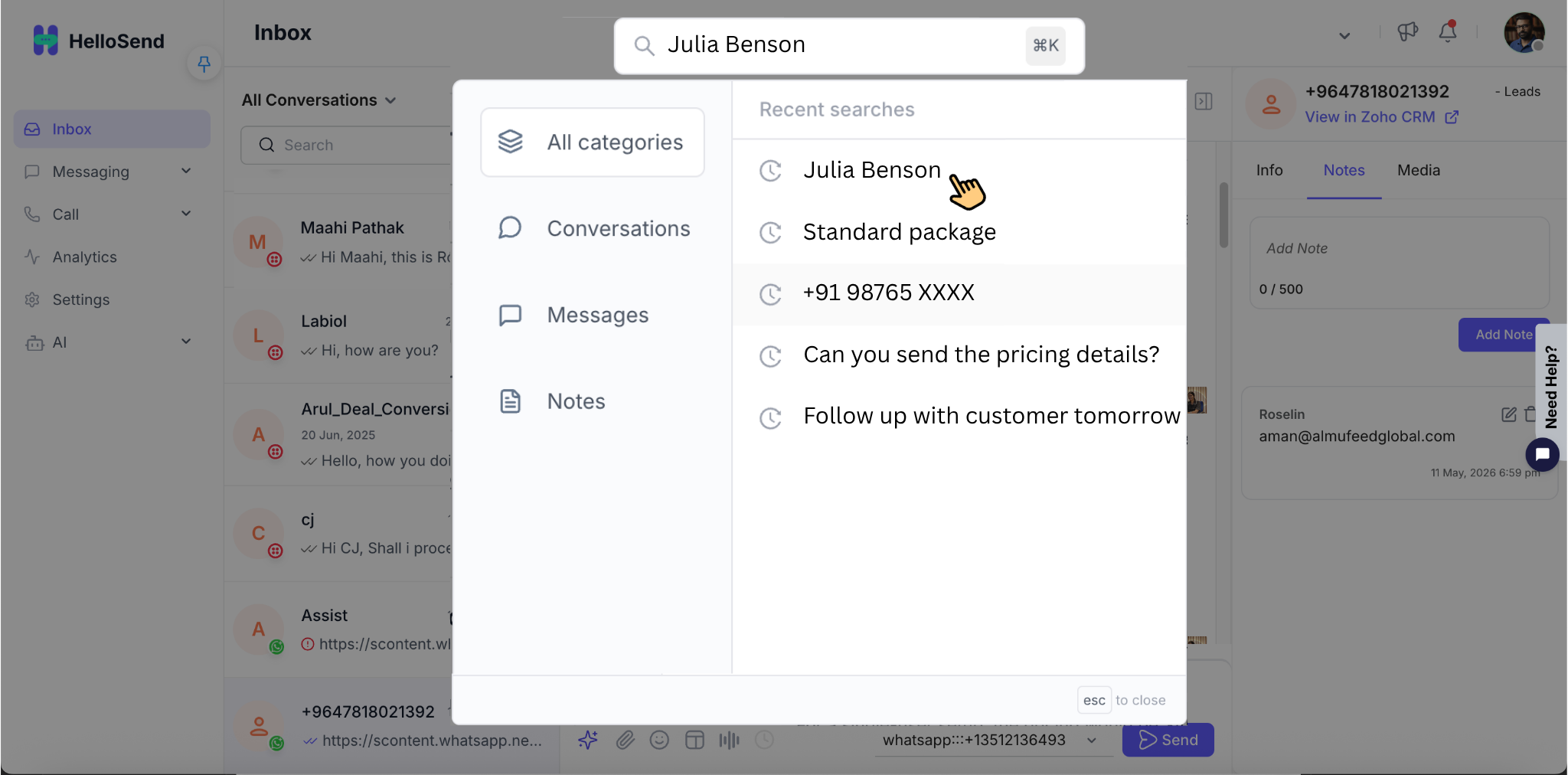
Step 3: Review Search Results
Once you enter a search term, HelloSend displays matching results from different areas of your account in one place. Review the results to quickly identify the information that is most relevant to your search.
Search results may include:
- Conversations – Displays conversations that match your search term, helping you quickly locate previous customer interactions and continue from the relevant conversation.
- Messages – Shows individual messages containing the searched keyword or information, making it easier to find a specific message within a conversation.
- Notes – Displays internal notes that contain matching information, helping your team quickly access important context or previously recorded details.
- Contacts – Shows matching contact records based on details such as contact name, phone number, or email address, allowing you to quickly open the relevant customer profile.
Review the matching results and select the relevant item to open it directly. This allows you to access the required customer information without manually navigating through multiple sections of HelloSend.
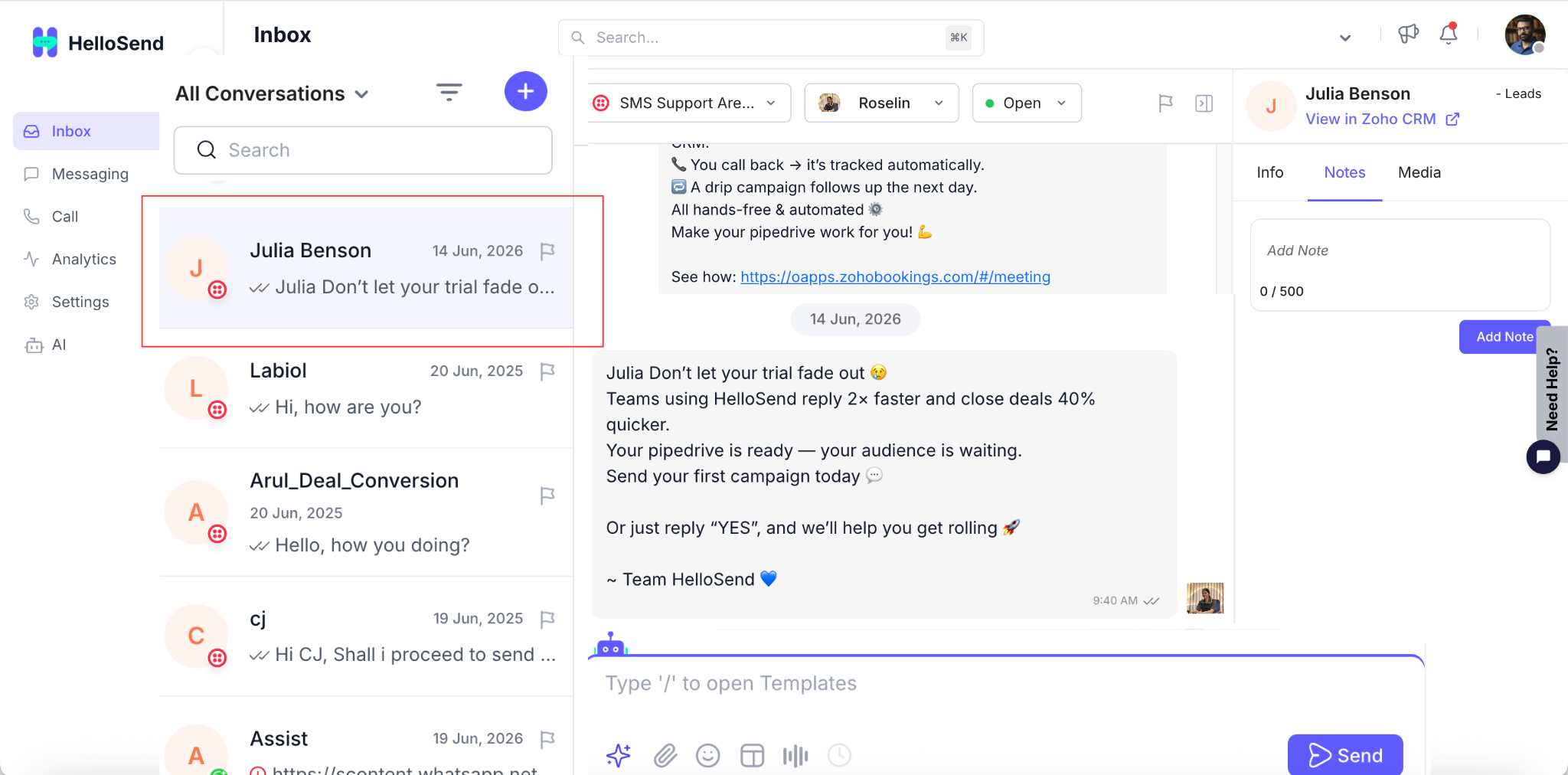
Step 4: Filter the Results
When your search returns multiple results, use the available search categories or filters to narrow down the results and quickly find the information you need.
You can filter the search results by categories such as Conversations, Messages, Notes, or Contacts depending on the type of information you are looking for.
For example, if you want to find a specific customer, select Contacts to view only matching contact records. If you are searching for a previous interaction, select Conversations or Messages to focus on communication-related results.
Filtering is especially helpful when the same name, phone number, keyword, or phrase appears across multiple records. By selecting the most relevant category, you can reduce unnecessary results and locate the required information faster.
Step 5: Select the Relevant Result
Review the matching search results and select the item that best matches the information you are looking for.
When you select a result, HelloSend opens the corresponding conversation, message, note, or contact so you can view the complete information without manually navigating through different sections of the application.
For example, selecting a conversation allows you to review the previous customer interaction, while selecting a contact opens the related customer details. This helps you quickly access the required context and continue with the next action.
Step 6: Continue Your Workflow
After opening the selected search result, review the available customer information and continue with the action you need to complete. Global Search helps you move directly from finding information to taking action without navigating through multiple areas of HelloSend.
Depending on the type of result you open, you can:
- Review previous customer conversations – View earlier interactions to understand the customer's history and the context of previous discussions.
- Check earlier messages before replying – Review previously sent and received messages so you can respond with the right context and avoid asking for information the customer has already provided.
- View internal notes for additional context – Access notes added by your team to understand important customer details, follow-up information, or internal updates related to the conversation.
- Open customer contact information – View available contact details such as the customer's name, phone number, and email address when you need additional information.
- Continue an existing conversation – Open the relevant conversation and continue communicating with the customer directly from the existing thread.
By providing direct access to the relevant record, Global Search helps you maintain customer context, reduce unnecessary navigation, and continue your workflow more efficiently.
Example: Finding a Previous Customer Interaction
Suppose a customer contacts your team about an issue they discussed previously.
Instead of manually checking multiple conversations, you can enter the customer's name, phone number, or a keyword from the earlier discussion into Global Search.
HelloSend can display matching conversations, messages, notes, and contact information. You can then open the relevant result and quickly understand the previous interaction before responding to the customer.
Key Features of Global Search
Unified Search
Search across conversations, messages, notes, and contacts from one centralized search area. This helps you find customer-related information without opening and searching each section of HelloSend separately.
Fast Search Results
Quickly view relevant matching information based on the keyword or customer detail you enter. Global Search reduces the need to manually navigate through multiple areas of HelloSend, helping you reach the required information faster.
Search Categories
Narrow your search results by selecting the type of information you want to view, such as conversations, messages, notes, or contacts. This is useful when the same keyword appears in multiple records and you want to focus only on the most relevant category.
Direct Record Access
Open a matching conversation, message, note, or contact directly from the search results. This allows you to move from searching to reviewing or taking action without manually locating the record elsewhere in HelloSend.
Customer Context at Your Fingertips
Quickly access previous conversations, messages, notes, and customer details before responding or taking the next action. Having this information readily available helps your team understand previous interactions and continue the conversation with better context.
Benefits of Global Search
Reduce Time Spent Searching
Global Search brings information from different areas of HelloSend into one search experience, reducing the need to manually browse through multiple sections.
Improve Team Productivity
Faster access to relevant information allows team members to spend more time communicating with customers and completing important tasks.
Access Customer Context Faster
Teams can quickly review previous conversations, messages, notes, and contact details before replying to a customer.
Improve Response Efficiency
Having customer information readily available can help users understand previous interactions and respond with the appropriate context.
Keep Workflows Organized
Global Search helps users locate existing information without interrupting their workflow or repeatedly switching between different areas of HelloSend.
Support Team Collaboration
Internal notes and previous conversations can provide useful context when another team member takes over or continues a customer interaction.
Tips for Better Search Results
Use specific and relevant search terms to quickly find the information you need. The following tips can help you narrow down results and make Global Search more effective.
- Search using the customer's full or partial name to locate matching contacts, conversations, messages, or notes. A partial name can be useful when you are unsure of the complete spelling.
- Use the customer's phone number when a name returns several similar results. Searching by phone number can help you identify the correct customer record more quickly.
- Search by email address when you know the customer's email. This can help narrow the search to records associated with a specific customer.
- Use specific words or phrases from previous conversations or messages. Unique keywords related to a request, product, issue, or discussion can make it easier to locate the relevant interaction.
- Apply search categories or filters when you already know the type of information you need. For example, select Contacts when looking for customer details or Messages when searching for a specific message.
- Try a shorter or broader keyword if a long or exact phrase does not return the expected result. Removing unnecessary words can help surface additional matches.
- Use customer-specific information such as a name, phone number, email address, or unique message content when common keywords return too many results.
- If the first search does not return the information you need, refine your search term and try again. Using a different keyword or combining the search with the appropriate category can help you reach the correct record faster.
Conclusion
Global Search in HelloSend provides a faster way to find customer information across conversations, messages, notes, and contacts. Instead of navigating through multiple sections, teams can search from one place, identify the relevant result, and open it directly.
By making customer information easier to access, Global Search helps teams maintain context, reduce unnecessary searching, and keep customer communication workflows moving efficiently.