
1Open Analytics
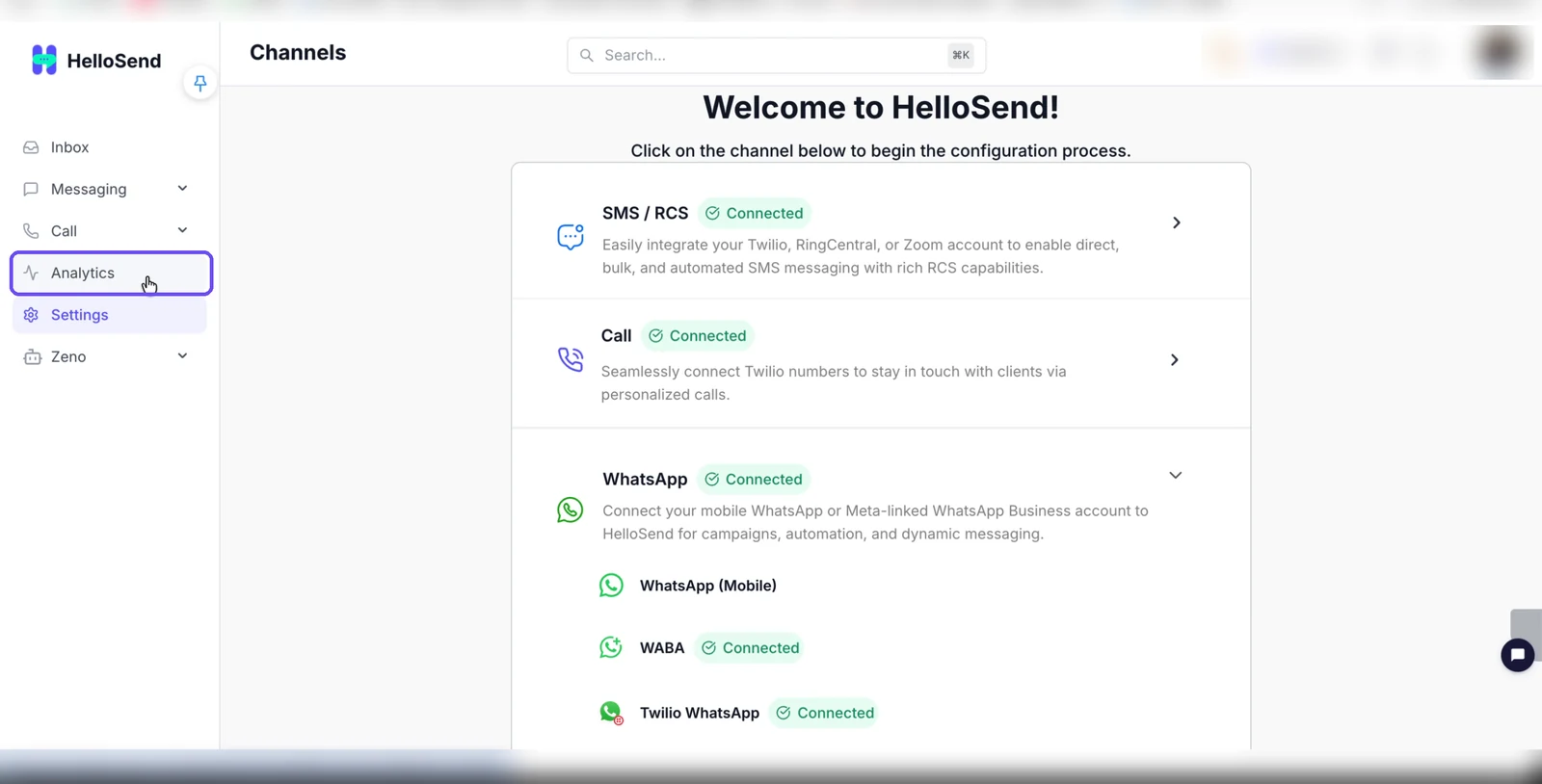
- From the left menu, click Analytics.
- The Analytics page opens on the Overview tab.
2Set the Date Range and Filters
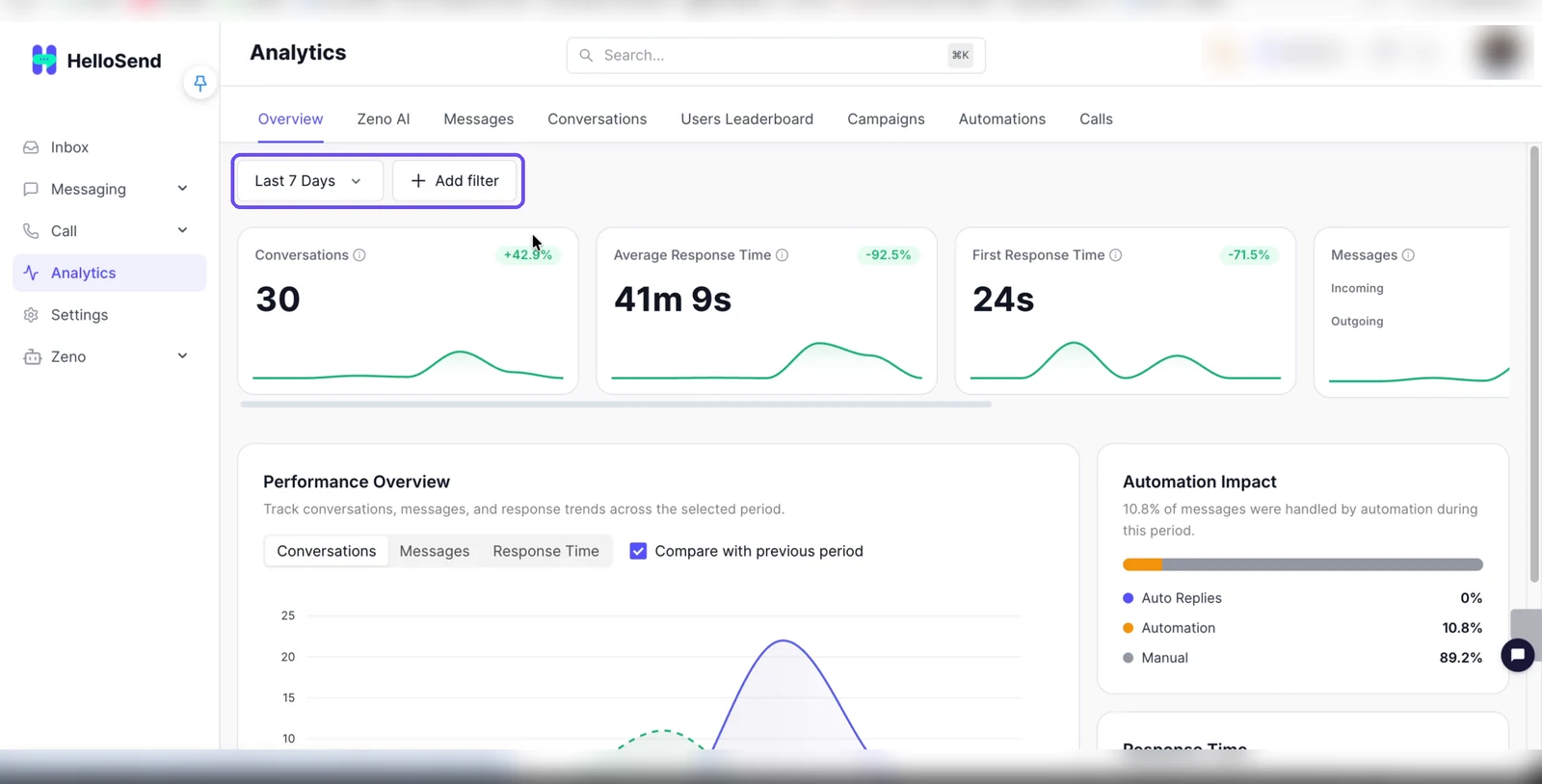
- At the top of the Analytics page, use the date range selector (Last 7 Days) to choose the period you want to review.
- Click + Add filter to narrow the data. For example, choose Channel to filter by a connected channel.
- The tabs below the page header (Overview, Zeno AI, Messages, Conversations, Users Leaderboard, Campaigns, Automations, Calls) all use the selected period.
3Review the Overview Tab
- Check the summary cards: Conversations, Average Response Time, First Response Time, and Messages (Incoming and Outgoing).
- In Performance Overview, switch between Conversations, Messages, and Response Time. Select Compare with previous period to compare against the previous period.
- Review Automation Impact to see the percentage of messages handled by Auto Replies, Automation, and Manual replies during the selected period.
- Scroll to Response Time to see how many conversations were answered Under 5 Minutes, in 5-90 Minutes, or Over 90 Minutes.
4Track Zeno AI Performance
- Click the Zeno AI tab.
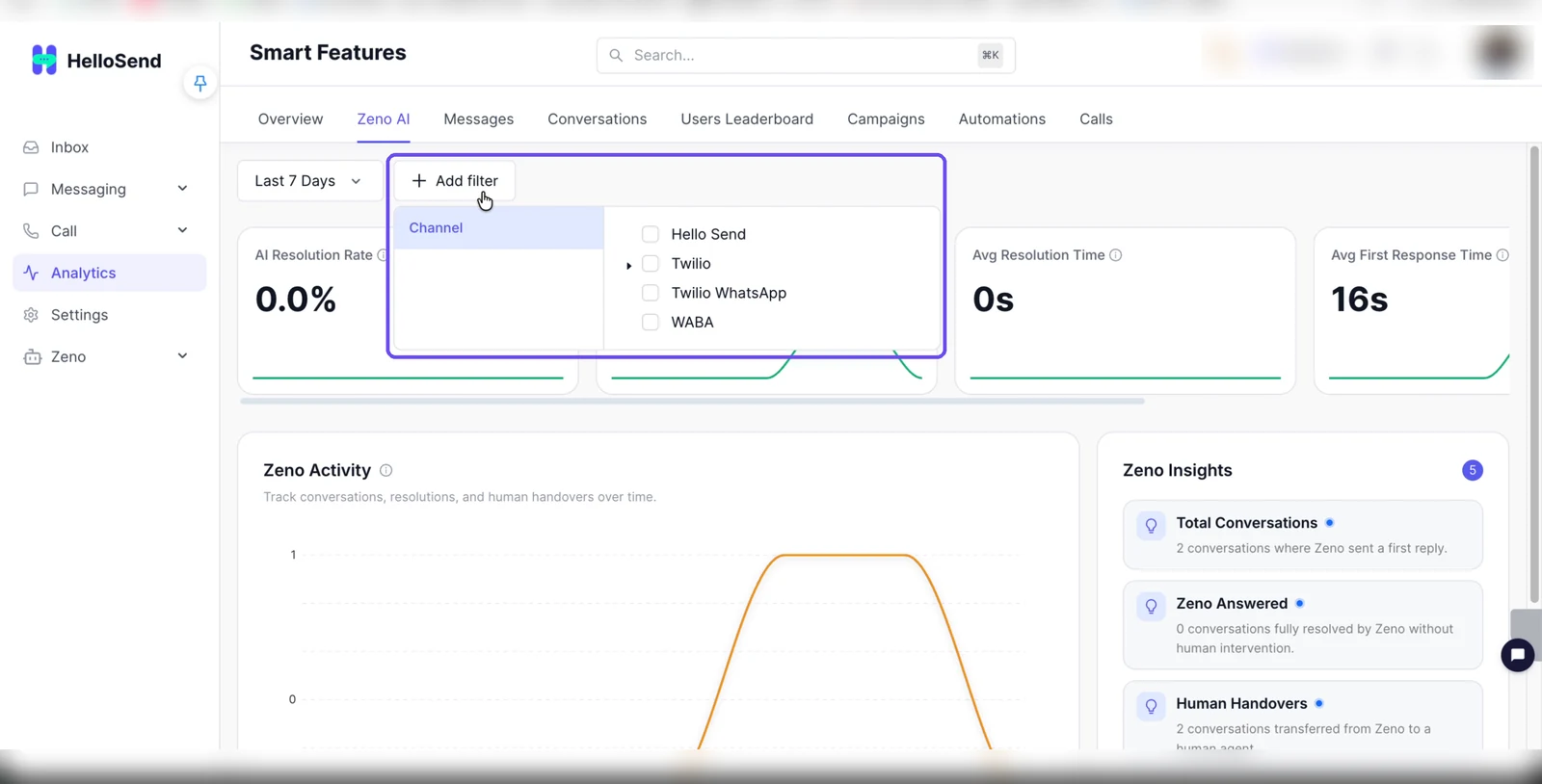
- Review AI Resolution Rate, Handover Rate, Avg Resolution Time, and Avg First Response Time.
- Use the Zeno Activity chart to track conversations, resolutions, and human handovers over time.
- Check Zeno Insights for Total Conversations, Zeno Answered, Human Handovers, Estimated Time Saved, and Messages per Conversation.
- To filter by channel, click + Add filter, select Channel, and choose the channel.
5Analyze Messages
- Click the Messages tab.
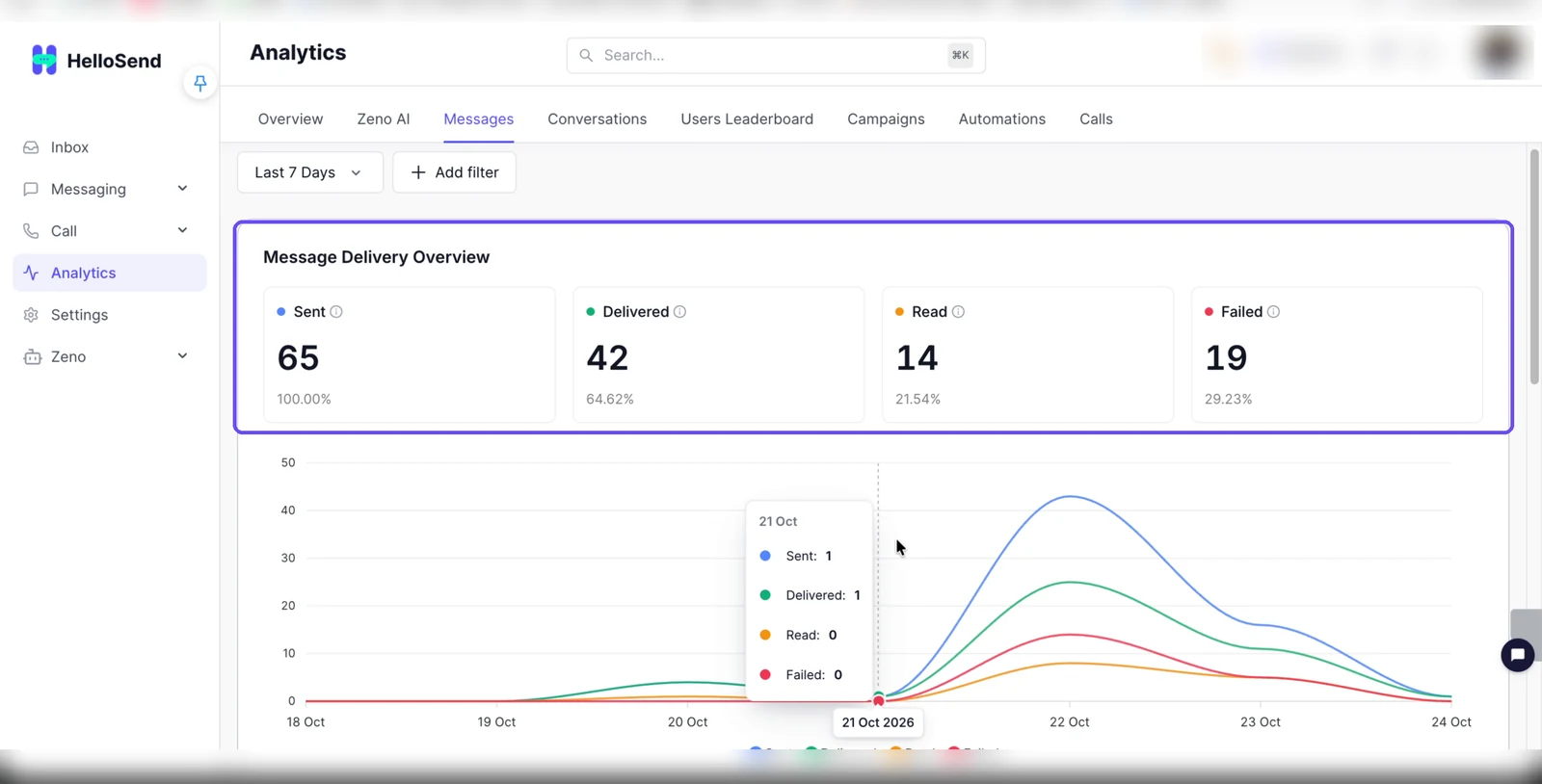
- In Message Delivery Overview, review Sent, Delivered, Read, and Failed messages. Hover over the chart to see daily values.
- Use Message Volume Trend to compare incoming and outgoing messages.
- Check Message Distribution by Channel to see which channels carry the most messages.
- Review the Incoming Message Heatmap and Outgoing Message Heatmap to find your peak activity times.
6Monitor Conversations
- Click the Conversations tab.
- Review Conversations Opened, Conversations Closed, Conversations Reopened, and Average Response Time.
- Use Conversation Lifecycle and Conversation Insights to see how conversations progress during the selected period.
- Check Average First Response Time and Average Response Time, along with their breakdown tables by time range.
- Review the Conversations Opened Heatmap and Conversations Closed Heatmap to see when conversations are opened and closed.
7Compare Team Performance in Users Leaderboard
- Click the Users Leaderboard tab.
- Keep Group by set to User to rank individual team members.
- Compare each user by Average First Response Time, Conversations Closed, Messages Sent, Calls Handled, and Performance Score.
8Measure Campaign Results
- Click the Campaigns tab.
- Review Campaigns Sent, Messages Sent, and Average Messages per Campaign.
- Use Campaigns Sending Over Time and Messages Sent by Campaign to track campaign activity.
- In Top 3 Campaigns, compare Engagement Rate, Success Rate, and the Sent, Delivered, Opened, and Replied counts for each campaign.
- Check Performance Insights for your Highest Engagement and Top Volume campaigns.
9Review Automations
- Click the Automations tab.
- Use the Messages sent by automations chart to see how many messages your automations sent. Hover over the chart to see daily values.
- Review Top 3 automations and Performance insights to find your best-performing automations.
10Track Calls
- Click the Calls tab.
- Review Outgoing Calls, Incoming Calls, Missed Rate, and Avg Duration.
- Use the Call Volume chart to track inbound, outbound, and missed call activity over time.
- Check Call Insights for the Missed Call Rate.
- Review the Incoming Calls Heatmap and Outgoing Calls Heatmap to see when calls are most active.
Benefits of HelloSend Analytics
Centralized Reporting
Monitor messages, conversations, campaigns, calls, and AI performance in one place.
Response Time Insights
Track response times and identify areas where your team can improve.
Team Performance
Compare user activity and understand how conversations are handled.
Data-Driven Decisions
Use trends and channel filters to make better communication decisions.
Conclusion
HelloSend Analytics gives you a clear view of your messaging activity, customer conversations, team performance, automations, calls, and AI results. By using date filters and reviewing the available reports, you can identify communication trends, monitor performance, and make informed decisions to improve customer engagement.
Need help? Reach out to assist@hellosend.com





.webp)
