

Add Knowledge to Zeno
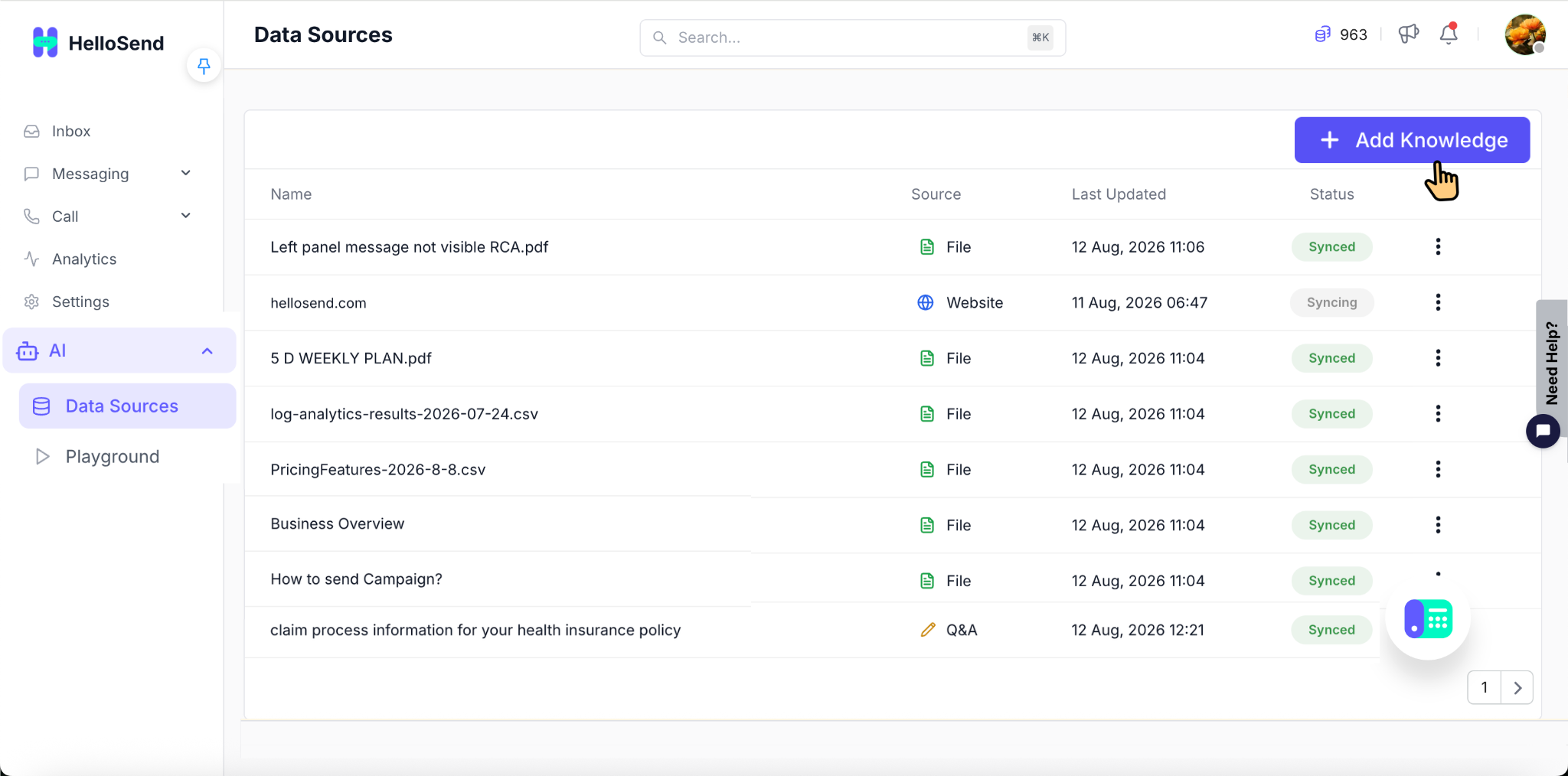
Go to Zeno → Data Source and click Add More Knowledge.
This is where you add the business information Zeno will use when answering customer questions.
For example, if a customer asks about your pricing, product availability, business hours, services, or support process, Zeno can refer to the knowledge you have added and provide a relevant response.
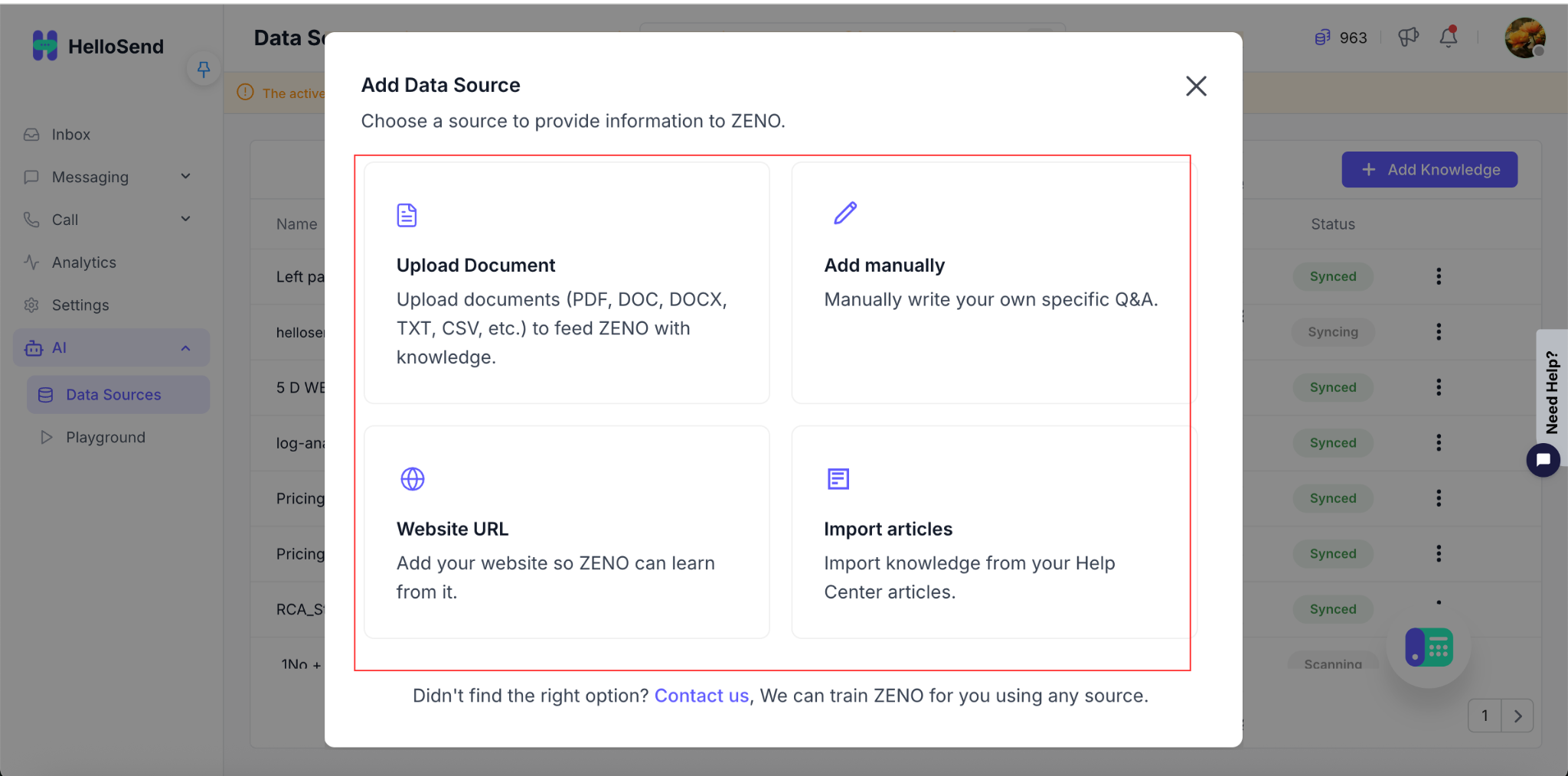
You can add knowledge in the following ways.
Add a Website URL or Help Center
If your website or Help Center already contains useful business information, you can add its URL to Zeno.
Zeno reads the text available on the page and uses that information to understand your business and answer related customer questions.
This is useful for pages such as:
- Product or service pages
- Pricing pages
- Frequently asked questions
- Help Center articles
- Setup guides
- Troubleshooting articles
- Business hours
- Contact information
- Support content
For example, if your website explains the different plans your business offers and what is included in each plan, Zeno can use that information when a customer asks, “Which plan is best for a small team?”
This allows Zeno to provide a useful answer based on your actual business information instead of giving a general response.
For better results, add pages that contain clear, complete, and up-to-date text.
Upload Documents
You can also upload documents that contain important information about your business.
This is useful when the information Zeno needs is available in documents rather than on your website.
You can upload:
- DOC
- DOCX
- TXT
- CSV
Examples of useful documents include:
- Product information
- Service details
- Frequently asked questions
- Support guides
- Company policies
- Internal help documents
- Troubleshooting instructions
Zeno reads the information in these documents and uses it when answering related customer questions.
For example, if you upload a product guide containing setup instructions, Zeno can use those instructions when a customer asks how to configure the product.
You can upload up to 50 files, with a maximum size of 40 MB per file.
For better responses, make sure your documents are easy to understand, well structured, and contain the latest information.
Add Questions and Answers Manually
You can also add specific questions and answers directly to Zeno.
This option is useful when customers frequently ask the same question and you want Zeno to provide a clear and consistent answer.
For example:
Question: How long does it take to set up my account?
Answer: Most accounts can be set up within a few minutes after completing the required configuration.
You can add questions and answers related to:
- Pricing
- Business hours
- Products
- Services
- Policies
- Account setup
- Support
- Troubleshooting
You can add multiple questions and answers based on the information your customers commonly need.
Test Zeno in Playground
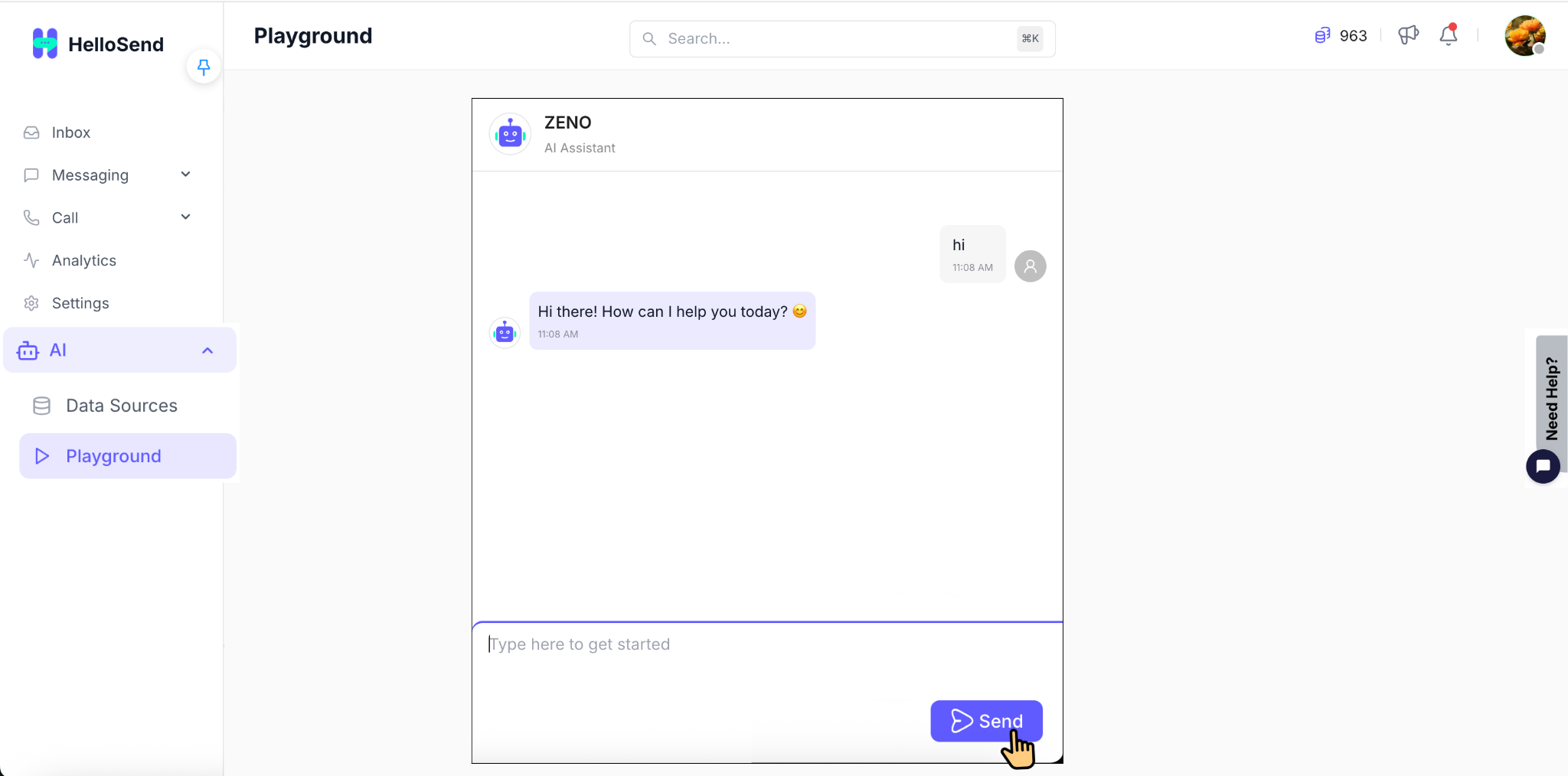
After adding your business information, the next step is to test how Zeno responds.
Go to Playground and ask questions similar to the ones your customers are likely to ask.
For example:
- Which plan should I choose?
- What services do you provide?
- What are your business hours?
- How do I set up my account?
- How can I contact support?
Zeno will answer using the knowledge you have added.
Review each response and check whether it is accurate, clear, and helpful.
If an answer is incomplete or incorrect, identify the information that is missing and update the related website source, document, or manual question-and-answer entry.
Then return to Playground and ask the question again.
You can repeat this process until Zeno provides the response you expect.
Testing in Playground gives you an opportunity to improve Zeno's knowledge before it starts responding to real customers.
Enable Zeno
Once you have added your business knowledge and tested the responses in Playground, you can enable Zeno.
After Zeno is enabled, it can automatically respond to customer questions using the knowledge you have provided.
For example, when a customer asks about your products, pricing, business hours, setup process, or a common support issue, Zeno can find the relevant information from your knowledge sources and respond.
If Zeno does not have enough information to answer a question, or if the customer asks to speak with a human agent, the conversation can be handed over to your team.
This allows Zeno to handle common customer questions while your team focuses on conversations that need human assistance.
Keep Zeno Knowledge Updated
Zeno's responses depend on the information available in its knowledge sources.
Whenever your products, pricing, services, policies, or support information changes, make sure the corresponding knowledge in Zeno is updated as well.
For better responses:
- Keep your business information up to date
- Remove outdated or incorrect content
- Avoid adding duplicate information
- Use simple and clear language
- Include complete information
- Review important knowledge regularly
- Test Zeno again after making significant updates
For example, if you introduce a new pricing plan but Zeno still has only your older pricing information, it may not be able to answer questions about the new plan correctly.
Keeping the knowledge updated helps Zeno provide customers with the latest information.
AI-Powered Customer Messaging with HelloSend
HelloSend combines customer communication with AI-powered capabilities to help businesses manage conversations more efficiently.
With Zeno AI in HelloSend, businesses can use their own website content, Help Center articles, documents, and frequently asked questions to automatically answer common customer queries.
Zeno works alongside HelloSend's customer messaging capabilities, helping teams manage conversations across SMS, WhatsApp, voice, and other supported communication channels.
Because Zeno uses your own business knowledge, its responses can be more relevant to your products, services, policies, and customer support processes.
Conclusion
Setting up Zeno follows three simple steps:
Add Knowledge → Test in Playground → Enable Zeno
First, add the information Zeno needs to understand your business. Next, test common customer questions in Playground and improve the knowledge wherever necessary. Once you are satisfied with the responses, enable Zeno for customer conversations.
Keeping your Zeno knowledge accurate and up to date helps HelloSend AI provide more useful, consistent, and relevant responses to your customers.