
Before you begin, make sure you have:
- A business email address to sign up for HelloSend.
- A Zoho Books organization.
- At least one messaging channel you can connect: Twilio, RingCentral, Zoom, WhatsApp, WABA, Telegram or Voice/Calls.
- For the WhatsApp (Mobile) example: a phone with WhatsApp installed on an account that is already active on that device.
Sign Up for HelloSend
- Go to the Zoho Books Marketplace.
- Search for HelloSend in the App Market.
- Select the HelloSend application and click the Visit Website option.
- After installation, you will be redirected to the HelloSend Landing Page.
- Click Get Started to begin the sign-up process.
- On the Sign Up for HelloSend screen, enter your business email in the Enter your business email field, for example, you@example.com.
- Click Send 4-digit code.
- On the Enter verification code screen, enter the code sent to your email.
- Click Verify.
Result: The Seamless Customer Communication page opens, displaying the available integrations.
Integrate Zoho Books
- On the Seamless Customer Communication page, find the Zoho Books tile and click Integrate.
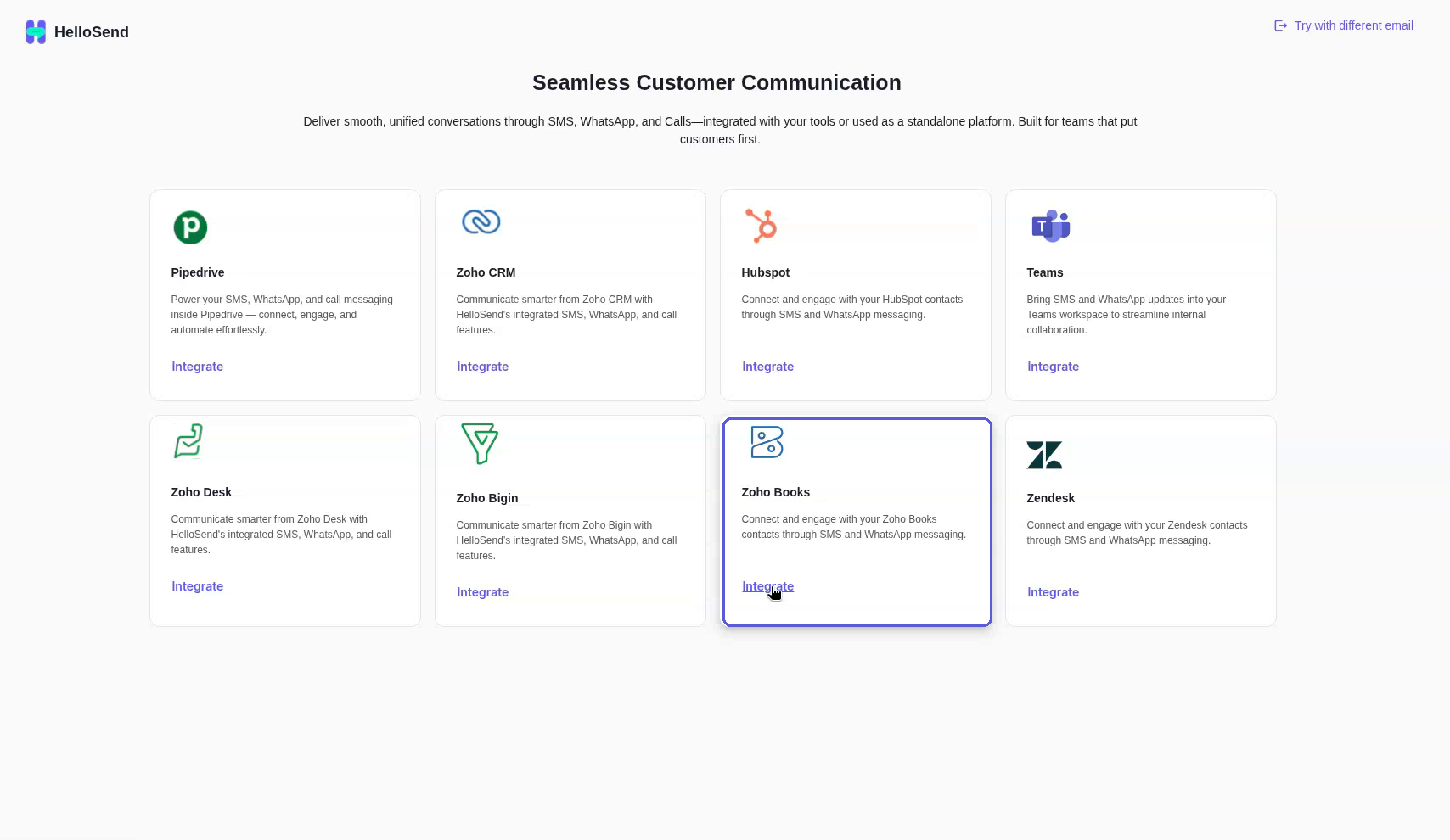
- In the Connecting Your Zoho Books modal, click Continue. You are redirected to Zoho.
- On the Books consent page (Books would like to access the following information.), review the requested access.
- Select I allow Books to access the above data from my Zoho account.
- Click Accept.
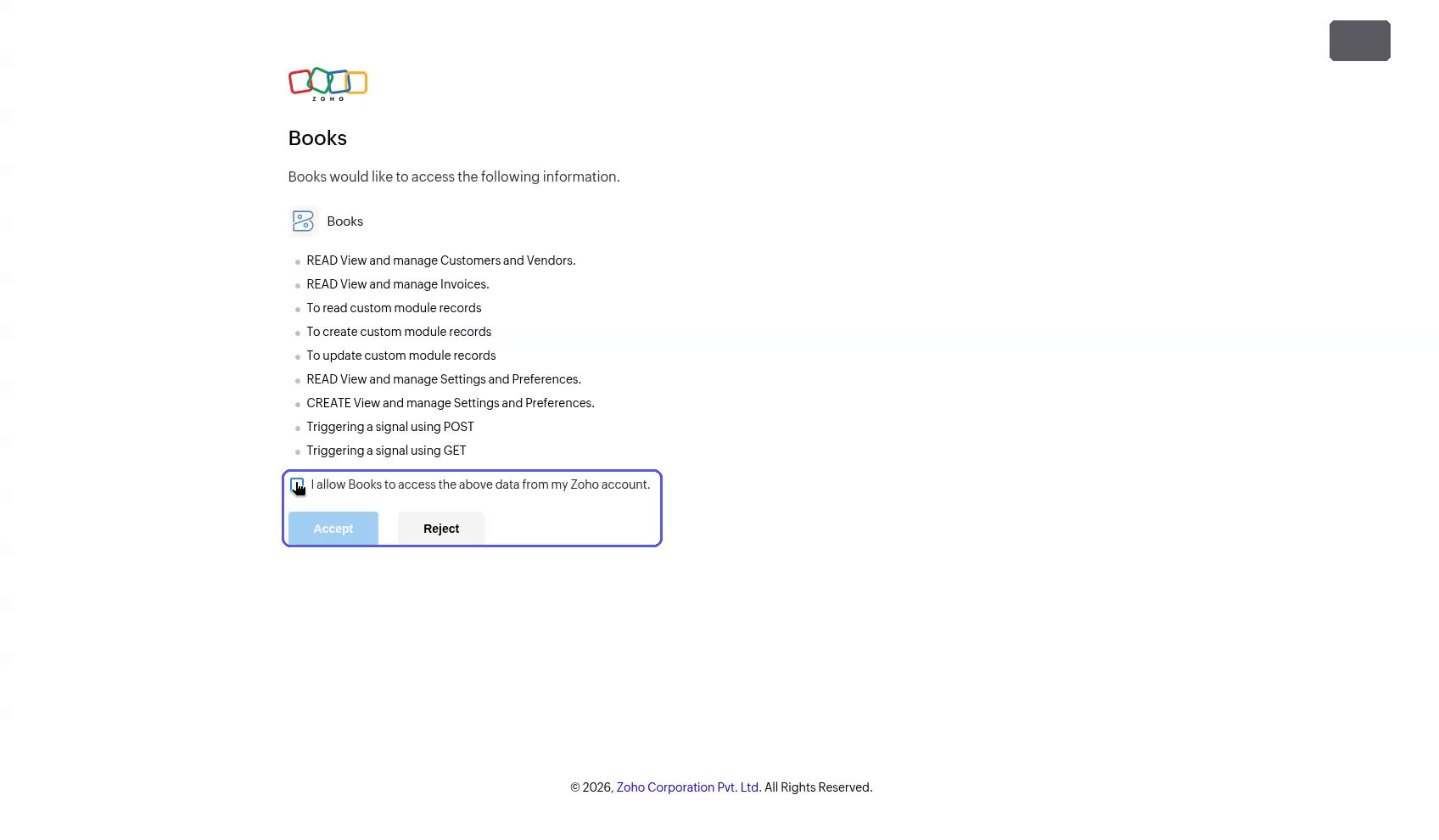
Once connected, your Zoho Books customers sync to HelloSend automatically.
Connect a Channel
You can connect any of these channels: Twilio, RingCentral, Zoom, WhatsApp, WABA, Telegram and Voice/Calls. This example connects WhatsApp (Mobile) with a QR code.
- On the Welcome to HelloSend! page, click WhatsApp.
- Select WhatsApp (Mobile).
- On the WhatsApp page, click Connect via QR Code.
- In the Connection Recommendation popup, click I Understand, Continue.
- In Sign in to WhatsApp, keep the QRcode method (or choose Pairing code), then open WhatsApp on your phone and scan the code.
- When HelloSend shows Welcome aboard! WhatsApp capability has been successfully activated., click Proceed.
Note: The Connection Recommendation popup advises using a WhatsApp account that has already been active on a mobile device. New or recently created accounts are more likely to face WhatsApp security restrictions.
Verify the Channel
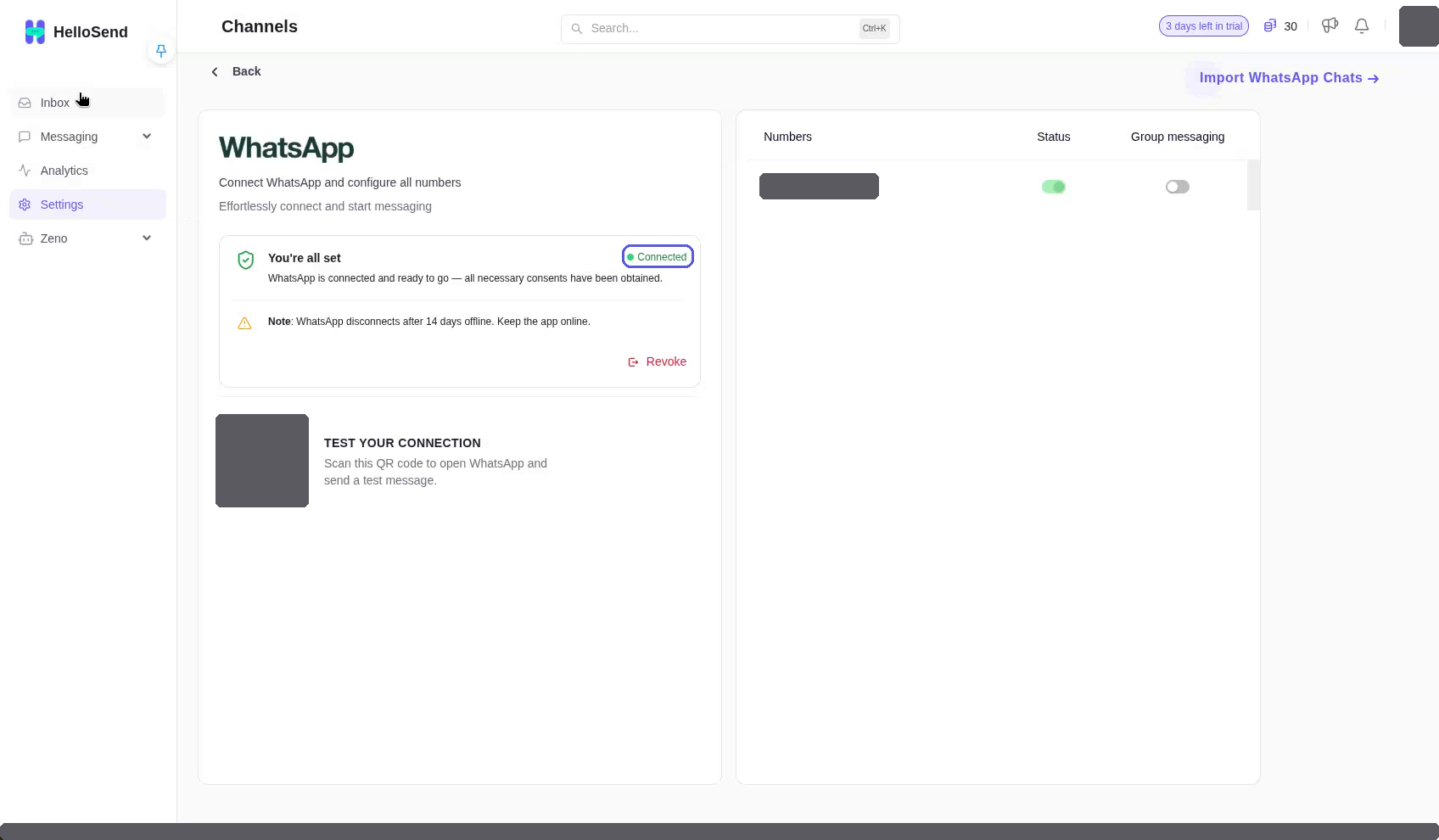
- Go to Settings → Channels → WhatsApp.
- Check that the page shows You're all set with the Connected status.
- Check that your number is listed under Numbers with its Status toggle on.
Send a Message from the Inbox
- In the HelloSend menu, click Inbox.
- Click +. The Start Conversation window opens.
- On the New Conversation tab, search for a contact synced from Zoho Books, for example Sample Customer, and select it.
- In the composer, type your message, for example Welcome to HelloSend.
- Click Send.
Result: The message appears in the conversation.
Next, set up automatic WhatsApp messages when an invoice is created.
Create the HelloSend Webhook
- In the HelloSend menu, go to Messaging → Automation → Webhook.
- Click + Create Webhook.
- Select the sender number.
- Select Customer, then in Select fields choose the phone field, for example Work Phone.
- Under Step 1, click Choose template → General and select a template.
- In Enter Friendly Name, enter a name, for example Customer Update.
- Click Save.
- On the webhook row, click Copy URL.
Important: The webhook URL contains keys for your account. Do not share it.
Create the Zoho Books Webhook
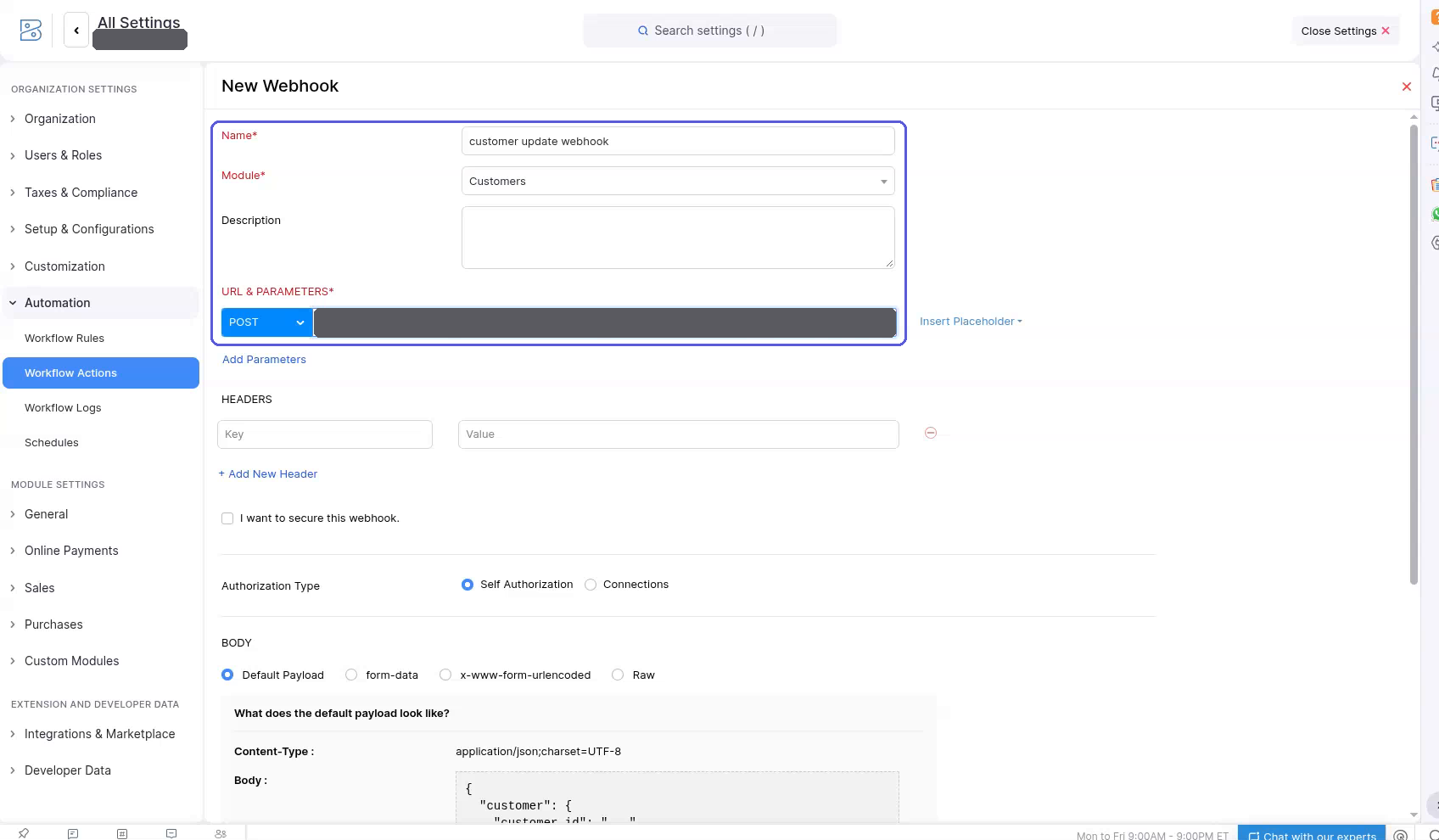
- In Zoho Books, open All Settings → Automation → Workflow Actions → Webhooks. You can also type work in Search settings and select Workflow Actions.
- Click + New Webhook.
- In Name (required), enter a name, for example customer update webhook.
- Set Module* to Customers.
- Under URL & PARAMETERS*, keep POST and paste the HelloSend URL.
- Click Save and Execute.
Result: Zoho Books shows Webhook has been created.
Create the Workflow Rule
- In Zoho Books, open Automation → Workflow Rules and click + New Workflow Rule.
- Enter a Workflow Rule Name*, for example contact update webhook rule.
- Set Module* to Customers and click Next.
- Set Action Type* to Created or Edited.
- Set Execute the workflow when* to Any field is updated, then click Next.
- Click + New Criteria. In Criterion 1, set Select a field (for example Customer Name), Select a condition (is) and Enter a value, then click Done.
- Under Immediate Actions, select Webhooks. In Associate Immediate Actions, choose the webhook from Name, then click Associate.
- Click Save.
Test your setup
- In Zoho Books, create a test invoice.
- In HelloSend, open the Inbox and confirm that the message arrives.
✅ Key Benefits of Connecting HelloSend with Zoho Books
🔗 Direct Zoho Books Connection
Authorize HelloSend from the integrations page and approve access on the Zoho consent screen.
👉 Result: Your Zoho Books customers sync to HelloSend automatically, so you can find them in HelloSend.
📱 Flexible Channels
Connect Twilio, RingCentral, Zoom, WhatsApp, WABA, Telegram or Voice/Calls, or link WhatsApp (Mobile) with a QR code.
👉 Result: You message customers on the channel you already use.
💬 One Inbox for Conversations
Start conversations with synced Zoho Books contacts from the HelloSend Inbox.
👉 Result: Customer messages stay in one place.
⚡ Webhook-Triggered Workflows
Link a HelloSend webhook to a Zoho Books workflow rule on the Customers module.
👉 Result: Creating or editing a matching customer triggers the HelloSend webhook.
❓ FAQ
Webhook not triggering?
Check that the webhook URL in Zoho Books matches the URL you copied from HelloSend, and that the record you create or edit meets your workflow rule criteria.
QR code expired?
If the code expires before you scan it, go back to Sign in to WhatsApp and try again, or choose Pairing code instead.
Do WhatsApp templates need Meta approval?
Yes. WhatsApp Business API message templates must be approved by Meta before you can use them.
📌 Conclusion
Connecting HelloSend with Zoho Books brings customer messaging into your accounting workflow. You sign up, authorize Zoho Books, connect a channel such as WhatsApp (Mobile), and message synced customers from the Inbox.
With a HelloSend webhook linked to a Zoho Books webhook and workflow rule, customer updates in Zoho Books trigger the HelloSend webhook.




.webp)
