
Before you begin, make sure you have:
- A Shopify account and store, or the details to create one during installation.
- An account with at least one supported channel: Twilio, RingCentral, Zoom, WhatsApp, WABA, Telegram or Calls.
1Install the App from the Shopify App Store
- Open the Shopify App Store and go to the HelloSend Call, SMS, WhatsApp for Shopify listing.
- Click Install.
2Create a Shopify Account or Log In
- In the install window, choose one of the following:
- Create a Shopify account, if you do not have a store yet.
- Log in to an existing account, if you already have a store.
- On the To continue, sign up or log in screen, enter your Email address.
- Click Continue with email, or use one of the Google, Apple or WhatsApp options.
- Complete the Shopify sign-up or log-in.
Note: This is the Shopify sign-in screen, not a HelloSend login.
3Review the Permissions and Install the App
- Review the Install app screen. Under This app needs access to, the app requests:
- View customer data (Sensitive data, device and activity data)
- View staff and contributor data (Store owner)
- View store data (Customers, orders)
- Click Install. To stop, click Cancel.
4Open the Channels Screen
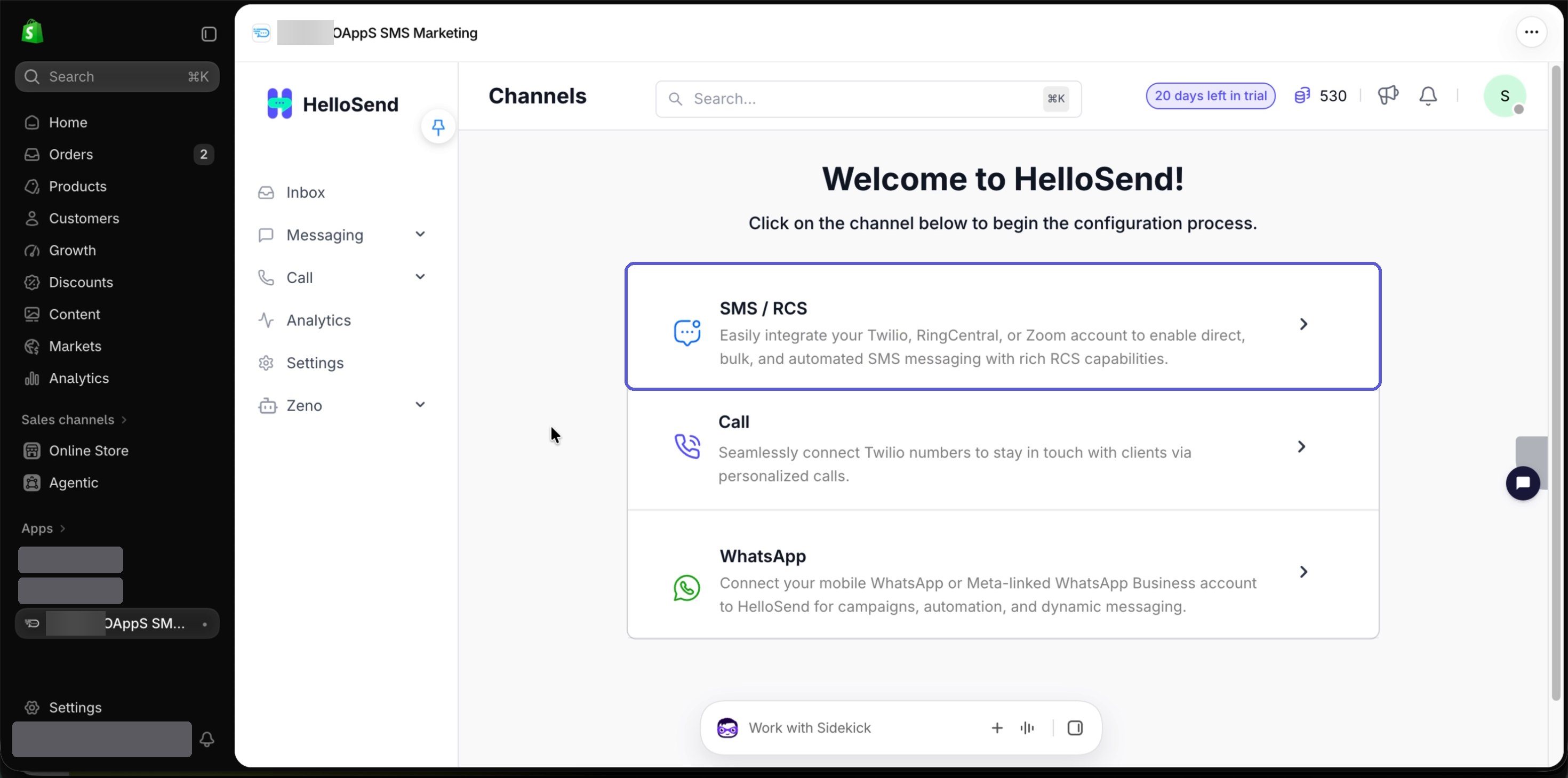
- Wait for the app to open. The Channels screen shows Welcome to HelloSend! and Click on the channel below to begin the configuration process.
- Review the available channels: SMS / RCS, Call and WhatsApp. HelloSend supports Twilio, RingCentral, Zoom, WhatsApp, WABA, Telegram and Calls, as listed in Before you begin.
- Click SMS / RCS. The providers Twilio, RingCentral and Zoom appear.
- Select Twilio.
5Connect a Channel (Example: Authorize Twilio)
HelloSend supports Twilio, RingCentral, Zoom, WhatsApp, WABA, Telegram and Calls. The steps below use Twilio as the example. Authorizing Twilio lets HelloSend use your Twilio numbers for SMS.
- In the Twilio Console, open Account Info to find your Account SID and Auth Token (Twilio Console > Account Info).
- On the Authorize Twilio to connect SMS numbers. screen, enter your Twilio Account SID in the Enter your Account SID field.
- Enter your Twilio Auth Token in the Enter your Auth Token field.
- Click Authorize.
6Add a Phone Number
- Check that HelloSend shows Service connected successfully! Proceed to add a phone number. and that the panel reads You're all set, marked Connected.
- On the Add Phone tab, find the number you want to use in the Numbers list. The SMS-enabled number will be listed—switch on the number you want to connect.
- Turn on its Status toggle.
Result: HelloSend shows Phone number added. You can now send messages to clients.
7Open the Inbox
- In the HelloSend menu, click Inbox.
- Before any messages are sent or received, the Inbox shows Your Inbox is empty and Stay connected.
8Create a Message Template
- In the HelloSend menu, click Settings.
- Under Configuration Settings, click Templates. The Templates page opens.
- Click + Add Template.
- Enter a Friendly name, for example Order Thank You.
- Select a Module.
- Write your message in the Message box. To insert customer details, use Search fields and select a field.
- Click Add.
Result: HelloSend shows Template added! Personalize client messages with ease.
9Create a Webhook Automation
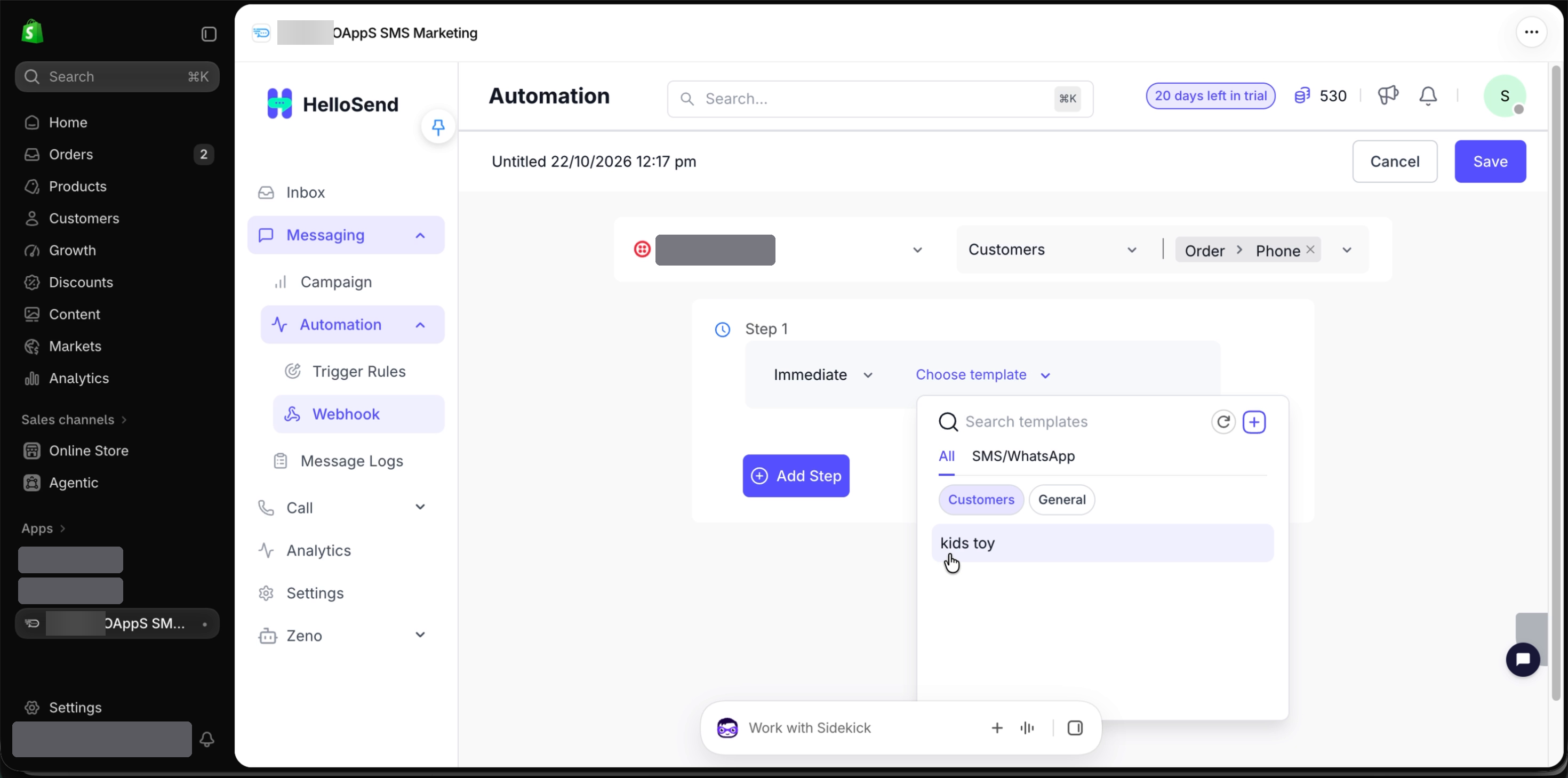
- In the HelloSend menu, go to Messaging → Automation → Webhook.
- Click + Create Webhook.
- Select the sender phone number, then select Customers as the module.
- Set the condition to Order → Phone.
- Under Step 1, keep Immediate, click Choose template and select your template, for example Order Thank You.
- Click + Add Step.
- Under Step 2, set the delay to 1 Day and 0 Hours, and choose a template.
- Click Save.
Result: HelloSend shows Automation created successfully, and the automation appears in the list.
- In the Webhook URL column, click Copy URL. HelloSend shows Copied.
Tip: Keep the copied URL ready. You paste it into Shopify in the next step.
10Add the Webhook URL in Shopify
- In the Shopify admin search bar, type webhook and select Webhooks under Settings. The Webhooks page opens under Notifications.
- Click + Webhook. The Add webhook dialog opens.
- Select the Event.
- Set Format to JSON.
- Paste the HelloSend URL into the URL field.
- Select the Webhook API version.
- Click Save.
Important: The webhook URL contains keys for your account. Do not share it.
11Test Your Setup
- Place a test order in your Shopify store.
- In the HelloSend menu, click Inbox.
- Confirm that the order message arrives in the Inbox.
Note: Get customer opt-in before you send marketing messages. WhatsApp and SMS rules require consent.
✅ Key Benefits of Using HelloSend in Shopify
🛍️ Installs with your Shopify account
You install and sign in through Shopify, with no separate login during setup.
👉 No separate HelloSend login is needed at this point.
📱 Uses your existing Twilio numbers
After you authorize Twilio, you turn on the numbers you want with a single toggle.
👉 Turning on a number makes it available for sending messages.
📝 Reusable templates
Templates with customer variables keep messages consistent and quick to set up.
👉 Templates store reusable messages that you can select in automations.
⚡ Automated order messages
Webhook automations send an immediate message and follow-ups on a delay you choose.
👉 A webhook automation sends messages automatically when Shopify reports an event, such as a new order.
❓ FAQ
Do WhatsApp templates need Meta approval?
Yes. On the WhatsApp Business Platform (WABA), business-initiated messages must use a template that Meta has approved.
Can I use a number other than Twilio?
HelloSend supports Twilio, RingCentral, Zoom, WhatsApp, WABA, Telegram and Calls. This guide uses Twilio as the example.
Why is my order message not sending?
Check that the HelloSend webhook URL is pasted correctly in Shopify (Step 10), that the automation condition is set to Order → Phone (Step 9), and that your channel is connected with a phone number turned on (Steps 5–6).
📌 Conclusion
HelloSend Call, SMS, WhatsApp for Shopify brings customer messaging into your Shopify admin. You install the app with your Shopify account, approve its access, authorize Twilio and turn on a phone number.
From there, you can create templates and automate order messages with a webhook connected to Shopify.





.webp)
