🔧 How to Use the Dial Call Option in HelloSend
1 Open HelloSend and Access the Dial Panel
There are two ways to open the Dial Pad in HelloSend depending on where you are working — inside the HelloSend portal or directly from your CRM.
-
From the HelloSend Portal
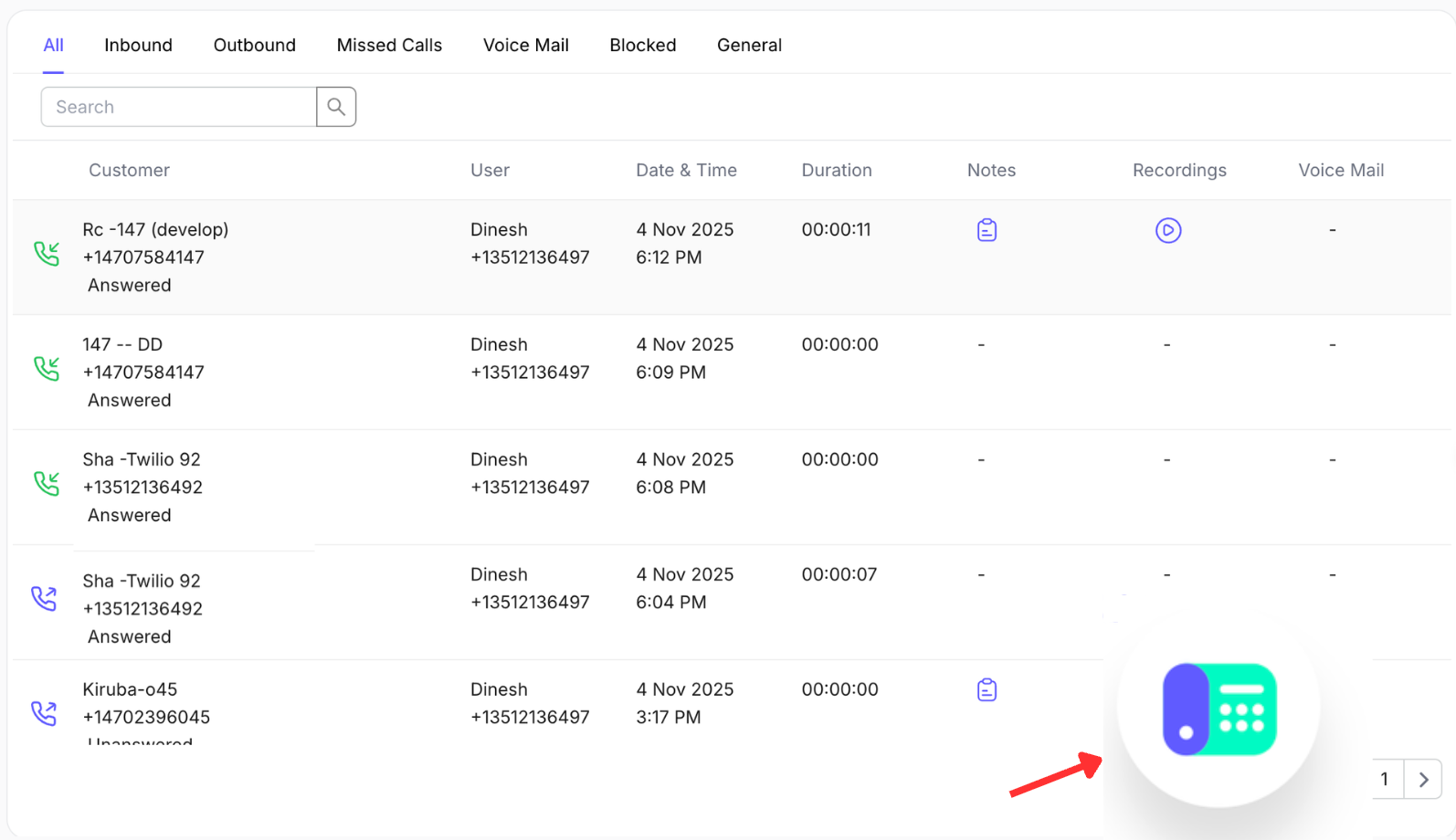
At the bottom-right corner of the HelloSend screen, click the floating Dial Call button (as shown in the screenshot). This opens the Dial Panel where you can search for contacts or manually enter a number to call. -
From Your CRM
Inside the CRM’s contact or deal page, click the phone icon next to the customer’s phone number. This instantly opens the HelloSend Dial Pad with the number prefilled, ready to call.
2 Search a Contact or Enter a Phone Number
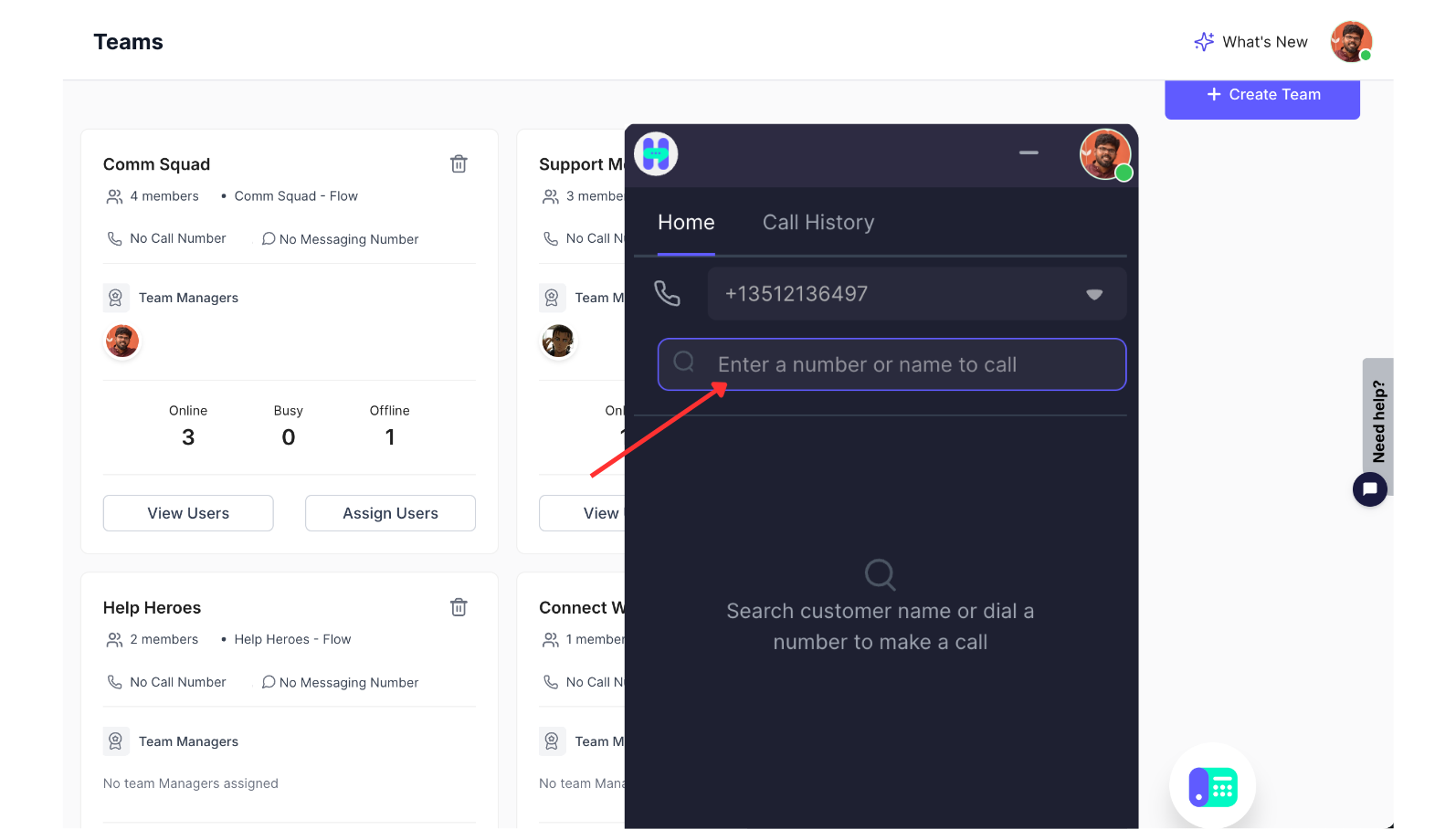
- Search Contact – Start typing a contact’s name, phone number, or email. HelloSend will show matching contacts synced from your CRM. Select the correct contact from the list.
- Manually Enter Number – Use the dial pad to type any valid phone number, including country code if needed. This is useful for new leads not yet saved in your CRM.
3 Select How You Want to Place the Call
-
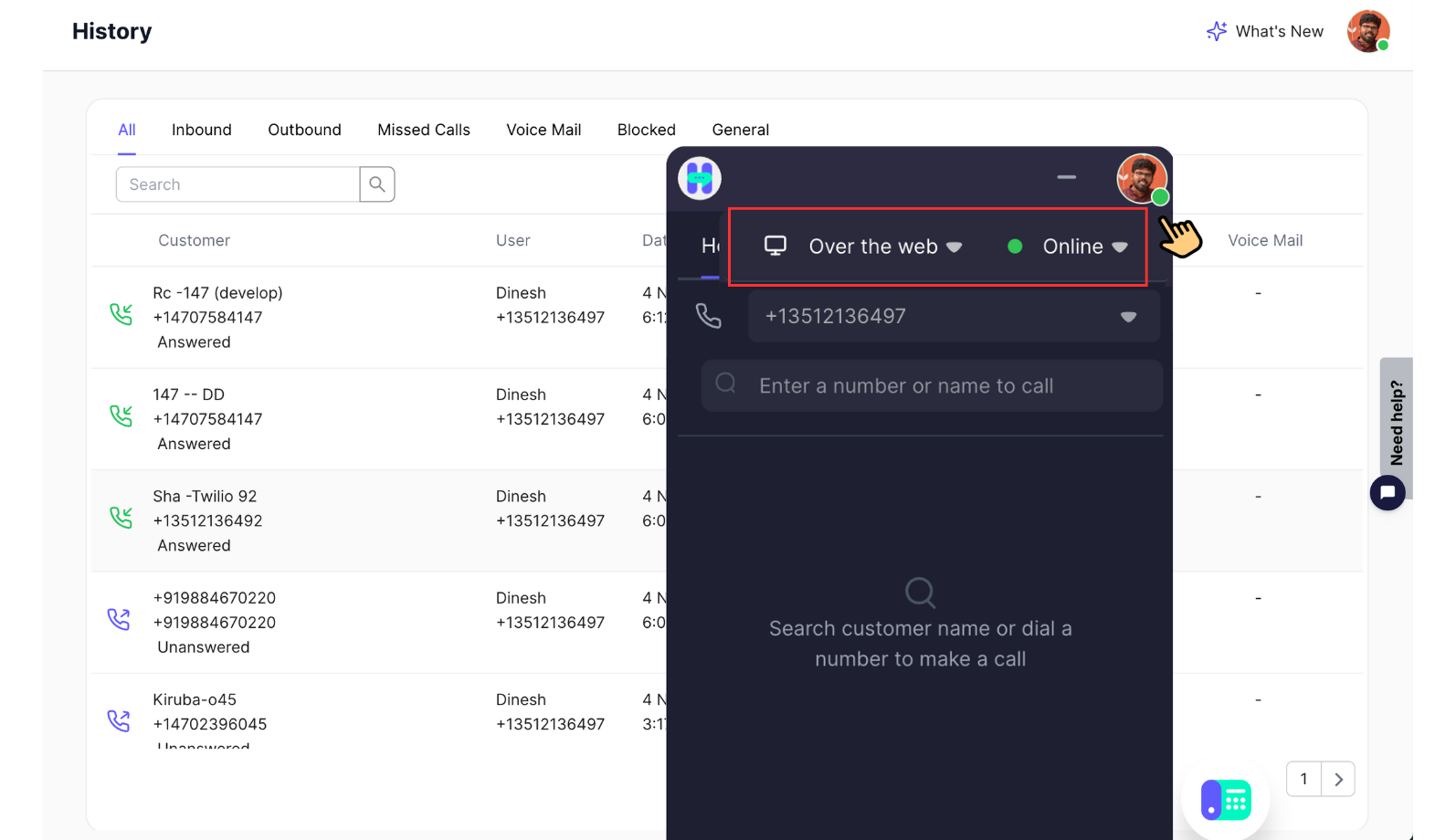
In the dial panel, choose the calling method:
- Over the Web – The call runs through your browser (softphone). You speak using your computer’s microphone or headset, while the customer receives a normal phone call.
- Over the Phone – HelloSend first calls your registered phone number. When you answer, the system connects you to the customer. Ideal if you prefer your mobile or desk phone.
4 Update Your Online / Offline Status
- Make sure your status is set to Online when you are available to handle calls.
- Switch to Offline when you are not available—this helps prevent calls from routing to you during breaks or meetings.
- Your status is also used by HelloSend’s call routing logic so that only available users receive calls.
5 Place the Call and Add Notes
- Click the Call button in the dial panel to start the call.
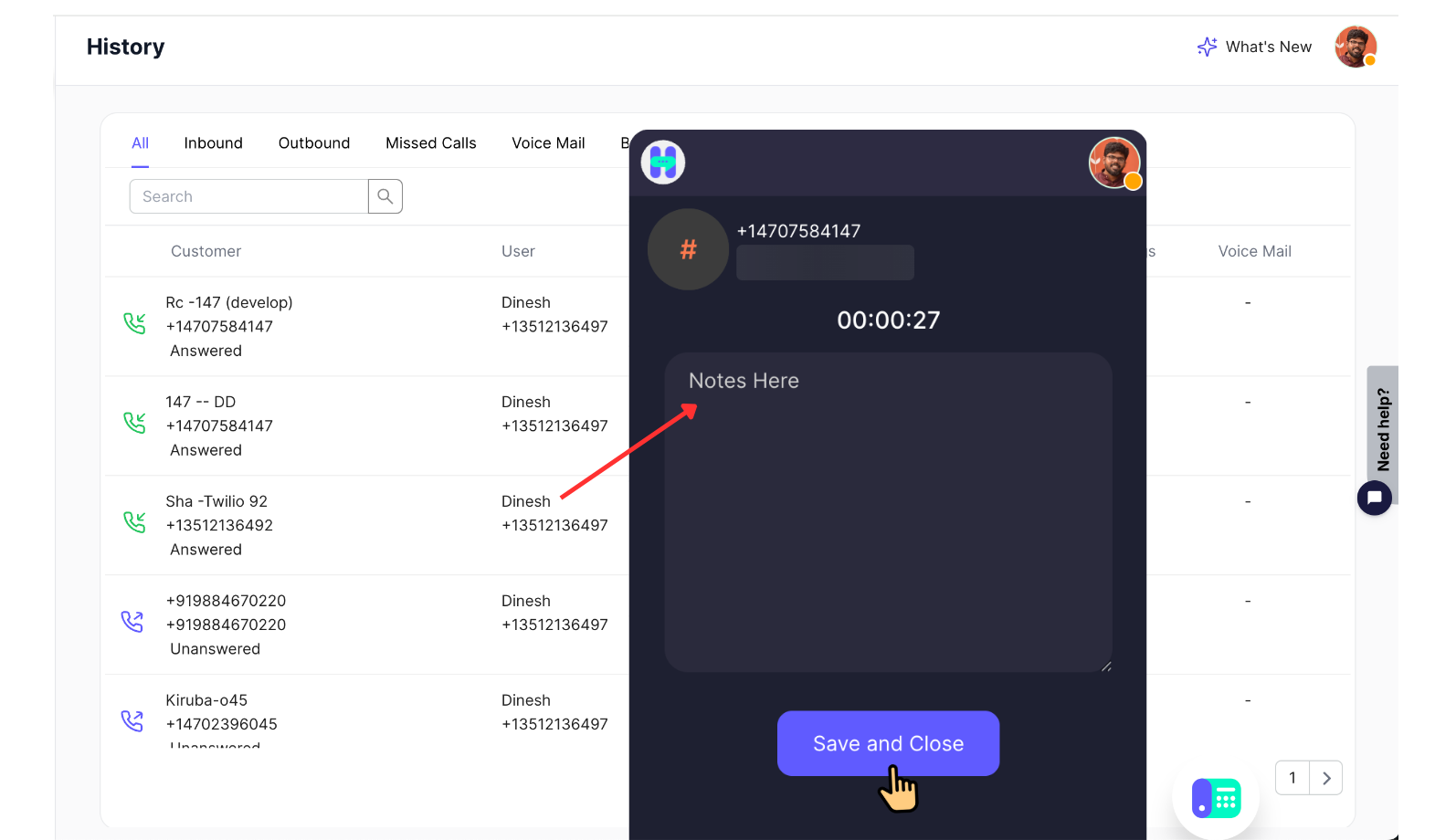
- Once connected, you can type call notes in the notes section linked to this call.
- Use notes to capture key details, decisions, follow-up tasks, or customer feedback while you are still on the call.
6 End the Call and Review the Log
- Click End Call when the conversation is complete.
- HelloSend automatically logs the call with date, time, duration, direction, and notes.
- The call record is linked to the relevant CRM contact (and deal/ticket if applicable), so your team can review it later.
✅ Benefits of Using the Dial Call Panel in HelloSend
🚀 Faster Outbound Calling
Start calls directly from HelloSend instead of using separate phone apps. Search contacts and dial new numbers from a single panel for a smoother workflow.
📚 Better CRM Documentation
Every call is automatically logged with notes, duration, and direction against the correct CRM record, giving your team complete context for future interactions.
🎧 Flexible Call Handling
Choose between Over the Web and Over the Phone so you can work from your browser, a softphone setup, or your regular mobile/desk phone.
📝 Real-Time Note Taking
Capture important details while you’re still on the call. Notes are saved instantly and remain available for your entire team.
🟢 Clear Availability Status
Online / Offline status ensures your team and routing logic always know who is available, preventing calls from going to unavailable users.
🤝 Consistent Customer Experience
With accurate logs and shared history, any teammate can pick up the next call with full context, giving customers a smoother, more consistent experience.
📌 Conclusion
The Dial Call option in HelloSend turns your workspace into a complete outbound calling hub. From searching contacts and dialing new numbers to choosing how calls are placed and taking notes in real time, everything happens in one place. Used consistently, it improves calling efficiency, keeps your CRM up to date, and helps your team deliver a more professional and reliable calling experience.